DBWARM
 Enable DBWARM Access Right Manager
If checked, MechworksPDM runs under the control of the DBWARM Access Rights Manager: you can define groups of users for which some of the commands can be denied; you can also assign projects to users so that the users belonging to a given group can have access only to the documents needed for their work.
Use DBWARM Login
If checked, MechworksPDM asks for a User name and Password when starting the program.
Using this option you can login in the MechworksPDM system as a user that is not necessarily the same as the user currently logged in Windows.
This user name is the one that MechworksPDM uses for filling the CREATED_BY, LAST_MODIFIED_BY, CHECKED_OUT_BY, APPROVED_BY fields and for the DBWArm permissions check.
Please note that access to the software is different from access to the database, normally controlled by the Database Engine Security system.
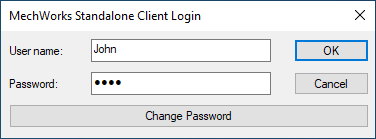
The following subset of options allow for advanced control on logins and approvals.
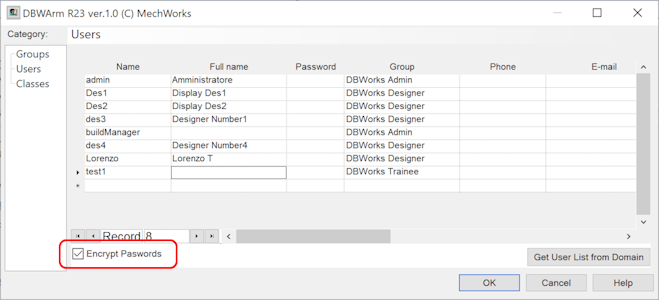
Encrypt Passwords
When checked, the passwords are encrypted in the DBWORKS_USERS table, and are therefore not human readable.
If enabled, when acting on DBWARM users dialog, the checkbox on such dialog must be enabled too:
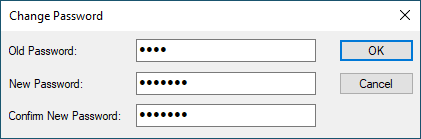
Allow Change of Password
When checked, the user can change the password during the login
The DBWORKS_USERS table must be populated with EMPTY passwords, in order to allow the user to change his password the first time he logs in.
Check for Minimum Password Complexity
When checked, a password must have:
•a minimum length of 7 characters
•at least one lower case character
•at least one upper case character
•at least one number character
If this option is active any password not compliant with these rules will not be accepted.
Custom Complexity
This options allows to define custom password minimum complexity parameters to validate new passwords. The format is submitted through a string of comma separated values, whom order is:
Pos |
Meaning |
Example |
|---|---|---|
1 |
Total length |
8 |
2 |
Uppercase chars |
ABC... |
3 |
Lowercase chars |
abc... |
4 |
Numeric chars |
123... |
5 |
Special chars |
@ # [ ] ( ) ? ^ + - * : _ ! £ $ % & / < > § ç |
Example1
For example, if it's required that new passwords comply with the following rule:
•Total password length >= 12
•Number of Uppercase characters >= 2
•Number of Lowercase characters >= 1
•Number of Number characters >= 3
•Number of special symbols >= 1
the resulting string: 12,2,1,3,1
Example2
If some restrictions are not required, just set the value as 0 (zero):
•Total password length >= 12
•Number of Uppercase characters >= 2
•Number of Number characters >= 3
the resulting string: 12,2,0,3,0
Notify Administrator on Failed Login
When checked, if the login fails for 6 times, an e-mail is automatically sent to a specified administrator.
Remarks
The parameters, necessary for sending e-mails, must be added to the shared DBWCONN.PAR connectivity parameters file:
;
; automatic emails parameters
;
DBWORKS_EMAIL_SMTP_SERVER smtp.myserver.com
DBWORKS_EMAIL_FROM_ID DBWorks
DBWORKS_EMAIL_FROM_ADDRESS [email protected]
DBWORKS_EMAIL_LOGIN_USER [email protected]
DBWORKS_EMAIL_LOGIN_PASSWORD xxxxxx
Lock Account on Failed Login
When this option is active, failing to login for 6 consecutive attempts locks the user account.
Only the Administrator can unlock the account, accessing directly the DBWORKS_USERS table.
Request PIN on Workflow Approval
If checked, and with the Workflow module activated a PIN (Personal Identification Number) is required on workflow approval.
The PIN must be assigned by the MechworksPDM Administrators to the people with approve priviledges, by accessing directly the DBWORKS_USERS table.
Typically the PINs are encrypted in the database.
Request PIN on every Workflow State Change
Self explaining
Use DBWARM Full User Name
if checked retrieves the user name of the current user from the DBWArm's table DBWORKS_USERS::FULLNAME field
Remarks
We strongly suggest to have the same accounts between Windows system and DBWARM system. If you log in Windows with a user that does not exist in the DBWARM table, the execution of MechworksPDM and its applications (for example DBWAclServer) will be seriously affected by this inconsistency. Because of this fact, we strongly suggest to Auto-populate users grid with the button, as the first step. Please refer to DBWARM specific help for further info |
Read here about determination login process accordingly to different option settings.
Enable DBWARM Record Level Access Control
This option allows to apply the concept of classes to security, permitting to grant rights at record level. See details.
Performance optimization when working with the Record Level Access Control
In order to get the maximum performances, the SCHEMA\Tables2.DFL must declare the DBWARM_CLASS in all the grids expect the REVISIONS and PLOT grids.
Example
@VER 2
;===================================================================
; TABLES2.DFL
;
;(C)MechWorks Default Tables definition file
; ....
; ....
;===================================================================
ASSEMBLY FROZEN_COLS 3
...
DBWARM_CLASS HIDDEN
PART FROZEN_COLS 3
...
DBWARM_CLASS HIDDEN
DRAWING FROZEN_COLS 3
...
DBWARM_CLASS HIDDEN
GENERIC FROZEN_COLS 3
...
DBWARM_CLASS HIDDEN
REVISIONS
...
COMPOSED_OF FROZEN_COLS 3
...
DBWARM_CLASS HIDDEN
USED_BY FROZEN_COLS 3
...
DBWARM_CLASS HIDDEN
WORKING_SET FROZEN_COLS 3
...
DBWARM_CLASS HIDDEN
SEARCH FROZEN_COLS 3
...
DBWARM_CLASS HIDDEN
PLOT
...
Limit Full Text Search on Assigned DBWARM Projects
When checked (Default: not checked), the Full Text Search functionality is filtered against the Project ↔ User assignment for the current user.
Limit Access to Documents not belonging to assigned DBWARM Projects
If checked any Document not belonging to the assigned Projects will not be accessable by any functionality, included Preview and Full Preview. Basically, such Documents can show only their Structure, and they can be navigated through the Child and Parent Tree functionalities.
Never reset project queries on changed assigned projects
When changing the Project↔User Assignment for a specific user, by default MechWorksPDM resets his current project queries and project selections, since the new assignment might be not compatible with the old displayed projects in the user Browser. By enabling this option the MechWorksPDM can disable such automatic project queries reset and have his users to continue to work with their currently displayed project selection. Of course it is up to the MechWorksPDM Administrator to decide if such option must be enabled for specific DBWArm Groups or not
Users with no Projects assigned have no access to any Project
By default, if a user is not assigned to any project through the Project↔User Assignment manager, then that user have access to ALL the projects in his Project Tree. With this options checked, this behavior is inverted so to HIDE ALL the projects in the Project Tree if a user has not been assigned to any project through the MechworksPDM Project↔User Assignment manager.
This option is taken into consideration only if the Project↔User table is empty (no assignment for the current user)
It's useful for allowing small companies to be not too much worried about Project↔User assignments
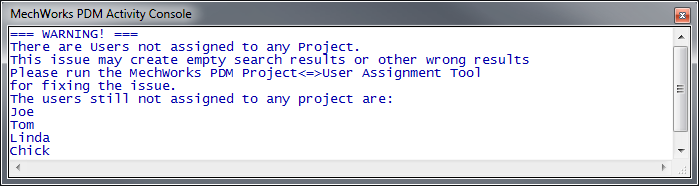
In case that some users still have no project assigned, the DBWArm Administrator will see the Activity Console displaying a warning like the following:
Apply Project User filter to UsedBy Grids
If enabled (and except for the Admin that has no filter applied), a DBWARM User can see only parents' documents belonging to the list of the User's visible projects as defined in DBW_PROJECT_USER table.
Use DBWARM Group Specific Parameters Edit...
If you check this option you can assign a separate DBWAPP.PAR parameter file to each group defined in the DBWARM database. Note that the special DBWorks Admin group never uses group-specific parameter files, being the group allowed to assign the files themselves. DBWorks looks for a sub-folder named DBWARM, under the main shared parameters folder defined in the registry entry:
HKEY_LOCAL_MACHINE\Software\MechWorks\DBWorks\98\GlobalParametersPath
Under this folder it looks for sub-folders named as GROUPS\<group name>, where <group name> is the name of a DBWArm group with all the special characters replaced with the underscore "_" character. From every group-specific sub-folder, MechworksPDM loads the current DBWAPP.PAR file.
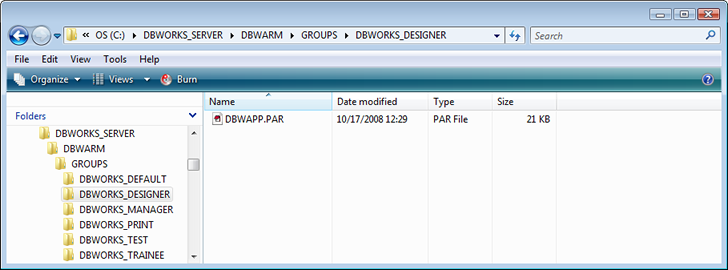
The initial directory structure necessary for this functionality can be created using the access rights editor DBWARM 2004 ver. 1.1. In this version of the access rights editor, in the starting Group page, the button Initialize Data Directory starts the initialization of the directories and files needed for the above functionality.
The editing of each group-specific DBWAPP.PAR must be done by the Administrator manually, adding or removing the parameters needed for each DBWARM group.
Please note that parameters files once copied in groups folders are in a read-only state, so they have to be successively modified by Adminitrator to meet each user group needs. Then non-Administrator users should have options modification denied from DBWARM settings.
Default Group for New Users:
This option set the default group for brand new users. it's related to the DBWCONN.PAR variable DBWARM_NEW_ACTIVE_DIRECTORY_USERS_AUTOMATIC_LOGIN.
Example
New Windows Active Directory User which tries to log in into PDM and is not present in DBWORKS_USERS table.
consider:
•dbwapp.par → OK_DBWARM_DEFAULT_GROUP_FOR_NEW_USERS "DBWorks Default"
•dbwconn.par → DBWARM_NEW_ACTIVE_DIRECTORY_USERS_AUTOMATIC_LOGIN (0/1)
1.First-ever login after PDM initial installation:
•if DBWORKS_USERS table has no admins then new USER logs into PDM and it will be stored as an ADMIN
•if DBWORKS_USERS table has already an Admin then new USER logs into PDM belonging to the group defined in option OK_DBWARM_DEFAULT_GROUP_FOR_NEW_USERS.
2.Next Logins:
DBWARM_NEW_ACTIVE_DIRECTORY_USERS_AUTOMATIC_LOGIN |
|
|---|---|
1 |
New USER logs into PDM and will belong to the group defined in option OK_DBWARM_DEFAULT_GROUP_FOR_NEW_USERS. |
0/undefined |
New USER will not log into PDM |