The files Tables.dfl and Tables2.dfl
In the subdirectory schema, indicated in the option as you can find the file Tables.dfl and its second version Tables2.dfl.
You needn't modify the file manually as the DBCustomizer offers you a specific graphic tool that allows you to bring about modifications in a friendly, graphical environment. More, using the DBCustomizer ensures that you won't delete necessary entries for the correct functioning of MechworksPDM. To know more, read the chapter DBCustomizer.
This description is a reference for you to be able to edit the file manually.
This file determines for every document type which fields are included in the related standard table, their order, if they're visible and how many of them are locked in their position and remain visible also while scrolling horizontally.
The format of the file, as described in the header is as follows:
;===================================================================
; TABLES.DFL
;
; DBWorks (C)MechWorks Default Tables definition file
;
; Format:
; 01234567890123456789012345678...
; <VIEW1> [FROZEN_COLS <FROZEN_COLUMNS>]
; <FIELD 1> [HIDDEN]
; <FIELD 2> [HIDDEN]
; <FIELD 3> [HIDDEN]
; <FIELD 4> [HIDDEN]
; <VIEW2> [FROZEN_COLS <FROZEN_COLUMNS>]
; <FIELD 5> [HIDDEN]
; <FIELD 6> [HIDDEN]
; <FIELD 7> [HIDDEN]
; <FIELD 8> [HIDDEN]
; ....
;===================================================================
An example of a valid content may be:
ASSEMBLY FROZEN_COLS 2
T
ID
FILE_NAME HIDDEN
...
In this case, in the table that displays assemblies, there are 2 frozen columns. A frozen column is a column always visible, also when you scroll the table horizontally. In this case the columns containing the fields T and ID will always be visible on the left side.
The third field, FILE_NAME is marked as hidden. Hidden fields are fields that are not visible to the user, but that are necessary for MechworksPDM to work correctly. In this case the information about the file name is necessary to MechworksPDM in order to identify univocally the assembly on the disk, but if you define it HIDDEN, MechworksPDM will not display the information that for you may be redundant.
It is very important to note here that you cannot remove fields necessary to MechworksPDM for it's normal operation; if not explicitly driven by a MechWorks consultant, you can change only the ORDER of the fields in the list and you can add any new CUSTOM field created by the DBCustomizer.
The necessary fields are:
ASSEMBLY |
PART |
DRAWING |
GENERIC |
REVISIONS |
|---|---|---|---|---|
REVISION ID FILE_NAME |
REVISION ID FILE_NAME |
REVISION ID FILE_NAME |
REVISION ID FILE_NAME |
REVISION APPROVAL_DATE DOCUMENT_UNIQUE_ID |
Don't include fields that are not in the related view: (for example the field WEIGHT has not been included for Drawings)
If some fields are not commonly used, you may decide to sort the list so that those fields are at the bottom of it. If you created a custom field and you decide to delete it, this will not interfere with MechworksPDM' normal operations.
It's recommended to keep fields such as T, STATE, UNIQUE_ID, FILE_DIRECTORY and FILE_NAME
Here you can find an example of a valid modification that adds to the table of parts the field NEW_FIELD previously created and added to the view Part.
If on the other hand you need to reorder the existing fields within a table you can do it as long as the structure rules mentioned before are respected.
Before you modify the file it is a good idea to make a backup copy. In any case you can find a backup copy of the original installed file in the same directory with the name Tables.dbw; this file must never be modified for safety reasons as it is the last resource for recovering from errors.
EditBOM dialog
In Tables2.DFL it can be also defined the fields to show in the EditBOM dialog. Use the Administrative Tool to set fields.
In case the EDIT_BOM section is not defined, the COMPOSED_OF is used instead.
Default ORDER BY fields
The grids lists default order can be declared in the SCHEMA\TABLES2.DFL with the special clausole @ORDER followed by the TableName and the list of the ORDER_BY fields:
Syntax
@ORDER <table name> <comma separated fields list>
Notes
•only one ORDER_BY field can be declared for the PROJECT table
•the REVISION table is not managed
•the EDIT_BOM section is not managed since it's assumed it has to be sorted by the BOM position
The table names must be localized in each language, following the standard rules of the TABLES2.DFL DBCustomizer will manage all these issues automatically.
Example
Tables2.DFL
...
@ORDER SEARCH DESCRIPTION
@ORDER COMPOSED_OF T,DESCRIPTION
@ORDER DRAWING SHEET_FORMAT
@ORDER PROJECT CREATION_DATE
...
In the above example:
•the SEARCH Grid will be ordered by the field DESCRIPTION
•the COMPOSED_OF Grid will be ordered by the fields T and DESCRIPTION
•the DRAWING Grid will be ordered by the field SHEET_FORMAT
•the PROJECT Tree will be ordered by the field CREATION_DATE
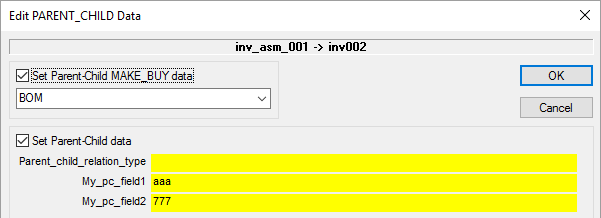
Edit PARENT_CHILD Data
To customize the list of custom fields to be shown in the Edit Parent_child data dialog, it's possible to declare a PARENT_CHILD section followed by the name of the chosen fields:
...
PARENT_CHILD
PARENT_CHILD_RELATION_TYPE
MY_PC_FIELD1
MY_PC_FIELD2
...
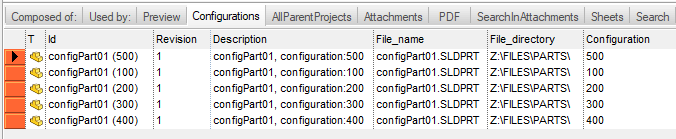
Configurations tab
This grid shows data about other configurations (only if enabled in Environment → Configurations options) of the currently selected record.
Fields of this tab are referred to models so its set is a merge of ASSEMBLY and PARTS fields