The tree of projects (or ProjectTree)
The tree of projects (or simply ProjectTree) displays all the projects and subProjects available.
This window displays the ideal roots of the tree of documents including every document in the database.
The tree can be filtered using the filter or the Global Documents Filter (set in options User Interface → Browser Behavior).
For further information about what a project is and how it is handled in MechworksPDM, read the topic Understanding projects.
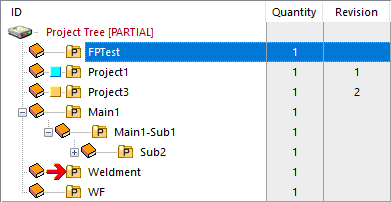
This is an example of ProjectTree
|
based on the image: •Project Tree [PARTIAL] means that not all the project are currently shown but only a selection of projects •FPTest is the currently selected project •Project1 and Project3 are revisioned projects •Main1 is a project containing subprojects •Weldment is the current project |
You can expand/collapse projects using a clickable icon on the left of the project name
|
|
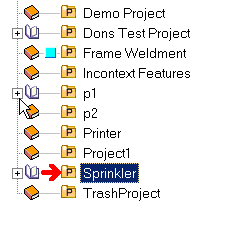
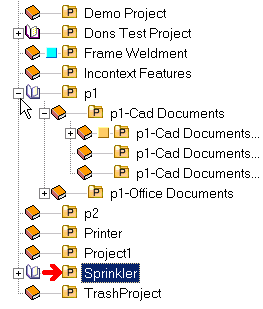
Understanding the book icons interface
In the Project Tree are displayed book icons
•open  the project is loaded in memory; clicking the plus icon
  shows its sub-components
•closed  the project is not loaded in memory; by clicking the plus icon you can see only sub-projects (if any)
When the book is closed, you cannot see any components but only the possible presence of sub-projects (the plus icon means that the project contains at least one sub-project).
Example
|
Project not loaded in memory; no sub-projects |
|---|---|
|
Project not loaded in memory and node collapsed; it has sub-projects; if you click |
|
Project not loaded in memory but node expanded; you are seeing only its sub-projects |
|
Project loaded in memory but node collapsed; if you click |
|
Project loaded in memory and node expanded; everything is visible |


Remote Access: visualization of foreign documents and projects in the tree
Foreign documents are marked to identify them at a look:

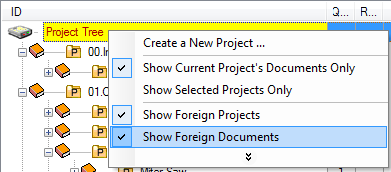
You can decide to show them or hide them from the popup menu of the tree root:
Operations available for projects
Creating a new project
To create a new project, click Create a new project in the menu bar of the CAD, or RMB the root of the project tree and select Create a new Project...
A dialog window asks for the name of the new project. Assign and clik .
Creating a subProject
To create a subProject, select a project, right-click it and in the popup menu select Create a sub-Project.
In the dialog (pre filled with the father project name) enter an ID 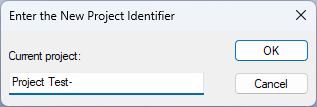
Displaying only a subset of projects in the tree
Displaying documents in the Projects tree
You can display documents belonging to projects directly inside this tree. You may decide, for instance, to hide the ComposedOf and UsedBy grids and use this tree to look for documents if you know their hierarchical position.
In the TreePage button bar you have buttons to display documents (Expand tree nodes) or to hide documents (collapse tree nodes).
Drag&Drop support
To enable this support, the related options in User Interface → Tree must be checked.
You can drop files selected from MS Explorer directly into the Tree, or rearrange with drag&drop operations
the project assignment of the documents.
The supported operations are:
Drag from |
Drop to |
Action |
|---|---|---|
A list of files selected in MS Explorer |
A Project |
Insert non CAD files in the project and register SW files in the In Windows when you drag a file to a folder on the same drive, the default is for the file to be moved. When you drag a file to a different drive the default is for the file to be copied |
Not a Project |
OPERATION NOT ALLOWED |
|
A list of documents selected in the MechworksPDM tree |
A Project |
Add documents to the target project |
Not a Project |
Add non CAD documents to the target document pressing the Ctrl key, will also remove the documents from the old |
|
A list of projects selected in the MechworksPDM tree |
A Project |
Add sub-projects to the target project pressing the Ctrl key, will also remove the sub-projects from the old project |
Not a Project |
OPERATION NOT ALLOWED |
It is possible to drag & drop a file in the SW desktop directly from any Tree Control item, starting the dragging on the item label. Multiple selections are allowed.
Setting the current project
Double clicking a project will make it the Current Project. Optionally you can also set it in the popup menu.
Project Tree sorting
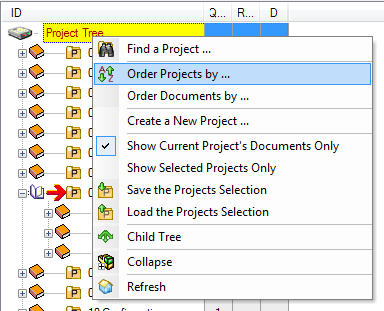 Change order of top level documents in project tree: RMB on the Project Root, select Order Projects By...
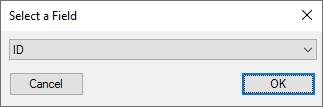
MechworksPDM allows you to select a field name from a list. The field will be used to order the tree items.
Show only the description in the Project Tree
You can drive the showing behavior through the option User Interface→Tree→ Show Descriptions in Project Tree
Create a child tree for a project
It is possible to create a child tree for a given project. Righ click it and select the command Child Tree.
Rebuild performance improvements
Stop rebuild
The Esc key stops the rebuilding of the tree both in the projects tree and in the TreePage.
Options to avoid enlisting unnecessary files
In options User Interface → Tree you can define file patterns to exclude files from being included both in the parent and in the child tree.
 Avoid Child Tree for Documents with File Names like...
Avoid Parent Tree for Documents with IDs like...
Related topics
To view the entries in the pop-up menu for this tree, read the topic Pop-up menus in the tree of projects.