Installation/Uninstallation
Please note it's assumed the installation is on a Domain and minimum OS version is Windows server 2012
0. File deployment
The file deployment for ACLServer is a bare copy of the folder bin\DBWACLServer\x86 from an already installed client to a chosen location of the file server If you install at least a standalone on the File server you do not need to perform any copy since you can address the service directly to
%programfiles(x86)%\MechWorks\MechWorks_Pdm\bin\DBWAclServer\x86\DBWAclServer.exe
Otherwise if you won't install the PDM on the File Server, you need to setup manually the following component that usually are deployed by the PDM installer: x86 VC++ Redistributable packages for Visual Studio 2015, 2017, 2019 and 2022 (you can get its lastest version from Microsoft website).
1. Identify or create a user to make the DBWACLserver service act on behalf of
In a domain environment it is strongly suggested to make the service acting as Administrator user; otherwise it can be used an alternative Domain user that has been granted with the required rights.
Rights to be assigned to a brand new user
First of all, the personality of DBWACLServer must belong to Windows Domain Administrators Group
Then followings rights must be set
•SeServiceLogonRight
•SeSecurityPrivilege
•SeTakeOwnershipPrivilege
•SeTcbPrivilege
•SeBackupPrivilege
•SeRestorePrivilege
To setup these rights on a specific user, it's provided a batch file (you first have to modify it by setting proper values for MyDomain\Username):
C:\Program Files (x86)\MechWorks\MechWorks_Pdm\bin\Set_dbwserver_admin_rights_sample.bat
In case you're installing on more recent servers like server 2016 and server 2019, you've to run a power shell script to achieve the user right assignment since the ntrights command is not available anymore.
MechworksPDM contains an example of such script to be run via PowerShell:
C:\Program Files (x86)\MechWorks\MechWorks_Pdm\bin\Set_dbwserver_admin_rights_sample.ps1
or (on the server)
C:\Program Files (x86)\MechWorks\MechWorks_Pdm_Server\DBWAclServer\x86\Set_dbwserver_admin_rights_sample.ps1
and its module (must be placed beside the script):
C:\Program Files (x86)\MechWorks\MechWorks_Pdm\bin\UserRights.psm1
or (on the server)
C:\Program Files (x86)\MechWorks\MechWorks_Pdm_Server\DBWAclServer\x86\UserRights.psm1
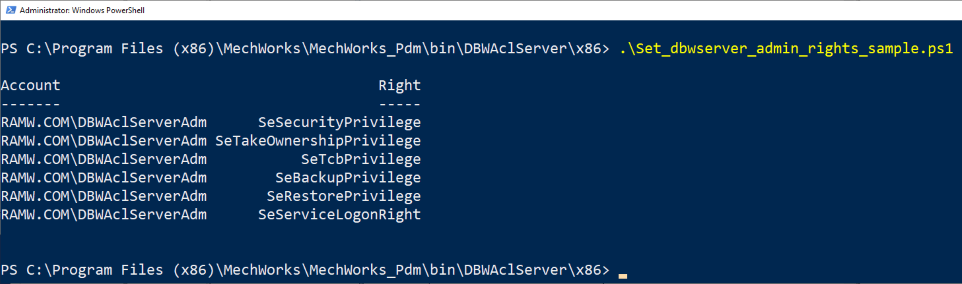
The script loads the module, then does assignments, finally show the current status of the rights:
Check the Log on a service permission
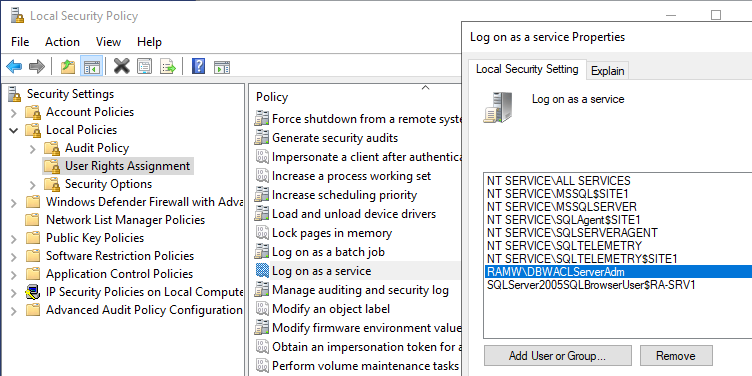
Before starting the service, it's mandatory to grant the personality that run the service a special right
Open the Local Security Policy dialog by typing secpol.msc (from an administrator MSDOS prompt) and make sure the Log on as service entry has the service personality enlisted, in the below case DBWAclServerAdm since the service will run as it:
2. Service installation/uninstallation
To install the Service execute the following batch file providing the Domain Administrator credentials:
DBWAclServer_install.bat <username> <password>
user |
MyDomain\User |
|---|---|
password |
the password related to the above user parameter |
e.g. for a user named DBWAclServerAdm on a domain named RAMW.COM
DBWAclServer_install.bat RAMW.COM\DBWAclServerAdm myPassword123
to uninstall the service run the batch as followings
DBWAclServer_uninstall.bat
2.1 Server firewall
In order to have the DBWAclServer.exe working, the Server Firewall must allow that process: 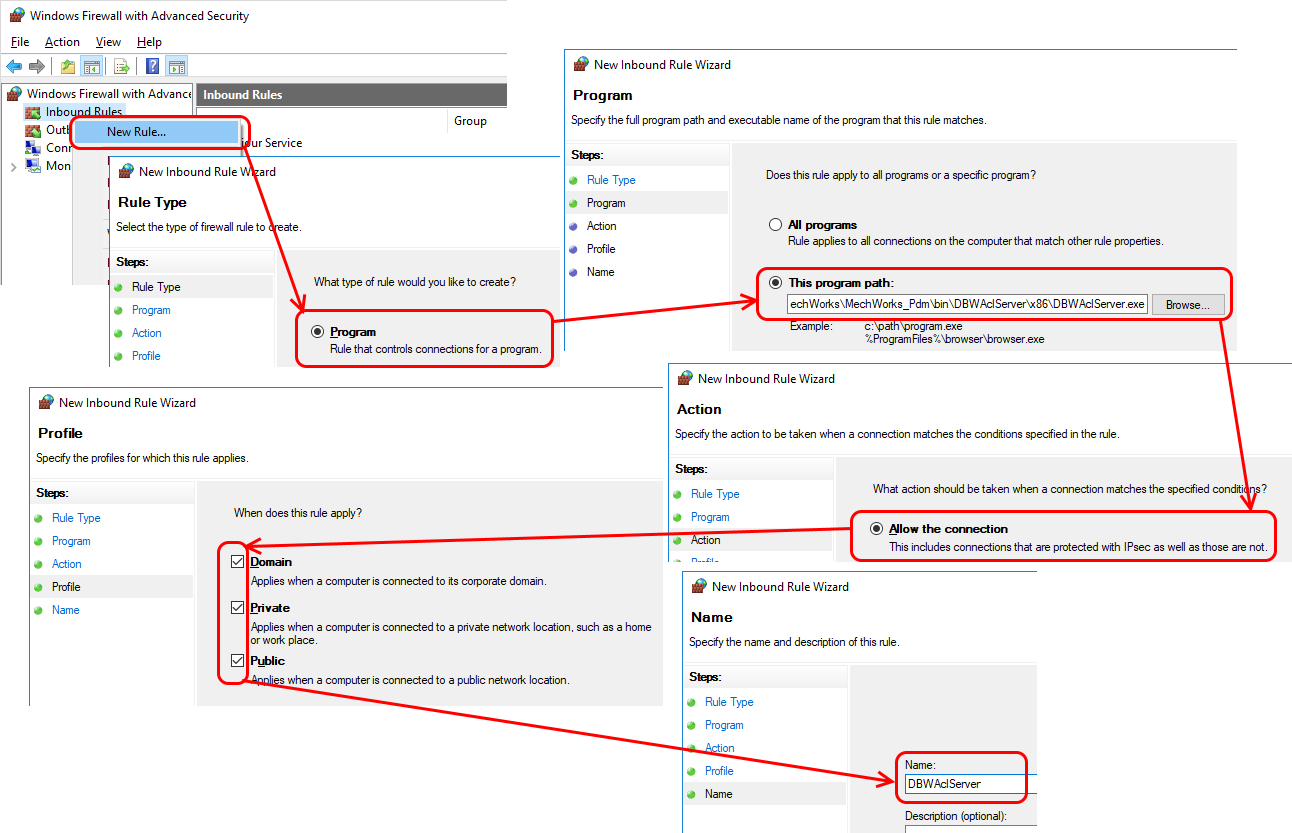
3. Group creation
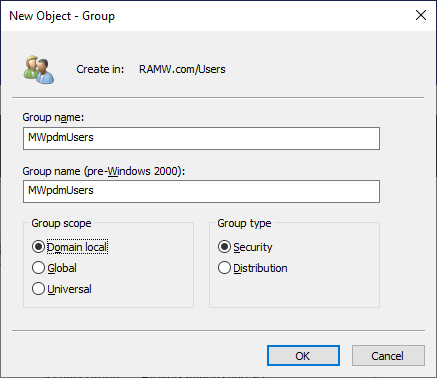
You've to create a Domain group that all the PDM users have to belong to (e.g. MWpdmUsers).
4. Action to be performed on the file server
a.Create a folder (e.g. named SHARED_PARENT_ROOT) that will be the container for the root of PDM files folder

b.Share such folder giving Everyone the Full Control:
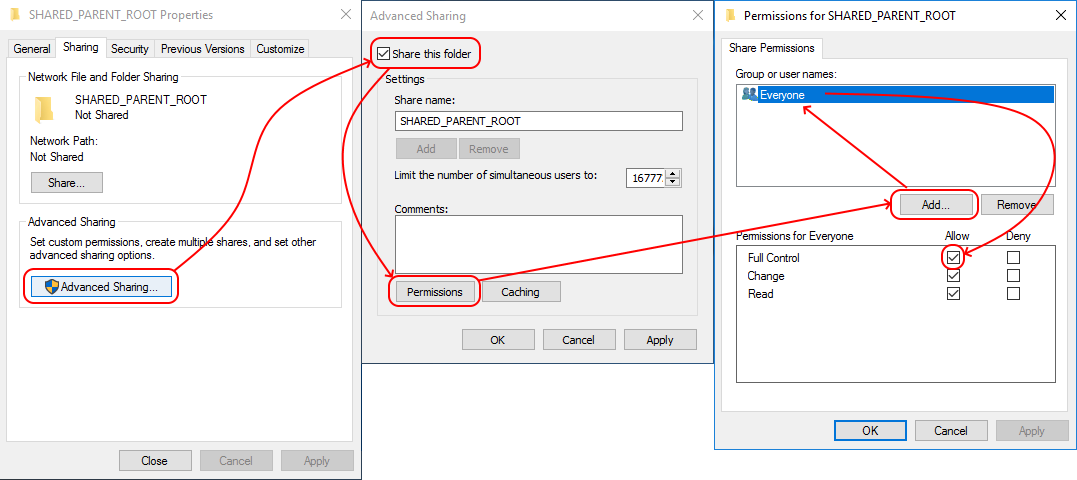
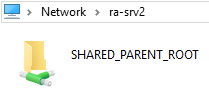
As test you can connect from another workstation to the server via windows expoler and verify that the folder is shared:
c.Create a subfolder of the previous folder (e.g. named DBW_FILES_ROOT) that will be the actual container for the PDM files and folders
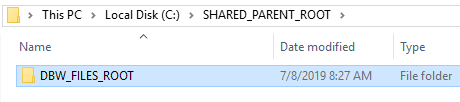
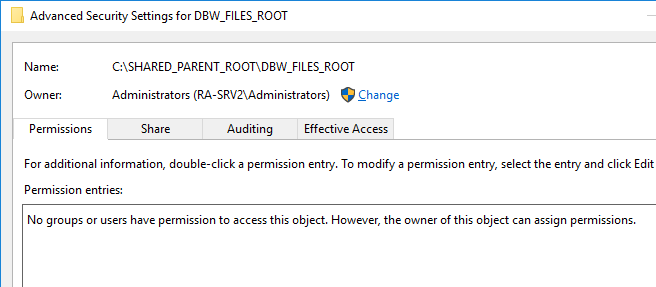
d.Now open the properties of the DBW_FILES_ROOT folder and disable the permissions' inheritance: 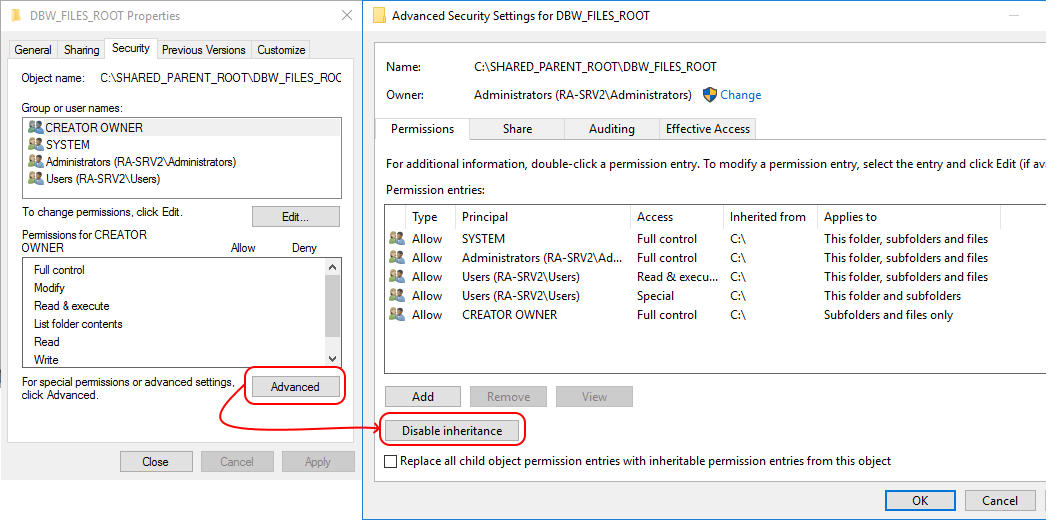
so to obtain this
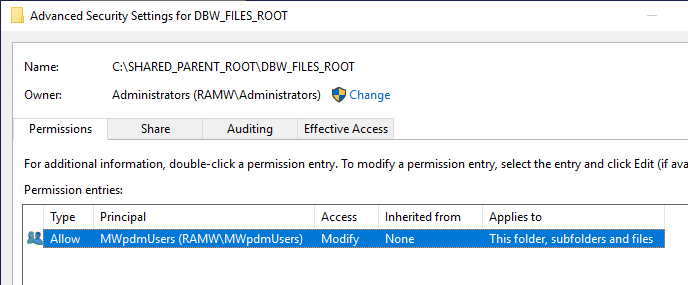
e.Add an ACE with designers group (e.g. MWACLdesignersGroup) specifying the Modifiy permission: this makes automatically files/folders accessible with no delete and take ownership permissions.
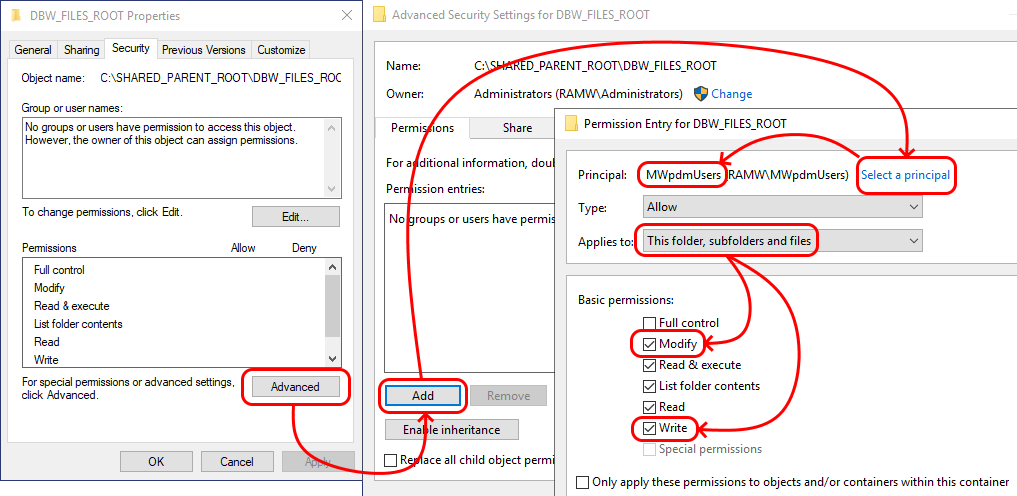
so to now obtain this
5. Set rights on the existing files
Using the distributed script is possible to properly set rights on already existing archives.
<Mechworks_PDM_server>\LST\SYSTEM\AssignDBWServerACLFileState.vbs
6. Set PDM options and test connection with the Server
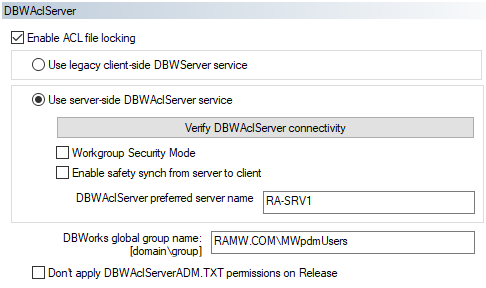
By clicking the button, you'll be prompted about the server to test
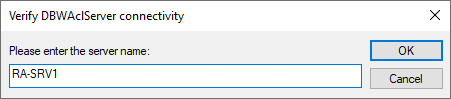
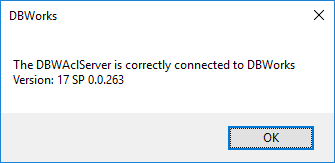
and then, if successfull, about connection performed:
Verify DBWAclServer is working properly
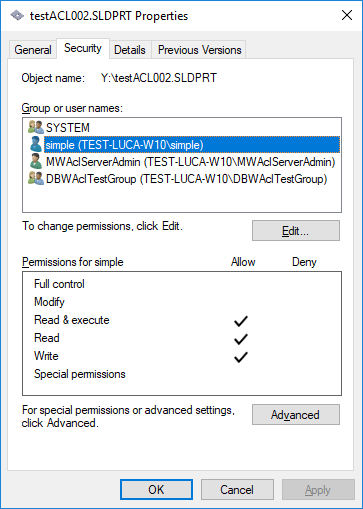
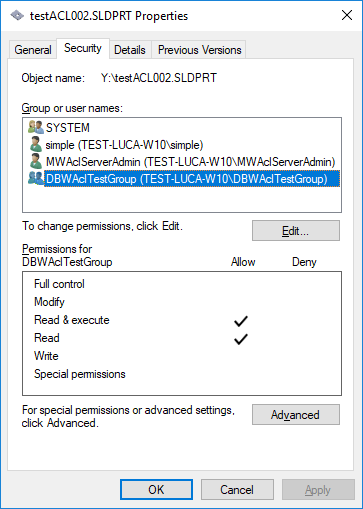
To verify the module is working properly you've to check the rights on the single file starting from 2 different users.
Suppose you've 2 documents in checkout state, one by user simple and one by user Luca (users both belong to DBWAclTestGroup): 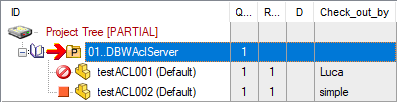 This is how the ProjectTree is shown when logged as user simple
Both files are in a writeable state (no readonly flag): 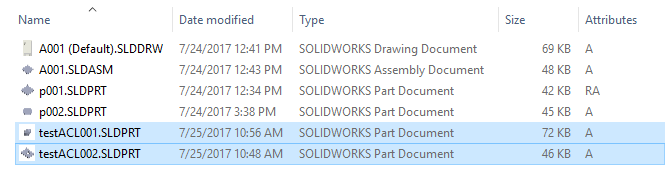
but if you try to delete the other one (e.g. user simple tries to delete the file checked out by user Luca), you're not allowed to: 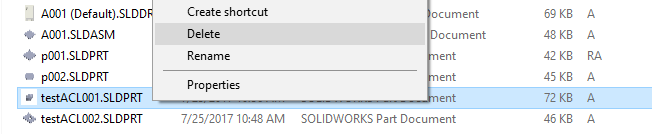
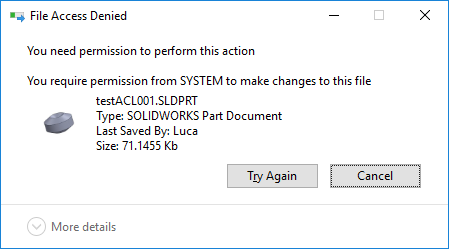
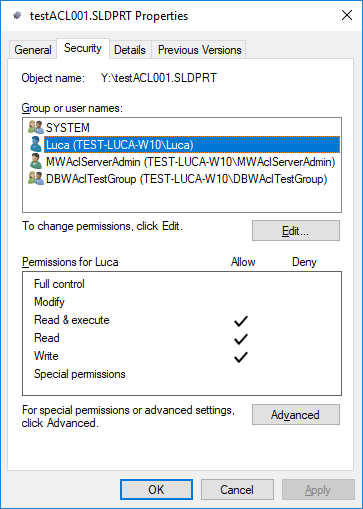
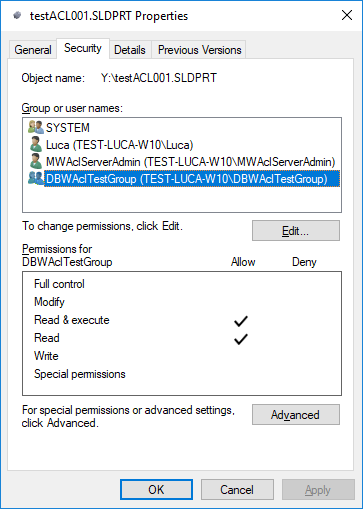
Then, taking a look to file rights (being logged as user simple):
•security of file testACL001.SLDPRT (checked out by user Luca):
|
|
•security of file testACL002.SLDPRT (checked out by user simple):
|
|
Locking user information available
When user tries to apply a command to a document which has been locked by someone else (i.e. trying to rename a part opened elsewhere), the user receives a locking message that shows the username who has the lock on that document.
Examples
•The rename of a part opened by another user will fail and it results in:
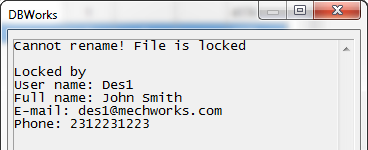
Please note that, if DBWArm is active, full user info (full name, email address and phone) will be shown just after the user name.
•The replace of a reference in an assembly (opened by another user) will result in: 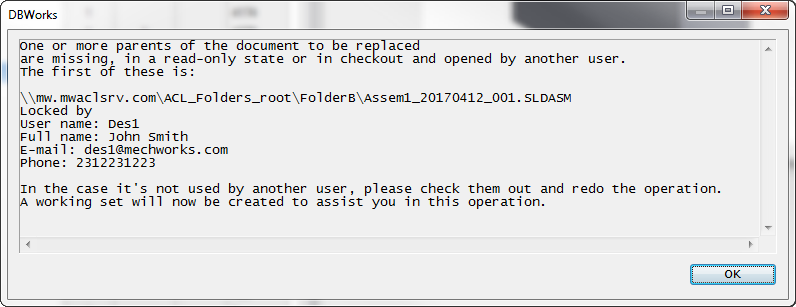
Check ACL
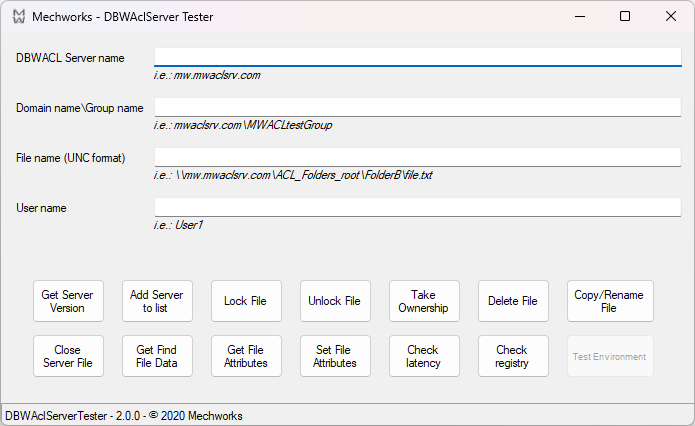
A specific tool for testing is distributed under installation folder:
<installationPath>\bin\DBWAclServer\DBWAclServerTester\DBWAclServerTester.exe
It allows to test several aspect of the environment, starting from basic settings to check the service to actions on the final files:
Legacy DBWAcl
For legacy DBWserver installations, the tool for testing was the Microsoft subinacl.exe (currently deprecated, but you can find its clone in <installationPath>\BIN\DBWAcl.exe).
The command has a modality /display that shows you the ACL security for a specific file; by redirecting its output on a txt file (that may be further processed by a script) may be helpful in analyzing files' permissions:
DBWAcl.exe /file "<full file path>" /display >temp.txt