Drag support from the browser grids to both the CAD desktop or to the Project Tree
Options
Here are options that enable drag&drop behavior:
User Interface → Tree →  Enable drag-and-drop in Trees
User Interface → Tree → Enable drag-and-drop on Assemblies
User Interface → Browser Behavior → Enable drag from the Grid
To drag, select or multiple select a set of rows in the grids, then place the mouse near the borders of the cells until the cursor icon displays a small rectangle.
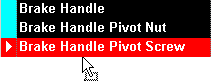
Then, press the mouse down and drag the documents on CAD desktop (open) or to the Project Tree (add to project).
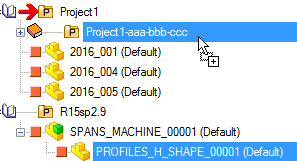
Please note when dragging from Tree to Tree the mouse pointer will change accordingly to the action type:
•drag from P1 to P2: makes the record beloging both to P1 and P2
In this case the mouse pointer is like this:
•CTRL + drag from P1 to P2: remove the record from P1 and makes it beloging to P2
In this case the mouse pointer is like this:
On the other hand, when dragging from a Grid to Tree, the mouse pointer will have the [+] symbol for both cases.
Drag a record outside the PDM
When dragging a record outside the PDM/CAD environment (e.g. a windows explorer window), even if the SHIFT key is kept pressed (so allowing a move operation also to a network-to-local operation), the PDM avoids to execute a move action and shows a warning dialog suggesting to keep the CTRL key pressed, for executing a copy operation: 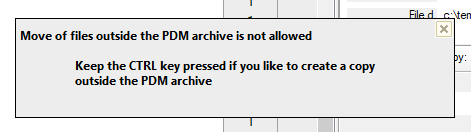
How to mute the confirmation dialog
When dragging a not already registered file from outside the PDM to the browser (to a tree structure), you'll be asked about confirmation of the action:
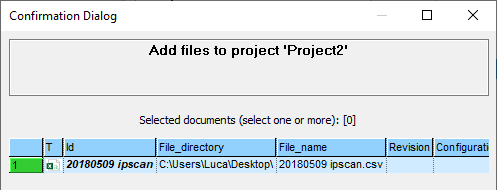
to avoid such dialog you can keep the ALT key pressed while dragging and dropping
Drag a document from DBWorks to SolidWorks
This action reproduces the behaviour as if dragging from the Feature Palette to an assembly. If the option Open/Save, Choose configuration when opening a document is unchecked, the configuration of the record is applied to the dropped component, else the standard configuration selection dialog is displayed.
Drag&Drop and OnAddDocument.LST
The OnAddDocument.LST, if enabled, is now invoked on a Drag&Drop from Windows Explorer into DBWorks, even if the Generic documents being dropped were outside the allowed folders.
This change allows the OnAddDocument.LST to properly move the Generic Documents into any allowed folder.
DBInventor Standalone support for documents registration
 Inventor users only
Starting from R16, using the DBInventor Standalone Client, it is possible to drag & drop an Assembly / Drawing / Part from Windows Explorer to any Project for registering the documents into the MechWorks PDM Database (the same operation can also be executed using the RMB->Add document functionality)
Please note following limitations:
1.the DBInventor Standalone must be installed on the same workstation where Inventor is installed
2.Level of Details / iParts / iAssemblies / Configurations are not supported - they will be registered as normal Assemblies
DBSolidEdge Standalone support for documents registration
 Solid Edge users only
Using the DBSolidEdge Standalone, it is possible to drag & drop an Assembly / Drawing / Part from Windows Explorer to any Project for registering the documents into the MechWorks PDM Database ( the same operation can also be executed using the RMB->Add document functionality )
Please note following limitations:
1.the DBSolidEdge Standalone must be installed on the same workstation where SolidEdge is installed
2.FOA Assemblies are not supported - they will be registered as normal Assemblies