HTML output (HTML BOM)
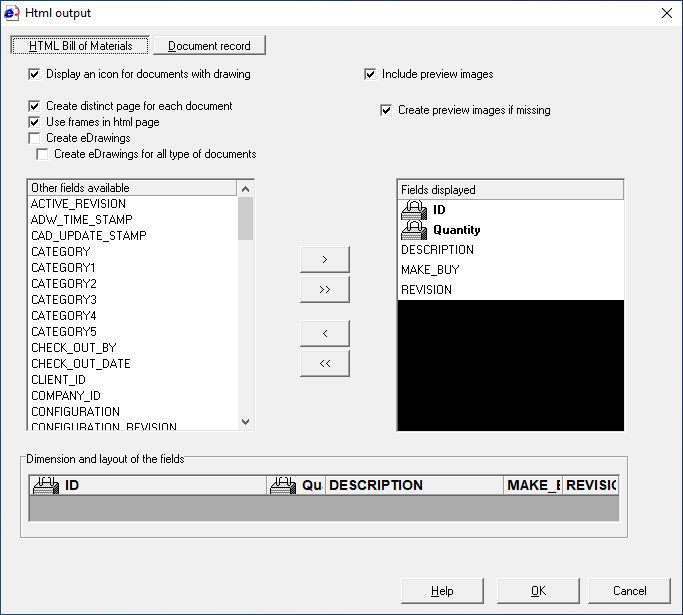
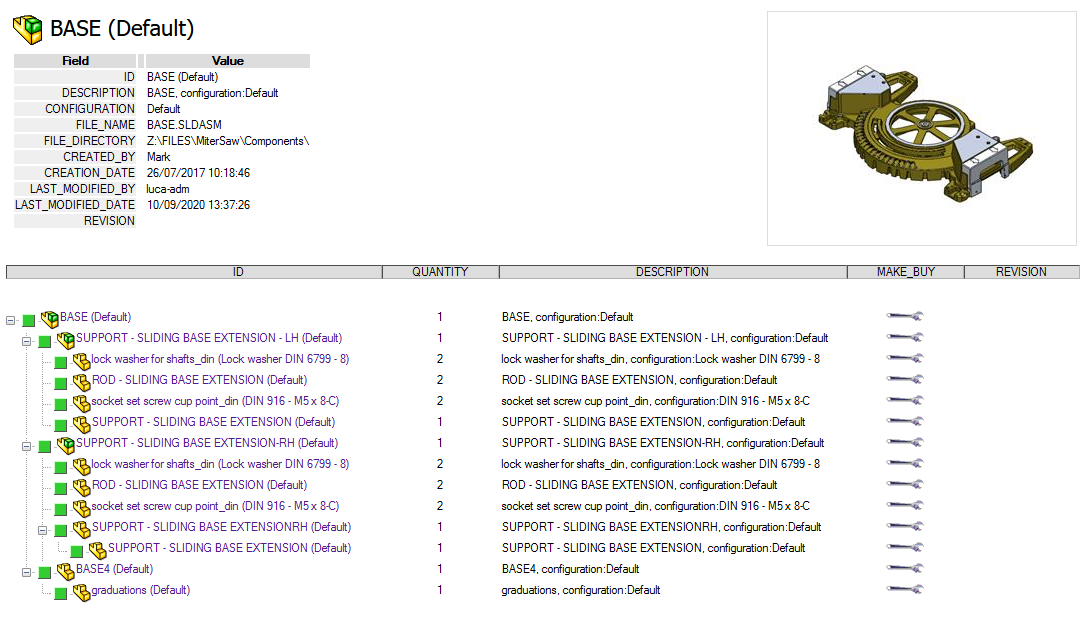
This functionality allows you to obtain a HTML output from a tree view.
It generates an active dhtml file and opens Internet Explorer to display it.
Example
Here you can find an example of generated file:
BASE_(Default).SLDASM(Default)._.TREE.htm
Advanced HTML output parameters and scripts
eDrawings support
If an eDrawing is present in the same directory of the document, with the same file name, the HTML output will create a little icon near the ID of the document, pressing which the eDrawing will be opened.
The eDrawings will be searched also in the folders list declared in the HTM\DBW2HTM.PAR parameter file.
The eDrawings file location list have priority in respect of the default file location, in the same directory of the document.
Indicate the output directory
The parameter is contained in the file HTM\DBW2HTM.PAR:
DEFAULT_OUTPUT_DIRECTORY = <folder name>
Adding this parameter it is possible to assign a default output directory for the html pages generated by the html output process.
EDRAWINGS_FILE_LOCATIONS
In this section it is possible to declare a list of folders where to check for the presence of the eDrawings of the documents listed in the HTML output:
EDRAWINGS_FILE_LOCATIONS
EDRAWING_FILE_LOCATION <folder1>
EDRAWING_FILE_LOCATION <folder2>
...
EDRAWING_FILE_LOCATION <folderN>
FRAME_VERSION
if active divides the screen in two frames (the upper frame with data and the lower frame with the structure tree)
INCLUDE_PREVIEWS
includes the image previews of cad documents. Images larger than 400 pixels are resized to fit.
CREATE_PREVIEWS
if previews are not already available, it creates them. Every preview creation can take from 0.5 to 1 second, depending on the CPU, the location of the files etc.
EDRAWINGS
creates eDrawings and adds them as a link to the images; the process requires the use of the script OnCreateHtmlOutput.LST and slows down the creation process considerably.
Execution of a script at creation
MechworksPDM checks also for the presence of a special script named OnCreateHtmlOutput.LST, in the LST\SYSTEM directory, and if present it executes it.
See OnCreateHTMLOutput.LST specific topic
Related files
Format of a .TREE file (as passed in the @TREE_FILE_PATH parameter)
The file is composed of indented lines, resembling the assembly structure; each line has the following format:
<type> "<ID>" Quantity <make/buy> <state> "<eDrawing file>" "<JPG file path>"
All the parameters are separated by spaces.
Example
A "Handle Bar Complete" 1 MAKE CHECKED_IN "" "C:\IMAGES\Handle Bar Complete.SLDASM.Default.JPG"
A "Throttle Temp (Simplified)" 1 MAKE CHECKED_IN "" "C:\IMAGES\Throttle Temp.SLDASM.Simplified.JPG"
P "Throttle Lever Temp" 1 MAKE RELEASED "" "C:\IMAGES\Throttle Lever Temp.SLDPRT.Simplified.JPG"
P "Throttle Temp" 4 MAKE CHECKED_IN "" "C:\IMAGES\Throttle Temp.SLDPRT.Simplified.JPG"
A "Wilwood Master Cylinder (Default)" 1 MAKE RELEASED "" "C:\IMAGES\Wilwood Master Cylinder.SLDASM.Default.JPG"
G "Assem2test_BUYLIST.XLS" 1 NO_BOM RELEASED "" ""
P "Brake Handle" 1 MAKE OBSOLETE "" ""
P "Brake Handle Pivot Nut (Default)" 2 MAKE RELEASED "" "C:\IMAGES\Brake Handle Pivot Nut.SLDPRT.Default.JPG"
P "Brake Handle Pivot Nut (pluto)" 4 MAKE RELEASED "" "C:\IMAGES\Brake Handle Pivot Nut.SLDPRT.pluto.JPG"
P "Brake Handle Pivot Screw" 1 MAKE OBSOLETE "" "C:\IMAGES\Brake Handle Pivot Screw.SLDPRT.Default.JPG"
P "Master Cylinder" 1 MAKE RELEASED "" ""
P "Master Cylinder Clamp Screw" 1 MAKE RELEASED "" ""
P "Parking Brake Handle" 1 MAKE RELEASED "" "C:\IMAGES\Parking Brake Handle.SLDPRT.Default.JPG"
P "Parking Brake Pin" 1 MAKE RELEASED "" "C:\IMAGES\Parking Brake Pin.SLDPRT.Default.JPG"
P "Reservoir" 1 MAKE RELEASED "" ""
P "Reservoir Cover" 1 MAKE RELEASED "" ""
P "Reservoir Cover Screw" 2 MAKE RELEASED "" ""
Format of .NODE file (as passed in the @NODE_FILE_PATH parameter)
The file is composed of lines describing which node of the tree structure is collapsed.
The format is:
+ <root ID> <sub-item ID> <sub-item ID> ...
Example
Considering the following assembly structure:
A1
+SUB1
+P1
+P2
+SUB2
+SUB3
+P3
+P4
+SUB4
+P5
+P6
Suppose the nodes SUB1 and SUB3 are collapsed; the resulting .NODE file will be the following:
+A1 SUB1
+A1 SUB2 SUB3
To set up the parameters please use AdminTools: