 The buy list dialog
The buy list dialog is called from the Tree Page to display the list of the components belonging to a given assembly you need to buy.
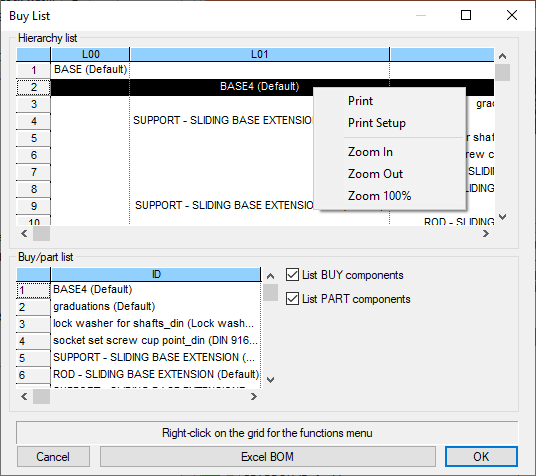
The buy list dialog is divided in two main sub-windows which contain a hierarchical and a buy/part list and buttons below which allow an output towards Excel sheets.
The hierarchy list
The hierarchy list displays a tree/table where hierarchical levels are displayed in separate columns (L00, L01...). Buy parts are highlighted in red.
The buy/part list
The buy/part list differs from the hierarchical list in its layout and available options which allow for more flexible output.
The total cost is not displayed for each component while a grand total is available at the bottom of the grid, marked in red.
The List BUY components option allow you to include or exclude buy components. If the options is selected, all BUY components are included and highlighted in red as in the other list. The grand total is displayed only if buy components are included.
The List PART components option allow you to include or exclude part components. If the options is not selected, only sub-assemblies components are included and highlighted in red as in the other list. The grand total at the bottom of the grid changes accordingly.
The Excel BOM button
The button generates an .xlsx file.
Microsoft Excel is not required on the workstation to create Excel Bill of Materials.
If you want to display the BOM on completion you can associate another application to the .xls file, as for instance Microsoft Excel Viewer 2003 or an open source alternative.