Setting up the Remote Access Mode
Step 1: creation of the tables using DBCustomizer in the head office
Open the DBCustomizer and push the button to manage companies for Remote Access Mode
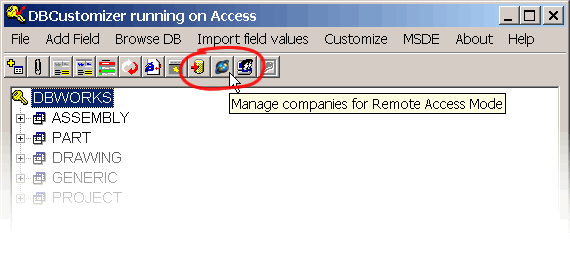
This automatically creates the table DBW_COMPANY_INFO and adds the field COMPANY_ID to the table DOCUMENT in order to assign every document to a company.
When the companies dialog appears, there's no company defined and the dialog is empty. Click the button Add New Company to add the first company
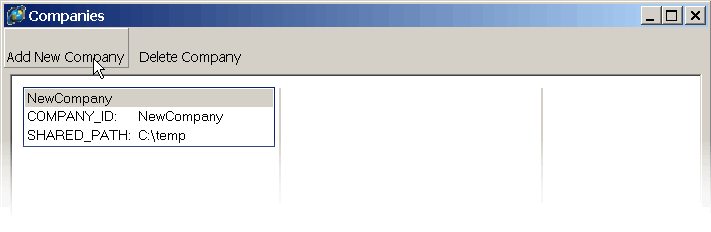
You can edit directly the company name and the path containing the directory to be shared. Remember that directory mapping has to be consistent across the companies.
Add as many companies (or subsidiaries) as necessary ensuring that each has a distinct id.
When you have finished adding subsidiaries, click the OK button below to confirm.
At this point you have defined the companies, but the documents have not been assigned to any of them, so you have to select one of the companies so that all the documents currently in the database are assigned to it:
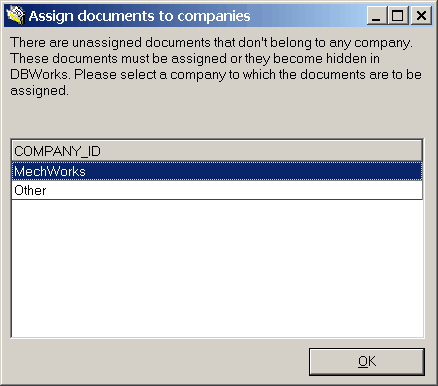
A message box confirms the success of the operation
Step 2: activate the remote access option in the head office and all the subsidiaries (departments)
Close the DBCustomizer and open MechworksPDM.
In the Options → Environment → Remote Access and click the check box to enable the option.
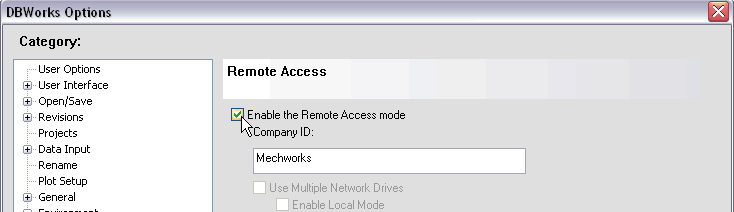
In the text box below, write the name of the main company to which all the documents have been assigned. Typically this is the name of the company where you're installing.
If you are activating the Remote Access Mode in one of the subsidiaries and all the tables where previously created in the head office, then enter the name of the subsiduary to which the workstation belong. Remember that the name of the subsidiary must have been previously defined in the list of companies in the DBCustomizer.