Revisions lifecycle batch commands for assemblies and parts
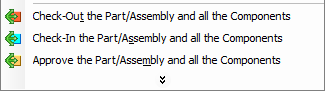
These entries allow to perform direct lifecycle commands that involve children components without recurring to the tree interface.
Standard Parts, if any, are skipped by these operators. The state of the components can be any.
An intermediate dialog allows for a flexible choice:
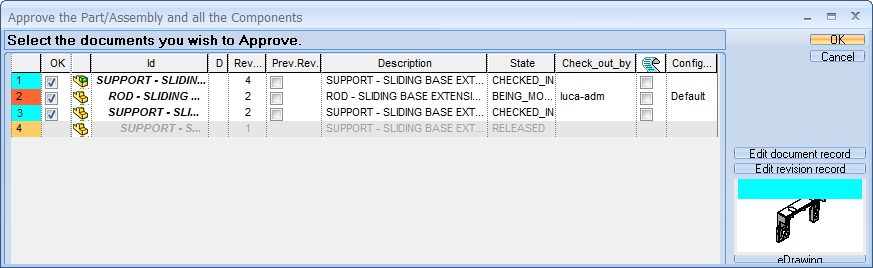
•The first column on the left indicates the state color.
•The second column selects the items that will be approved/processed.
Multiple selection are allowed using the CTRL and Shift keys. The Edit document/revision operates on the selected items.
To select them all click in the header of the first column.
•If the check box in the column Prev. Rev. is ticked the approval overwrites the previous revision of the item.
•If the check box in the script column is ticked, the script OnApprove.LST is executed for the item.
•The buttons and allow for multiediting.
The preview window below is always available (even in eDrawings if installed and revisioning Solidworks documents).
If any mandatory field has been left blank after clicking OK a new dialog presents the list of records that needs to be filled:
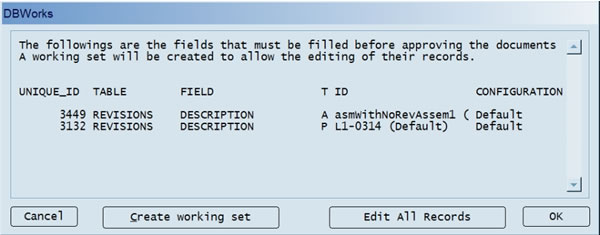
A confirmation dialog is always displayed, showing the documents that will be processed.
A click on OK selects the related rows in the previous dialog allowing you to edit them all and assign the missing field values.
A click on Create Working Set creates a working set for further editing.
A click on Edit All Records edits all the records in the list in sequence.
A click on Cancel exits the approval process.
Suggested way to use these commands
1.select the items from the Tree
2.create a flat (not hierarchical) Working Set of only the top level items
3.from the Working Set grid launch the function Working Set, Checkout/Checkin/Approve Part/Assembly/Drawing and all the components; in this case drawings are managed as well.
A multiple selection in the Tree Control is used for pre-selecting the children to be checked-out in the multiple check-out operation.
Drawing: new direct entry
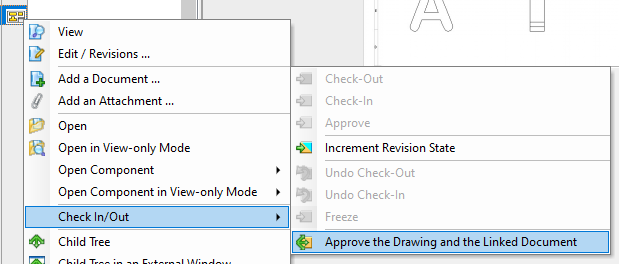
This command is available only if the option Environment→Link Mode→ Manage Related Drawings is checked.
Same as above, a shortcut to the approval without recurring to the tree interface
A confirmation dialog is always displayed, showing the documents that will be processed by the operators.
Custom fields in the recursive dialog
Extra fields shown in the Trees through the option User Interface→Trees→Extra Columns to show in the Trees will be shown in this recursive dialog too.