Visual Cues Manager
The Visual Cues Manager allows you to define the cues that are displayed on selected records of DBWorks.
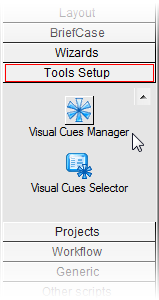
It can be started from the Shortcut Bar in the section 'Tools Setup'.
The main window
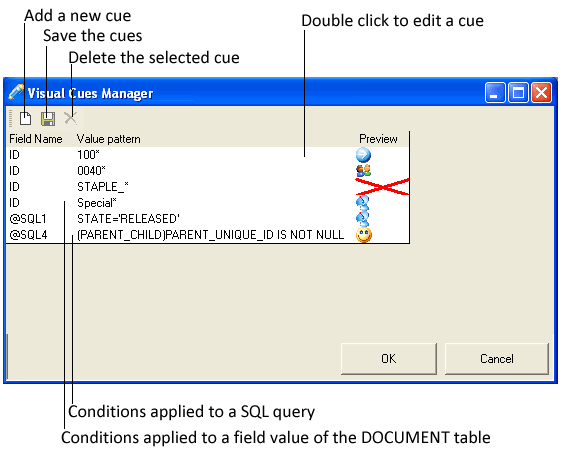
The main window displays a summary of the existing cues and allows you to perform basic operations like adding a new cue and deleting or editing an existing cue.
The Cue Definition window
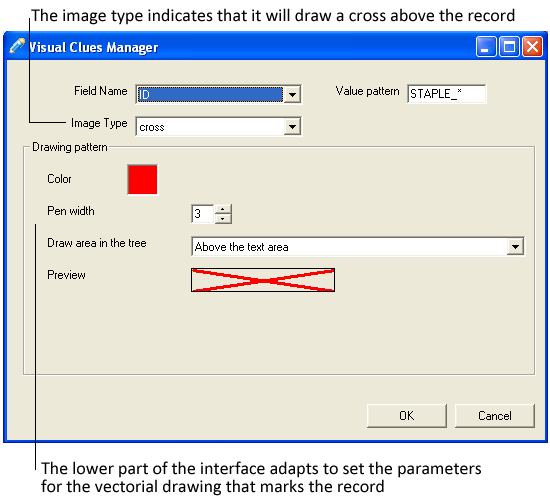
In this window you define the properties of the cue: when it should be displayed and if it will display a bitmap image or draw on the record.
In this case choose a field from the drop down list, then define a value pattern that can contain all the valid regular expression characters like *,?,[..], etc.;
In the lower part of the panel select the image and define size and location
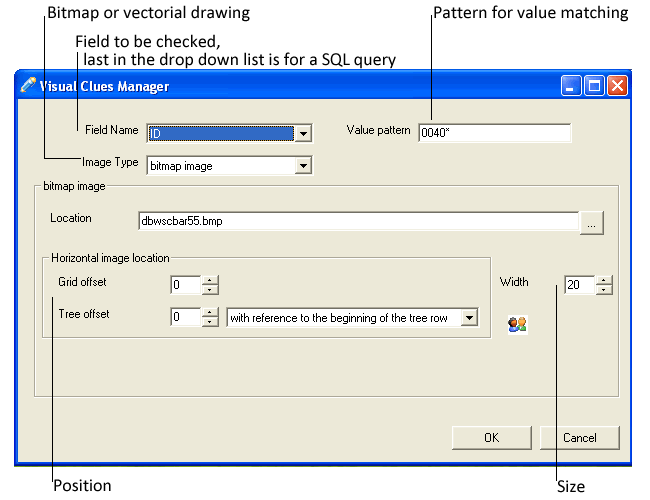
In the drop down list that determines the kind of image, select a drawing pattern. The condition that triggers the draw can be associated to a field value or to a general query
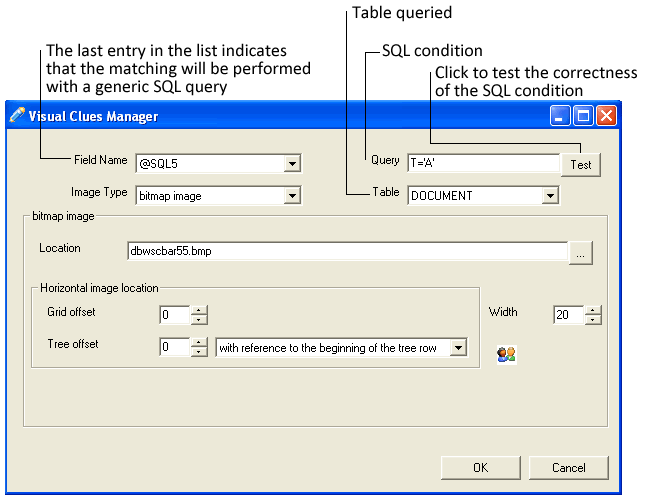
The last item in the drop down list of the fields allows you to apply a generic SQL query on every existing table in the Mechworks PDM database:
DOCUMENT
REVISIONS
PARENT_CHILD
DBW_WORKFLOW
...
<any EXISTING DATABASE TABLE>
...
<any LINKED DATABASE TABLE>
When you select the item, that has the special code @SQL followed by a number, the upper part of the window changes allowing you to select a table and specify a SQL condition that will be used to match the values.
You can validate the condition before saving with the button test that appears beside the condition. If the query is valid and if the recordset returned supports the property, you can also see how many records satisfy the condition you have specified.