Synchronization
This feature allows you to check if the local files you have previously downloaded and maybe edited are still in synch with the server.
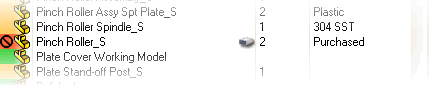
As a default behavior, when you run a query WebViewer scans the local Download Directory to see if any of the documents in the results set is available locally. If this is the case, local files are marked with a small icon representing your local hard drive.
So far you are able to identify the local files but you don't know how to tell if your local copy is outdated or which of your locally checked out files have been modified, directly or indirectly.

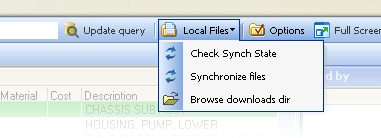
With the commands in this menu you can check the synch state of local files, make sure everything is up to date both locally and on the server and browse your local files downloaded from the server.
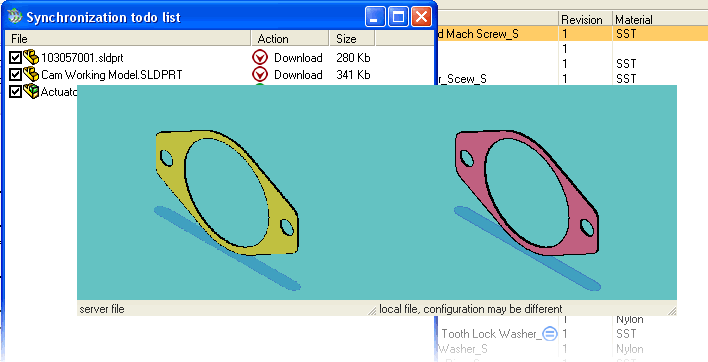
Along the way you'll be able to compare visually the local version with the one on the server and decide whether it is the case to perform the file transfer or not.

Scans the local Download directory for all the files, prepares a list and posts it to the server where the Last Modified property of the local files is compared with the files registered in the database.
The results of the comparison, which manages time zones correctly, are then sent back to the client where the are displayed as icons indicating the synch state of the files.
With this command you show a dialog of all the local files that are either outdated or newer than the files on the server.
From here with a few clicks you can select the file to be synchronized and start the file transfer as an asynchronous, batch action.
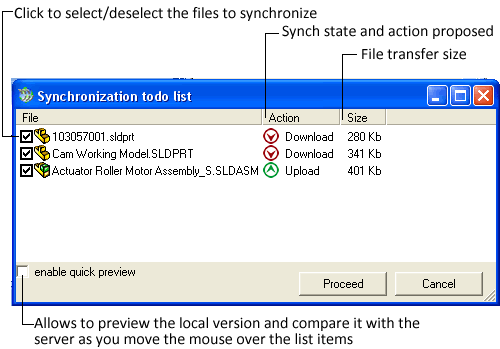
If you check the quick previews check box after a short download you will be able to preview and compare the local files with the ones on the server as you move the mouse over the list items:
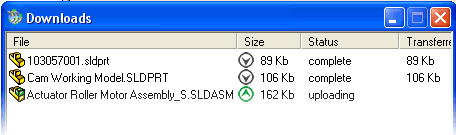
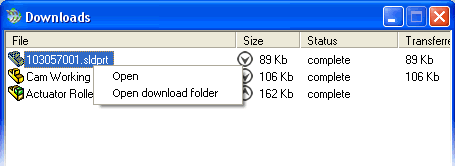
After starting the files transfer process, you can watch it proceed in the dialog.
In the first image the upload is still in process while the downloads are complete
Once the download of a file has ended, you can open the file directly from this dialog using the application associated locally with the file extension.
This command opens an instance of Windows Explorer on the local downloads dir. If you like it's nothing but a shortcut to your local files, handy at times.S
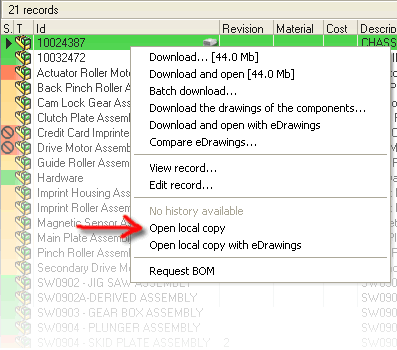
In the popup menu you have access to local file and are allowed to open it either with the full CAD application or with eDrawings.

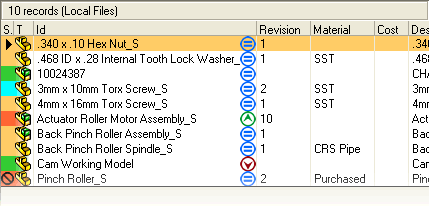
When you pass to Local Files Only mode every query includes only the files that are available locally
A synch check is performed automatically it it hasn't been done yet displaying the synch state of each record returned.
The state displayed is not updated automatically so if you want to be certain that of the exact current synch state, perform a new synch check every now and then.