WebViewer custom commands
WebViewer custom commands
WebViewer allows you to add custom commands that will display in the contextual menus of the client.
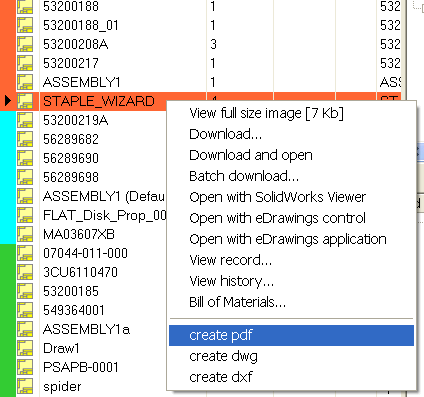 Each time the customer selects a command, a script is ran on the server executing the command and sending back some feedback or a result that could be one or several files downloaded automatically.
The Tasks Client must run on a the web server or on a server side workstation having a Stand Alone installed and with a user login active (cannot be unlogged). If you want to leave the web server unlogged you can run the tasks on another workstation, provided it has a Stand Alone running.
Both the access to the menu command and to the downloads of the created files are under the control of user and group rules.
What does this new feature bring to me?
ability to create downloadable files on the fly: pdf, dwg, dxf, Bill Of Materials, reports ability to send commands and/or update the database
more in general execute any custom command on the server and send back the result to the client
How are the commands executed on the server?
Every command is associated to a script that must be executed server side and return a result, normally a file. The Web Server does not act directly as a script executor but rather as a tasks queue manager.
The workstation that executes the commands is a workstation that has access to the files (server side) and has the Tasks Client installed.
In order to install the Tasks Client open the page tasksClient.asp and download the msi installer available in a standard installation.
It is important to notice that unless at least one task client is active, no task is being performed server side.
The Tasks Client application pings the server looking for open tasks and as soon as one is made available, the related script is downloaded and the script executed. At the end of the execution, in accordance with the scripts contents, either a failure message is sent to the server or the resulting file(s) is uploaded to the server ready for the WebViewer client to retrieve it. If the script to be executed requires SolidWorks (for instance for file conversions) then the tasks client workstation that will do the job must have SolidWorks installed. Each tasks client performs only one job at a time and will not ping the server for new jobs until the current one is over. For this reason, you can have several tasks clients active at the same time. In this case the first that pings the server and finds a job puts it in a 'taken care of' state so that the same job is not offered to any other client pinging for available tasks. The queue is kept in memory, the access to it is instantaneous and managed in multithreading routines, so there is no way that the same task request is executed by two clients. The advantage of this approach is evident:
1) You can keep the Web Server unlogged and have the tasks be executed somewhere else.
2) If one of the coworkers is out of the office for half a day, his/her workstation can be immediately recycled to speed up the server side processing, it's as simple as opening Internet Explorer on his/her workstation and navigating to a URL.
3) You can manage the workload: you could try having the Web Server itself executing the tasks but if you find that the workload is not compatible with the other tasks normally executed by the server, you can easily transfer the job of executing WebViewer scripts to another workstation in a matter of minutes.
How do I enable/disable a task client?
Please note that the tasks client is incompatible with DBWARM explicit login as the login dialog interrupts the task.
For this reason you need to make sure that the workstation working as tasks client has the options set locally (normally on the c: drive) and that these options exclude the explicit DBWARM login.
We recommend that the workstation acting as tasks client is dedicated to Web Client.
Note that using the Stand Alone while the workstation is active as Tasks Client can have unpredictable results because the application would receive concurrently commands coming from the user interaction and from the Programming Interface.
To enable, navigate to the page <my web server>/webviewer/tasksClient.asp
Download from the link inside the page the msi to install the Tasks Client application, install it and run it specifying the base URL to the Web Client installation, typically http://<my web server>/webviewer.
To disable it, close the application.
How do I see if there are tasks client currently active?
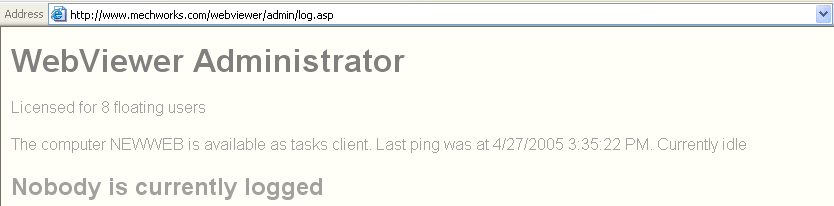
Navigate to the page <my web server>/webviewer/admin/login.asp and log in. You must be a DBWorks Administrator to have access to the page or you must have been granted right access in the DBWARM WebViewer section. Information is displayed both for who's currently connected and what tasks clients are currently available.
Caching
When the task 'create a pdf for a given drawing' is requested by a client, then the execution goes through two separate steps: the first script is executed directly on the Web Server and its goal is to find if the pdf has already been created and is available for being sent back to the requesting client. The script that performs this job can call a specific API to determine if the drawing from which the pdf was obtained was modified since pdf creation, and ensure that the information retrieved by the client cannot be obsolete. The resulting files are cached in the directory WebViewer/createdFiles. You can clean the directory once a week or once a month depending on the quantity and size of the files. The script of creation of the file is executed by the tasks client only if the pdf was not found or was obsolete.
What are the custom scripts provided in a clean installation?
The scripts are: conversion of a drawing to pdf, dwg or dxf, creation of an Excel BOM for an assembly
The scripts are located normally in the directory C:\Program Files\DBWORKS Stand Alone\WebViewer\Scripts or equivalent on the Web Server.
Task |
Cache Script |
Creation Script |
|---|---|---|
Pdf creation for a drawing |
check pdf.vbs |
save as pdf 2004.vbs |
Dwg creation for a drawing |
check dwg.vbs |
save as dwg 2004.vbs |
Dxf creation for a drawing |
check dxf.vbs |
save as dxf 2004.vbs |
BOM creation for an assembly |
BOM.vbs |
Special API commands have been created for these scripts in order to maintain the scripts flexible but as simple as possible. The real work is in separate hard coded dlls.
The scripts save as pdf 2004.vbs, save as dwg 2004.vbs and save as dxf 2004.vbs require SolidWorks on the tasks client; the script BOM.vbs requires at least the presence of DBWorks StandAlone on the tasks client.
The scripts are available in the installation cab file WebViewerObjects.cab and must be extracted manually to the directory C:\Program Files\DBWORKS Stand Alone\WebViewer\Scripts or equivalent on the Web Server.