Defining custom menus
Defining custom menus
The menus are saved in a parametric file on the server. Given the natural tree-like structure of menus and sub menus, the parametric file is an xml and is located on the server in
...\customMenus.xml
In this tutorial we make use of the free tool Microsoft XMLNotePad to edit the xml file that defines the menu entries. The tool is freeware and can be downloaded, among others, at http://www.snapfiles.com/dlnow/dlnow.dll?Inc=No&ID=103924 . As the name suggests, the tool is simple and easy to use, in any case any xml editor will do the job.
Let's see the structure of a basic one-command file first, both in the application and in Internet Explorer:
|
|
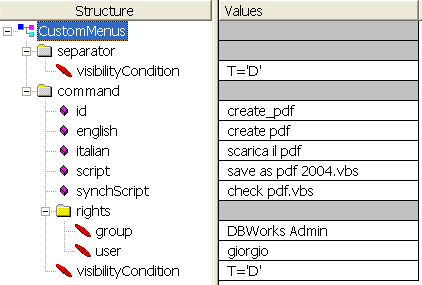
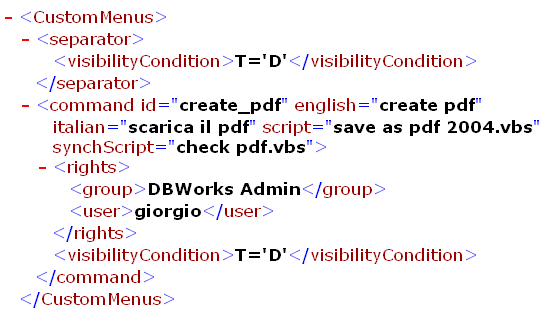
Let's analyze the content:
at level1, under the xml root, you can add one or more menu separators and/or menu commands. Each of these is represented in the xml by an element.
menu commands
The tag name must be 'command'. The attributes available for the element are:id to identify the commandenglish, italian german to set the menu caption depending on the language (english is mandatory)script to indicate the name of the script executed on the server as an asynchronous tasksynchScript to indicate the name of the script executed on the server as a synchronous taskvisibilityCondition to indicate under what SQL condition this command should be visible. If omitted, always visiblegreyedCondition to indicate under what SQL condition this command should be grayed. If omitted, never grayed
In XML Notepad attributes are outlined with a pink oblique square, elements with a folder if it has children or a red oblique ellipse otherwise.
The difference between the synchronous and asynchronous script and how the are called is explained in the topic 'server side scripting'
Setting the rights
The rights rely on the DBWARM definition of users and groups. As in Windows, you can authorize or deny visibility based both on user and group. The available tags, that must be under the rights element are
denyUser |
the command is not visible for the user |
|---|---|
user |
the command is available for the user |
denyGroup |
the command is not visible for the members of the group |
group |
the command is available for the members of the group |
and are scanned and considered exactly in this order, no matter the order you set for the children of the rights element. This priority order has been set for the sake of caution: if you deny a user from a key command (could be for instance 'check out remotely') you probably don't want any other setting to overrule this decision.
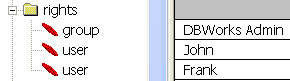
Each rule must be set in a separate element, so if you want to enable both users John and Frank you need to create two lines such as in
If you want everybody to have free access, don't set any rights, but if you set some then the default is that an unlisted user not belonging to an unlisted group does not have access to the command.
If you want to make sure that everybody but a few users have access to the command, then set the denyUser rights for those that must be excluded, then add a user named 'everybody'.
dividers
For the divider the only attribute available is visibilityCondition, which is an SQL condition that can include any field , OR and AND operators and the '%' SQL wildcard character.
subMenus
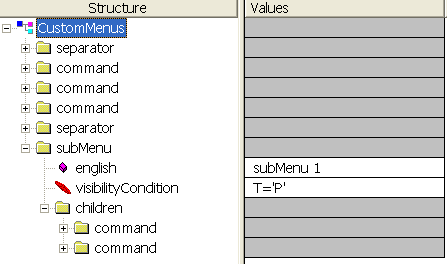
The subMenu element can contain attributes for caption in the available languages, a visibilityCondition element and a rights element (as for the commands).
Custom action on download
By default downloaded files generated by a custom action are either left in the cache or extracted to %temp% if, as it often happens, are in compressed format.
This default behavior can be modified in the definition of the custom action in the file
\customMenus.xml
Let's take as a valid example the menu item inside the xml that defines the action to create and download an eDrawing for the file selected:
<command id="stampEDrawing" english="Preview with EDrawings" italian="Anteprima con EDrawings" script="StampEDrawings.vbs" synchScript="chkStampEDrawings.vbs" onload="open">
<rights><user>everybody</user></rights>
<visibilityCondition>STATE='UNKNOWN'</visibilityCondition>
</command>
This is a special command that is activated by an option and requires a server side eDrawings Professional to be installed, but the validity is confirmed also for the other commands.
You can add an attribute in the tag of the command as in the example.
The attribute onload (all lower case!) describes the behavior of the file on the client after a successful download.
Possible values:
"open" |
Opens the file directly as in a command 'download and open...' |
|---|---|
"copy" |
Copies the file to the download directory (if previously defined on the client) |
This behavior somehow breaks the default behavior of Web Client but has been made necessary to satisfy the many requests from several customers to have it both ways and adds flexibility to the product.