 Find a Document / Find a project
This command is available from the popup menu of projects in the projects tree as well as in every grid using the shortcut CTRL + F. The search is valid only in the current grid.
The command displays a popup dialog where you can define the search key for the identifier of the document you want to find.
The search key can contain stars '*' or more sophisticated regular expression using wild chars like '?' or intervals like [0,5] for finding projects with an identifier.
Some examples:
myId |
searches the firstID starting with myId |
|---|---|
*myId |
searches the firstID containing the substring myId |
??myId |
searches the firstID containing the substring myId exactly from the 3rd position |
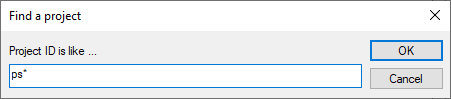
The search is made on the child nodes of the currently selected node or of the current item, and looks in the text actually displayed for the node; this means that if the option to show the description in the tree is activated, the search will take into considerations descriptions as well.
This functionality works also on Projects kept closed for performance issues.
MechworksPDM checks if the document to be searched is between the children of the selected project and expands it only when needed.
After clicking ok, in the tree the first project (grid item) corresponding to the search pattern is selected:
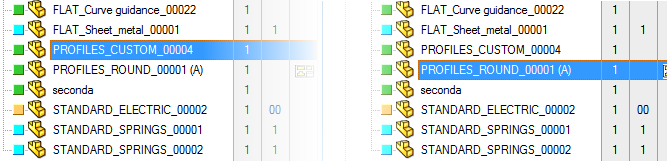
Press the F3 key to find the next matching item.