Promote a Generic Document to a different document type
Description
MechworksPDM includes a a functional support for simplifing the process of changing the extension of a Generic Document.
Some typical uses of such support may be the need to change an extension from type .TXT to type .DOC, or from type .DWG to type .SLDDRW
Requirements
Database
The REVISIONS table must have the field FILE_NAME (localized for every language) be added to the structure:
English field |
Localization |
TABLE |
type |
Nullable |
|---|---|---|---|---|
FILE_NAME |
language dependent |
REVISIONS |
varchar(128) |
|

Options
Revisions Options → Approval
The field FILE_NAME must always be copied to the REVISIONS table at approval time:

General
Any document must be approved, with the REVISIONS data containing the originary FILE_NAME value.
Example
Suppose we like to promote the file bottom_plate.DWG to a SolidWorks drawing, so changing its extension to .SLDDRW.
For the above requirements, the document bottom_plate.DWG is in a RELEASED state, and its REVISIONS record shows the originary FILE_NAME:
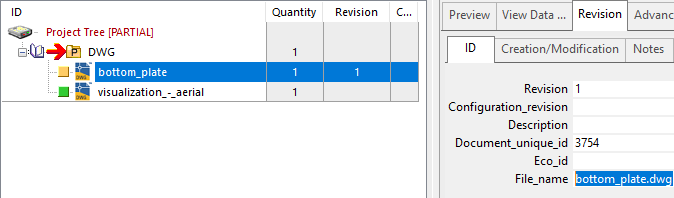
The steps needed for promoting it to a .SLDDRW are:
1.Checkout the document
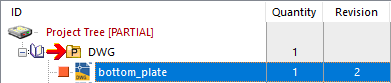
2.Rename it

3.Change the extension to .SLDDRW

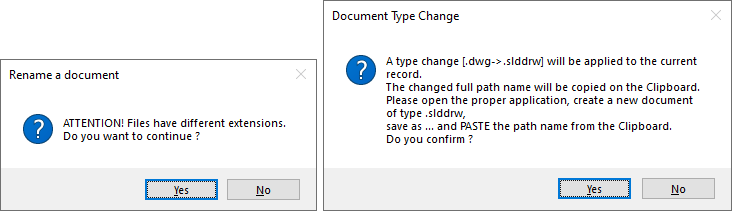
4.DBWorks asks for a confirmation of the file extension change and suggest the logic for the next steps (Answer Yes to both questions )
5.At this point, the DOCUMENT record has been promoted to type "D" (Drawing) and, of course, the file still not exists.
The originary .DWG file has NOT been deleted, so it is available for the import process into Solidworks.
The new file full path is now available in the system Clipboard, and can be "pasted" as needed.

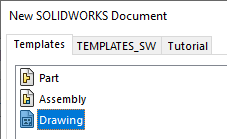
6.Create now a new Drawing into SolidWorks:
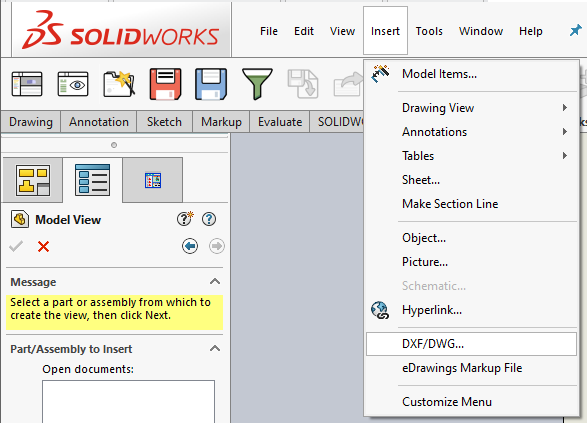
7.Insert the DWG to be converted, by using the SolidWorks Insert->DWG functionality:
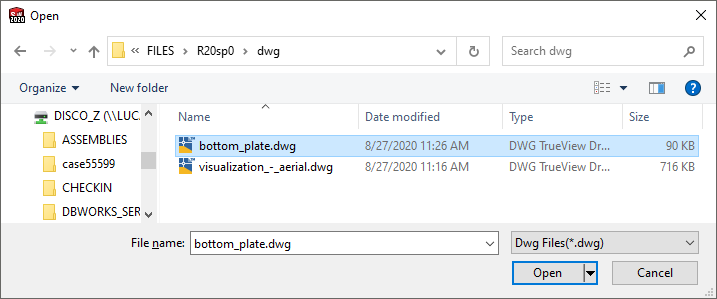
8.Locate the original DWG file (or paste its name from the clipboard and change slddr extension back to dwg to locate it):
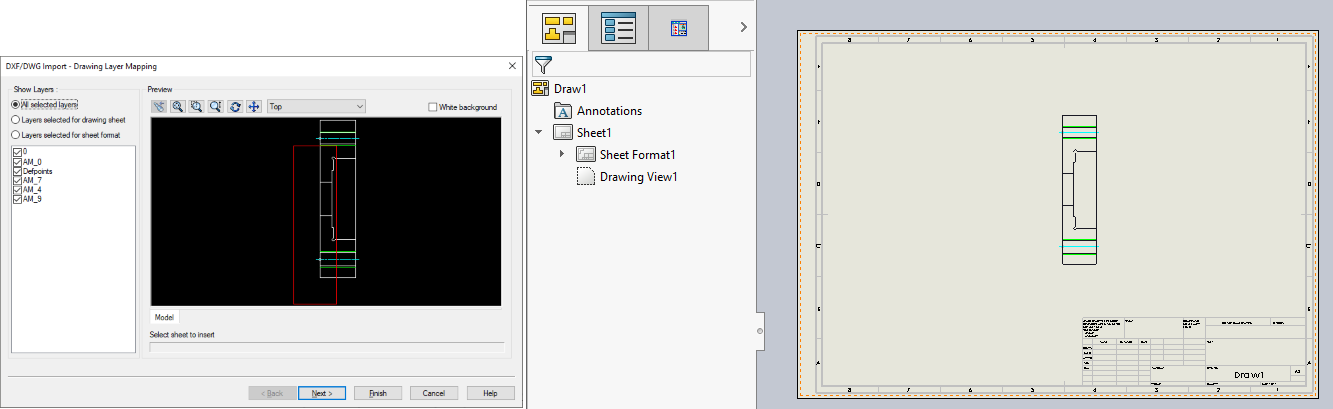
9.Import now the DWG assigning the necessary parameters:
10.Performa now a CAD Save on the new Drawing and Paste the full path name from the Clipboard:

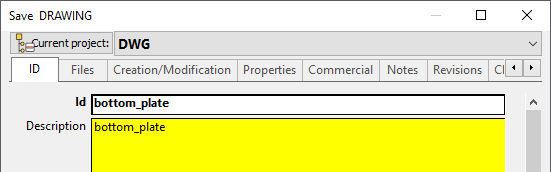
11.Since the DOCUMENT record is already created, a YELLOW data input form will appear: confirm with OK the update of the DOCUMENT record
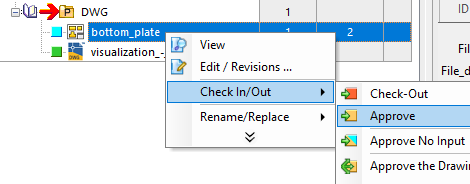
12.Checkin and approve the Drawing in the way you like:
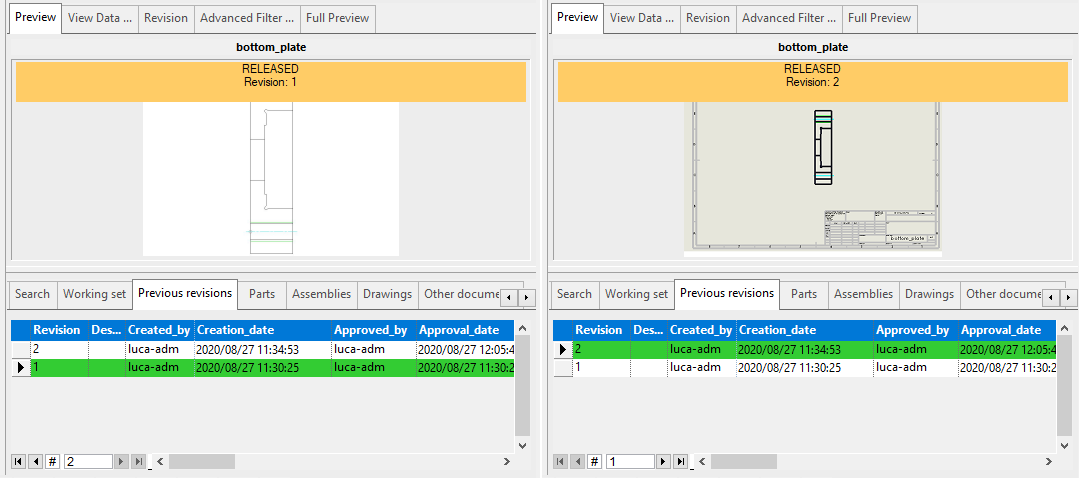
13.The document is now completely promoted to a .SLDDRW. Previous revisions can be visualized through the standard functionalities; DBWorks will open the proper file viewer depending from the file extension: