Replace documents
MechworksPDM allows you to replace documents of the same type, so that the replacing document maintains all the links that before were related to the document to be replaced. This command is available also for non CAD documents.
Select the document to be replaced
1.Right click the document to be replaced
2.In the popup menu select Rename/Replace
3.Click Mark as Document to be Replaced
Select the replacing document
1.Right click the replacing document
2.In the popup menu select Rename/Replace
3.Click Mark as Replacing Document
Replacing dialog
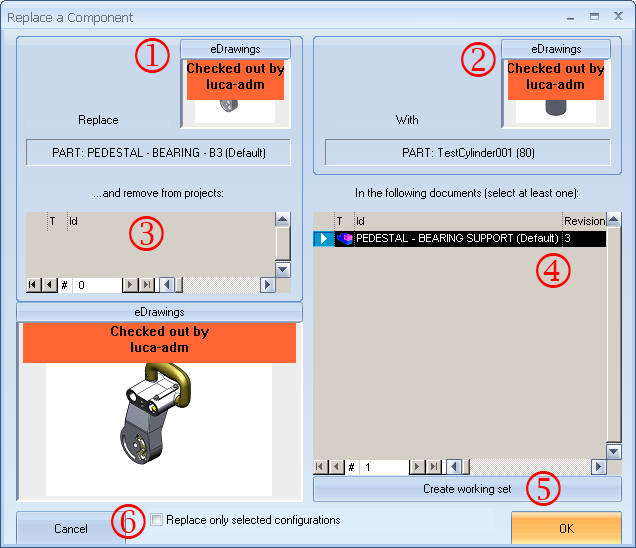
1.The document to be replaced
2.The replacing document
3.Optionally you can remove the replaced document from some of the projects in the list
4.List of the documents that contain the replaced document.
Select in what context the document should be replaced, the preview is displayed here aside.
5. Creates a working set to put the container documents in read/write mode where necessary to operate the substitution
6. Replace only selected configurations : Only the specific component instance selected in the Browser is replaced with the specific component instance selected as replacement in the Browser
 Replace only selected configurations : All the instances of the component to be replaced are replaced with the new component
In the dialog you have different eDrawings button to see -in a new window- the eDrawing representation of the involved components.
If the replace component operation fails, the PDM shows a report of the file causing the error and creates a working set of it: 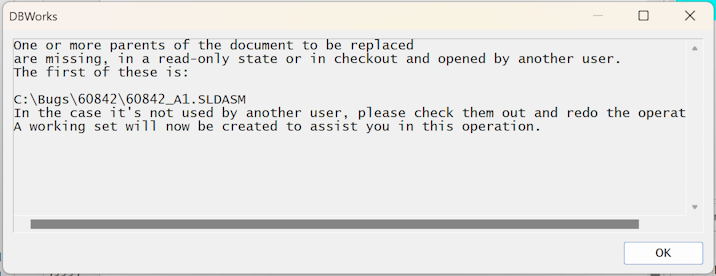
Options available
Remove the replaced document from some of the projects it currently belongs to
You can delete the replaced document from one or more belonging projects: in the Projects tree select the project from which the document will be deleted. You can use the Ctrl key to unselect a project clicking it again.
Select in which contexts the replacement takes place
You can replace a document in a selective way, which is indicating exactly in what parent document (usually an assembly) it should be replaced. In the documents' list on the right, select one or more. Where possible, a preview of the parent document is displayed in real time.
Clicking OK executes the replacement command.
Ensure that you have write access for all the files involved in the replacement
If you click this button the Used by grid may be used to create the working set in the Query page of the browser; it may happen that, for some reasons, the assembly or sub-assemblies where the parts to be replaced are used are in a read-only state (released or checked-in).
Transferring the list of these assemblies into the Query page of the MechworksPDM browser as a working set, permits to handle all the documents as a set, and, for example, to put them in a checked-out (writeable) state with one, or maximum two, operations.
Remarks
MechworksPDM ensures that all the first level parents are in a writeable state, i.e. in NEW or CHECKEDOUT state and that the file is not locked by anyone in the network (i.e. all the first level parent files must be closed).
Because of this setting, you need to check out the assembly or drawing files containing elements to be replaced.
In case of Replace Referenced functionality, MechworksPDM lists all the parents, no matter if they are locked or not; anyway you can check the state of documents by looking at the column STATE in the list; if some file is locked by someone else in the network, MechworksPDM displays a message so that you create the conditions to enable the substitution, normally checkin, checkout and close file.
Note that all the existing links to other documents are updated. This implies editing automatically all the linked documents, including the parents. Because of this reason all the linked documents must necessarily be write enabled: if they are undergoing a revision process, they must be in a checkout or new state.
Due to an Autodesk Inventor (InventorApprentice) limitation, you can do substitution only if the replacing component was created as a 'save as' of the component to be replaced.
Quoting Inventor API (ReplaceReference):
The file being replaced and the replacement file must share ancestry (i.e. they must have the same InternalName).
Documents have the same internal name if they are copied using 'Save Copy As' or a file explorer copy.
As workaround you can perform substitutions using the Replaced Selected Components method, that avoid the usage of InventorApprentice.