Define the layout in the BOM Wizard
The BOM Wizard edits graphically the parameter files that define Excel BOMs.
The wizard embeds help information for most of its feature, but since the interface that defines the layout of the fields and of the headers was a little too complex to be added to a crowded interface, here you can read further details on the topic.
The layout is defined in the last tab of the wizard and is decided in three sections: General options, BOM headers and Preview of the BOM.
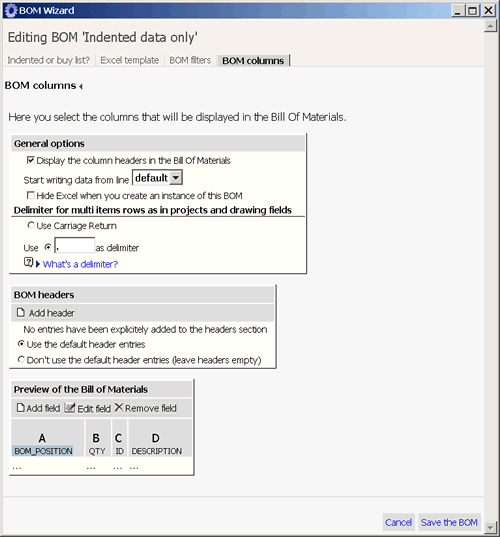
The general options define basically if the BOM should display any header and if Excel should be displayed on screen during the process of BOM creation. You can also set from which line the data of the body of the BOM are written and how to handle multiple values for special fields related to projects and drawings.
BOM headers
Here's where you define the headers of the BOM. You may like to display the logo of your company and some data for the main assembly.
While the logo of your company and static labels can be added to the Excel template you prepared and indicated in a previous step of the wizard, the dynamic content must be set here.
By default, the headers are set so that a standard 'by design' template is filled. This option has been made available both for backwards compatibility and to allow you to have an out of the box solution that could makes sense from the very first run.
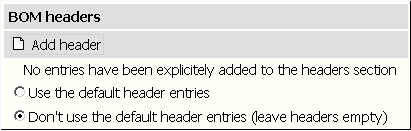
You can click 'Don't use the default' and then Add header to define your own headers.
Headers are defined explicitly indicating the location of the cell and the content in a dialog:
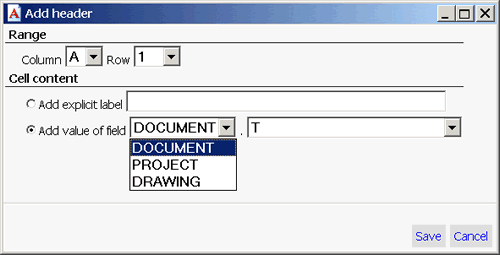
You can specify an explicit label or a field value. Explicit labels could also be defined in the Excel template, but defining them here would allow you to share the same Excel template across several BOM templates changing the values in the headers, beside, obviously, changing the body content.
If you set a field value, you can choose among all the fields currently defined in your DOCUMENT table. The field values can be related to the main assembly itself or to the projects and drawings to which the assembly belongs. The dropped down list in the image shows how you can set the source of the information. The second list, just beside contains all the field names.
If you select to display fields related to drawings or projects, you may get multiple results (an assembly could belong to several projects or have several drawings). In this case the values are joined by a delimiter defined in the general properties of the layout.
After editing, the display of the header in the layout tab changes:
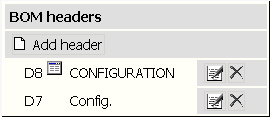
The headers added are displayed as a list where the field values are identified by an icon. Beside each item you can see two buttons: the first is for editing the item, the second for deleting it. To add another header, click 'Add header' again.
The body of the BOM
The columns with the information on the BOM item are set below in the BOM preview
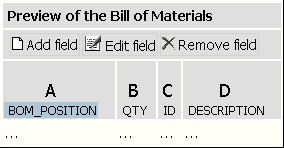
The preview includes a button bar above the columns. It is a very schematic representation of what the BOM body will look like in the real BOMs. The real data are displayed as ... below the column headers.
From the buttons bar above you can add a new field, edit the field currently highlighted in blue or remove the field currently highlighted. You can edit or delete also from the popup menu available right-clicking the fields.
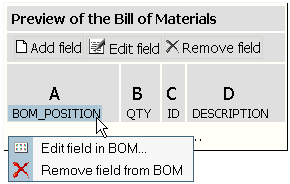
Editing the body of the BOM
When you edit a field a section appears before the preview with the options for the entry. The options in the section change interactively as you set the properties, so it may look a bit differently depending on the current settings.
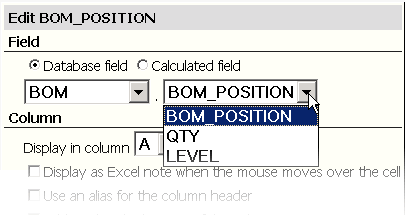
The first subsection is about the content and allows you to choose if you want to add a database column or a calculated column. For database columns, you can add values coming from the document itself, its projects, its drawings or generic BOM information like the position, the quantity or the hierarchical level in the traversing, in case of indented BOMs.
In case of calculated fields, you can add an Excel formula of which the validity is not controlled.
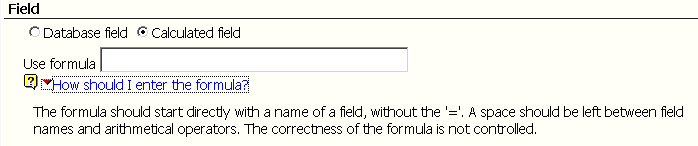
After setting a calculated column, always create at least one BOM to check that the results are displayed correctly.
In the second subsection you decide how the display is handled.
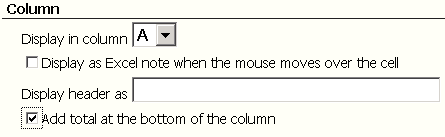
You must first decide where to display the field. The list is limited to the columns available, including the current one in case of edit and the free ones.
By default the information is displayed by simply filling the cell with the value, but you may decide that the information is displayed as an Excel note as a tooltip when the mouse moves over the cell. This kind of display comes in handy when you want to display information about drawings: in the printed BOM you have a small red triangle to signal that for a given BOM item there is a drawing, while in the Excel sheet if you move the mouse over the item you see the actual list of drawings available, either as a list of IDs or as a list of file names.
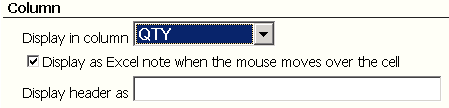
When you decide to display the information as an excel note, the list of values changes to display the list of columns already filled with some information.
You can define the column header to overwrite the standard value given by the field name.
Totals are useful for quantities like weight, cost, but also length, mostly for piping. Having access to the piping length data in the database is immediate and does not require any calculation on the geometry from the CAD, so you could use a BOM also to perform quick calculations displayed on the fly on screen.
As a result of a few changes, the preview has changed to display richer information:
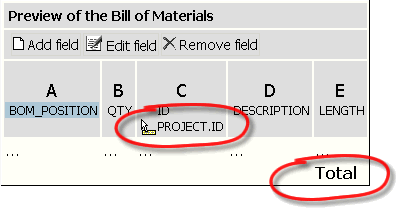
The id of the project is displayed as a note of the field ID and a total has been added to the length field.
Saving the BOM
When you save the BOM you don't see a typical Windows save dialog. A dialog is displayed with three options:
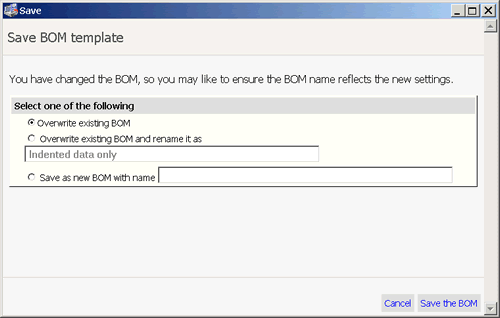
•you can overwrite the existing BOM
•you can rename the existing BOM (after all, you probably have changed something and you may like to give it a new name)
•you can save as a new BOM, leaving the original BOM as is
The wizard takes care to put the BOM in the par directory and assign it a recognizable file name.