The Excel BOM Wizard
How to define the BOMs
MechworksPDM comes with a graphic editor that embeds a help file: you can define the BOM and read about the meaning of each parameter from the same interface.
You can run the wizard from the Manager or from the MechworksPDM shortcut bar.
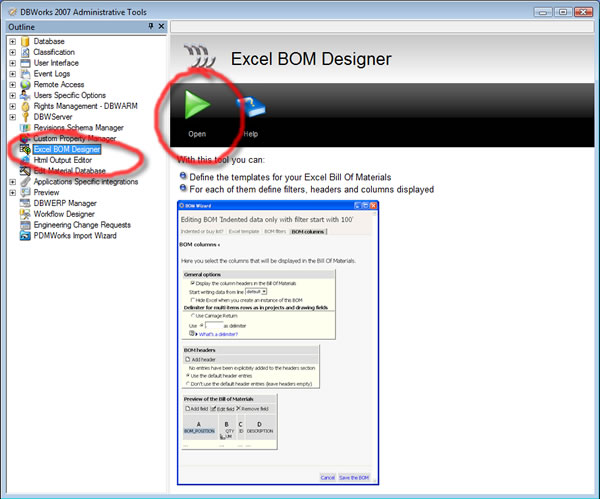
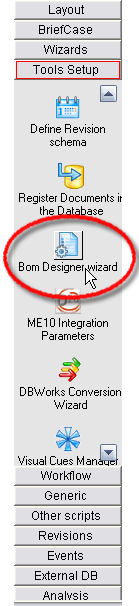
The BOM Designer is displayed on screen letting you select the BOM you want to update/start from
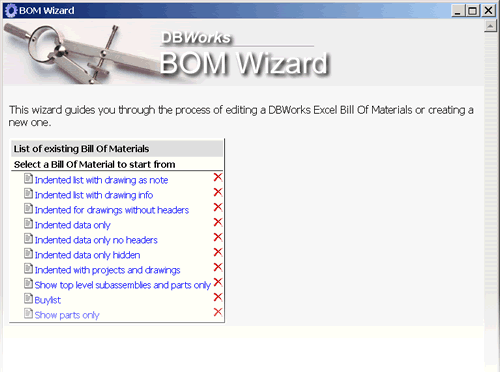
Here we do not provide a full description of this wizard.
The main steps in the wizard definition process are:
•select the BOM to edit (also if you intend to create a new one, you start from an existing one)
•select an Excel template from the xls directory
•select the type of BOM (indented or buy list)
•define filters to apply to data
•define the layout of the headers and of the body
•save (overwrite, rename or save as new BOM)
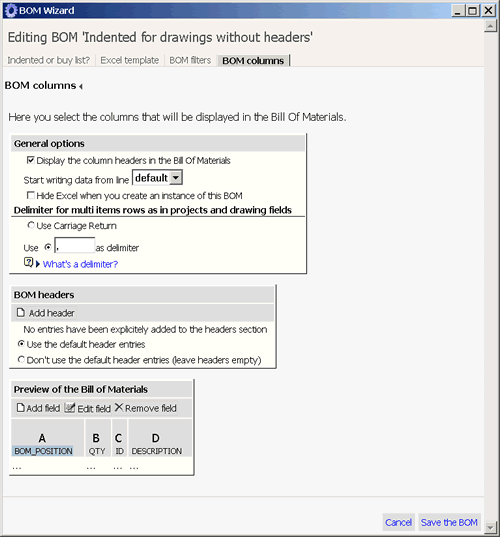
The parameters available
•Indented or buy list, where the indentation reflect the hierarchical relation and a buy list is a flat list where each item appears only once and the quantities are added.
•Use an Excel template picking from the exiting files in the xls directory or start from an empty sheet
•Select the output (Excel in xsl format or pdf)
•Consider part-part relations as valid hierarchical relation in the traversing
•Apply data filtering based upon quantity, level or any property of the record in the DOCUMENT table using a valid SQL condition as in any query
•Display/hide column headers
•Set the line from which the sheet is filled with the BOM data
•Run in silent mode/display Excel
•In case of multiple values as for instance all the projects of an item, set the delimiter
•In case of multiple values as for instance all the projects of an item, choose to display only the first
•Display/hide headers
•Use default headers or define your own (both labels and field values, including projects and drawings related information)
•For the body, define the fields that should fill the columns, define alias for column headers, define automatic calculations, totals for numeric fields and Excel notes that would be displayed on demand
•Display custom fields coming from the PARENT_CHILD table
Support for revisions
Excel BOM can create BOMs that represent previous revisions of the assembly.
The BOM displayed replicates the state of the assembly structure at the moment of approval. Currently it is not possible to fully recreate the state of the DOCUMENT table in the Excel BOM so the properties displayed may differ from the original ones.
Note that for previous revisions you cannot obtain information about the parents of the items, namely projects and drawings because such information would not be accurate.