Apply SQL filters to specific users
You can apply SQL filters to specific users or groups of users, so that each time they run a query the results they get will be filtered by your additional SQL condition. The condition must be a valid SQL condition as the one that would follow a WHERE in a SELECT statement and can apply to any of the DOCUMENT fields, but beware that using many chained LIKE conditions will increase the response time and the workload on the SQL Server.
Assigning the conditions to users and groups
The parameter file that sets the custom document types is ...\Program Files\DBWORKS Stand Alone\WebViewer\AddedConditions.xml .
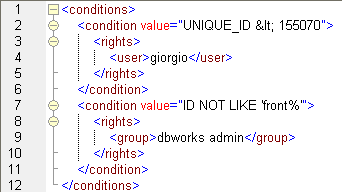
On a clean installation you can find the file AddedConditions_default.xml that you can rename and edit to activate it. You can edit the attribute value that must specify a SQL condition. Being inside an xml you cannot used the characters < and > directly inside your query and must use < and > instead.
Editing the file does not require to restart any component on the server, but the changes apply only to the users logging in after the changes have been saved. A GUI editor is not available as of today.
Adding new conditions
Copy and paste a complete condition tag and place it below the copied one, then edit the value and reassign the rights as needed.
How to assign multiple OR conditions
If you want to assign a condition that includes the OR logical operator such as a multiple condition on file types>
(FILE_NAME LIKE '%.PDF' OR FILE_NAME LIKE '%.DOC' OR FILE_NAME LIKE '%.XLS')
you need to enclose it with parentheses.as in the above example.
Assigning the rights
Inside every type tag you can fin the rights tag. To this tag apply the same rules explained in detail in the section 'Setting the rights' of the topic Defining Custom Menus.