Batch downloads
This command allows you to download all the components of an assembly with one command, presumably to be able to work on it locally.
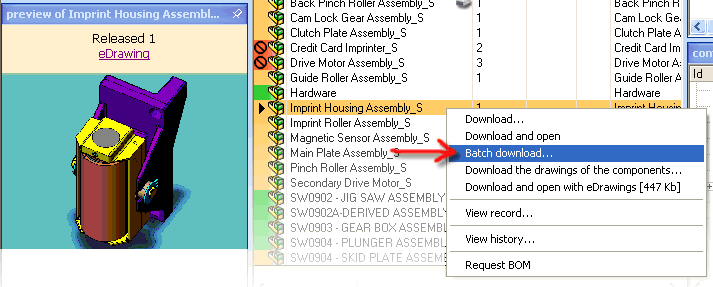
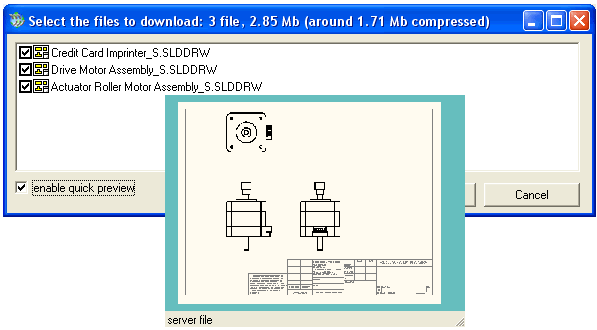
A dialog opens allowing you to view the list of components and select the ones you want to download. The default selections in the dialog include all the cad files of which you don't have a local copy or of which the copy is outdated, so generic files like Word and Excel files and CAD files for which you already have a valid up to date copy are not checked.
The total download size is a rough estimation because the creation of the compressed files is done in real time and is therefore not possible at this stage to know the exact size of the download.
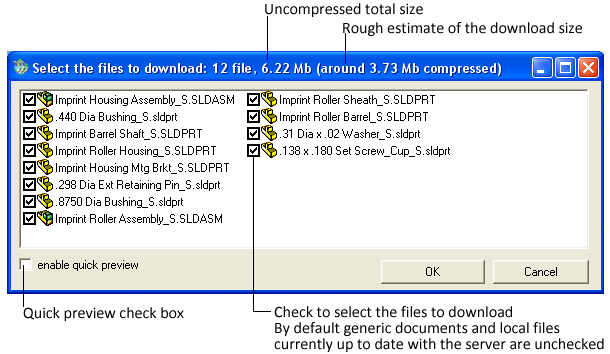
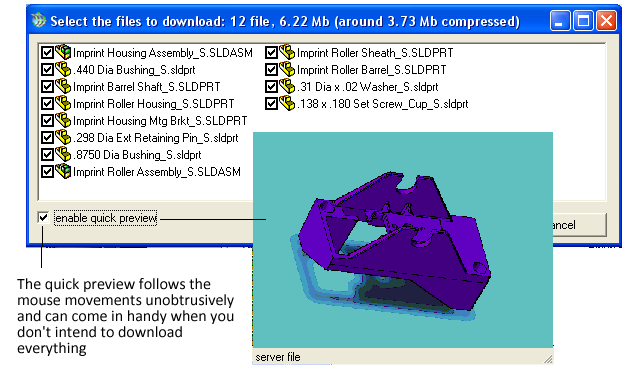
When you click OK the files are compressed server side and the download begins.
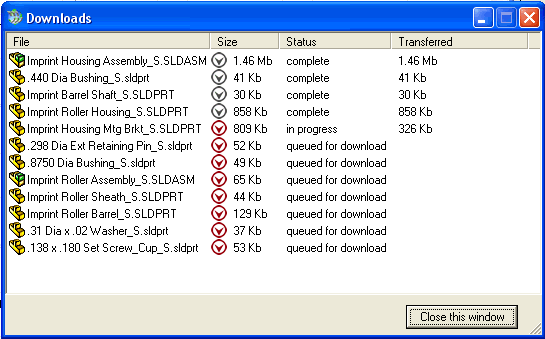
Once the downloads are complete to open any of the files from this dialog use the popup menu that appears right clicking any of the items in the list.
This command looks for all the drawings of the components of the selected assembly and creates a download list
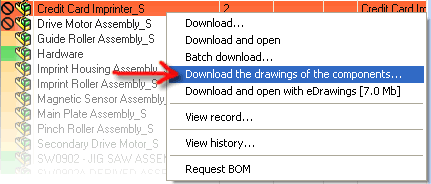
The selection of the drawings and the download works in exactly the same way as the batch download of the components of an assembly.
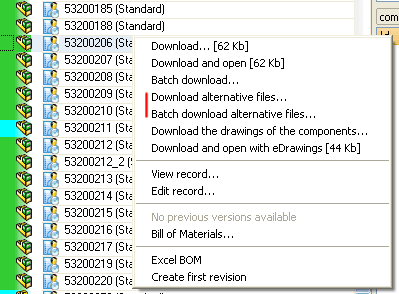
A user entitled to have access both to CAD documents as well as alternative ones can right click a multiple selection and request to download both the documents registered in the database and the alternative documents.
Download alternative files... downloads the alternative files for the selected doument(s) only
Batch download alternative files... download the alternative files for the documents and all their descendants
The Attached documents, if enabled in the options and available are also displayed in the dialog.
The standard behaviour in a new installation is that the attached documents remain unchecked, but it is possible to define that the default check state in the dialog = checked, which means that by default the attached documents are downloaded. To enable the default selection of attached document, in the file ...\program files\DBWorks\WebViewer\WebViewerOptions.txt add the line
tick_attached_documents
If the attached documents are not checked and you want to download them, you can check all of them with the command Edit, Check Attached Files.
You can apply revision operations to a multiple selection of documents, but since querying the state of each document is a server side operation that may require a few seconds, the display of the revision commands has been disabled in the standard RMB menu. In order to display the revision commands in a multiple selection popup menu press CTRL and right click one of the documents in the selection.
You can have custom scripts always active on multiple selection adding the option in WebViewerOptions.txt:
multiple_selection_scripts