Attached documents

Features
oDisplay in menus attached files for quick download
oDisplay in batch downloads from multiple selection
oNo limitation on the number of files that can be attached
oThe files don't need to be referenced in the database
oThe files can be taken from any location
oStrict access control to each file, by DBWARM user and group
oQuick access in a LAN environment
oOnce downloaded, open from local drive until you close the session

Limitations
oThe files are not zipped before the download
oWeb Client can display attached files from the file system using a search pattern
oWeb Client is also compatible with DBWorks attachments
Compatibility with attachments saved in the database (table DBW_ATTACHMENTS) and legacy files not registered in the database
Legacy files not registered nin the database
If you have legacy files and/or other files that accompany the product and are not registered in the DBWorks database, you can display them in the popup menu for download.
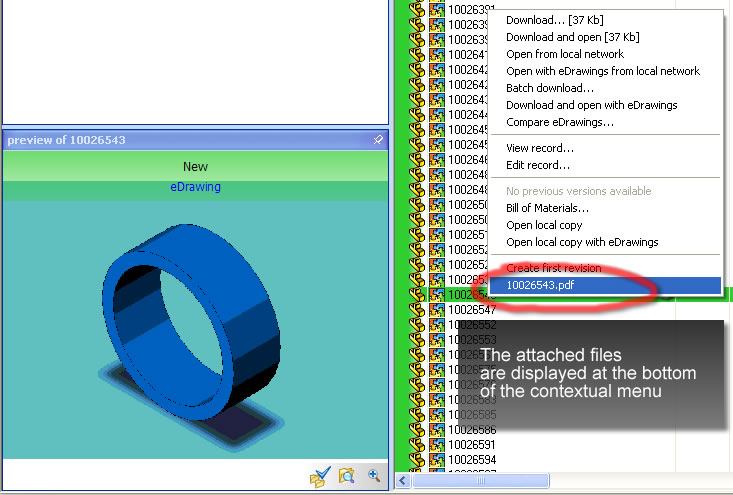
Attached files and batch downloads
In batch downloads from a multiple selection in the grid, the attached files are displayed in the diloag, but they must be checked in order to include them in the download.
How to activate it
Open the file ...\program files\DBWorks Stand Alone\WebViewer\webViewerOptions.txt and add the line
attached_documents
If you don't intend to use attached files don't activate the option because at each right click, before displaying the popup menu it will start looking for attached files in accordance with the dir and file patterns defined in a parametric file.
How to set the search patterns
Open the file ...\program files\DBWorks Stand Alone\WebViewer\AttachedFiles.xml with an xml or a text editor.
Before editing the file let's read the content together to help you understand the structure of the file.
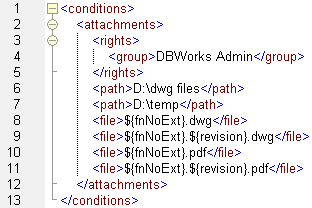
Under the root element you can find a tag named attachments. This tag defines the unit to which apply the rights and the dir and files patterns defined inside, so if you want to add a new search with specific rights you have to copy this block and paste its copy just below, before defining the added patterns.
The tag rights defines who has access to the attached files. To understand how the tag defines the access refer to the topic Define custom menus where the rights definition is explained in detail.
You can now the define the directories that should be scanned and the file names that should be looked for.
Each path tag defines a path to be scanned. The directory where the file for which you request the popup menu is implicitly included, so you will probably define only explicit paths. If the directory is not located on a local hard drive on the web server, you have to define the directory path using a UNC path. You need to define all the directories that have to be scanned explicitly; subfolders will not be scanned. This limitation is induced by the fact that the operation must be done in real time before displaying the popup menu, and the least number of locations the server scand, the faster will be the response to the client.
going bach to our example, in this case the directories where the server will look for attached files to include in the menu are: the same directory of the file itself, the directory d:\dwg files and the directory d:\temp.
For directories a list of explicit paths will be probably sufficient, but for files you will probably more flexibility in definition, and for this reason Web Client defines macro patterns that include all the fields of the DOCUMENT table for the given document and some extra handy macros.
Macro patterns
All the macros are expressed in the form ${...}
Here's a list of the macros available. All the information references the fields of the record of the document for which you are requesting the popup menu on the client:
${field name} |
Any field in the DOCUMENT table, including custom fields, localized in the language in use. |
|---|---|
${fnNoExt} |
The file name without the extension, so for the file myPart.sldprt you would get myPart |
${uncDir} |
The directory of the document expressed as a UNC path |
${uncPath} |
The UNC path of the document, including the file name and the original extension |
${dir} |
The directory of the document |
${fn} |
The file name of the document |
${uncPathNoExt} |
The UNC path of the document, including the file name but not the original extension |
${dirNoDrive} |
The directory without the indication of the drive. Used for compliance with Master Drawing Mode options. |
the patterns are not case sensitive.
Now let's go back to our definition file and try to understand what files we're looking for:
${fnnoext}.dwg indicates that if my file is 'myPart.sldprt' the server will look for something like 'myPart.dwg', and this in all the directories specified in the path tags.
${fnnoext}.${revision}.dwg indicates that if my file is 'myPart.sldprt' is in revision A the server will look for something like 'myPart.A.dwg', and this in all the directories specified in the path tags.
${fnnoext}.pdf indicates that if my file is 'myPart.sldprt' the server will look for something like 'myPart.pdf', and this in all the directories specified in the path tags, and so forth and so on.
Compatibility with Master Drawing Mode
If in yourt installation you are using Master Drawing Mode you will find the pdfs or tiffs available as attached documents. In a brand new installation this behavior is out of the box.
In an existing installation you are requested to edit the file ...\webViewer\attachedFiles.xml and add the folllowing section:
...
<attachments>
<rights>
<user>everybody</user>
</rights>
<path>MDM</path>
</attachments>
...
Web Client will recognize the special value MDM which stands for Master Drawing Mode and will add the serach paths in accordance with the options set on the Stand Alone on the server.
Debugging the macros
If, after setting a macro you still don't see the files, open the file program files\DBWorks StandAlone\webViewer\WebViewerOptions.txt and add the following line:
log_attachments
This action will log in the directory program files\DBWorks StandAlone\webViewer\Log all the paths being tested for existence.
So why should I define many <attachments> sections instead of just one big list?
Granularity in rights: you want to apply separate rights to the download of , say, dwg and pdfs. Remember that the rights tag is defined only once per each attachments tag
Performance: you know that the pdfs are in c:\pdfs and dwgs are in c:\dwgs. In this case it's a good idea to define two separate <attachments> sections so that the system won't be looking for pdfs in c:\dwgs and vice versa. This is mandatory if you have 4 or more paths and 4 or more file patterns: the number of combinations grows enormously overloading the server and slowing the response time very quickly.
Compatibility with attachments in the DBW_ATTACHMENTS table
Web Client is compatible with attachments in the DBW_ATTACHMENTS table. The attachments are displayed as downloadable files in the popup menu of the document to which they are attached.
These attachments are automatically enabled when you add the line attached_documents to the parameter file WebViewerOptions.txt