Assign user rights on document types
Assign User Rights on Document Types
You can limit the access of a user or a group of users to the document by type. The limitation can be set based on the value of the field T of the database or on the file extension for non CAD documents.
You can, for instance, make sure that people in the warehouse have access only to drawings or that external designers do not have access to the notes attached to the CAD documents and contained in Microsoft Office documents.
Note that if you want to deny the access of the users to, say, the Drawings or the Word documents an elegant alternative is to make sure they have access only to alternative files (could be pdf's or tiffs instead of native drawings, pdf's instead of Word documents). Read more on alternative documents.
In the directory c:\program files\dbworks stand alone\WebViewer of your web server (or equivalent depending on the installation), find the xml text file named fileTypes.xml.
Open the existing template and use cut and paste to add the extensions you want to manage.
The block to copy is one like the following, and indicates the document type and internally the rights for the user or for the group.
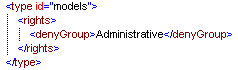
Inside the tag rights, you have the following commands available to set the rights:
command |
description |
|---|---|
denyUser |
deny access explicitly to the user |
user |
allow the user |
denyGroup |
deny access explicitly to the group (can be superceded with an explicit authorization/access denial to specific users in the group) |
group |
allow all the users in the group (can be superceded with an explicit authorization/access denial to specific users in the group) |
The commands are considered in this exact same order, so for instance an explicit denial to one of the users is effective and applied no matter the group he/she belongs to.
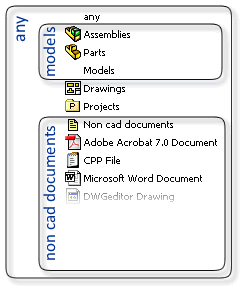
The commands enlisted above are applied to document types. Document types are partly abstract, in the sense that they rely on the value of the fieldT in the database and partly associated to the extension of the file.
Here is a table with a schematic representation:
code |
description |
|---|---|
any |
The entry 'any' in the drop down list for document types that allows to query all the documents in the database. Includes all the documents |
models |
Cad assemblies and parts |
A |
Assemblies |
P |
Parts |
D |
Drawings |
0 |
Projects |
G |
Non cad documents |
The file extensions are specified with the extension including the do and are considered for non cad documents, that in the database are marked by T = 'G':
Adobe Acrobat documents |
|
|---|---|
.doc |
Microsoft Word documents |
.xls |
Microsoft Excel documents |
and so on and so forth...
The file is loaded for the client at login, so if you change the file you need to log off and log in again the user client side to apply the changes. No operation is necessary server side.
The schema definition for the xml file is available here
From the conceptual point of view it works as the file system security of Windows: you have explicit denial, explicit access and inheritance from a larger group. On the right you can see the schema by which groups of documents are grouped. As in Windows, you can assign the rights to an individual user or to a group of users.
The order in which the rights are taken into account is, higher to lower:
By user/group
oExplicit denial to the single user
oExplicit authorization to the single user
oExplicit denial to the group
oExplicit authorization to the group
oDefault: have access
Before we analyze the parameter file in detail let's see how you would have to set the rights conceptually with a few simple examples:
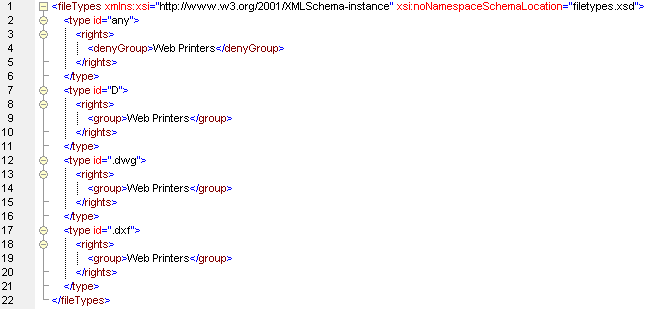
oWeb Printers can only see drawings and AutoCAD documents
The general default is that they cannot see the documents except for some specified exceptions. This also ensures that if new file types are added by default Web Printers won't be able to see them. So for the most general group 'any' they are denied access, and then for specific document types 'D', '.dwg' and '.dxf' they are allowed.
oUsers in the Administrative group can see everything but models. John, who is in the group Administrative must be able to see assemblies.
The general default is that they can see everything, but there are exceptions.So for the most general group 'any' they are allowed access, and then for specific document type 'models' they are denied access. There is an exception, though, because John, who is in the Administrative group can also see assemblies to check the Bill Of Materials.
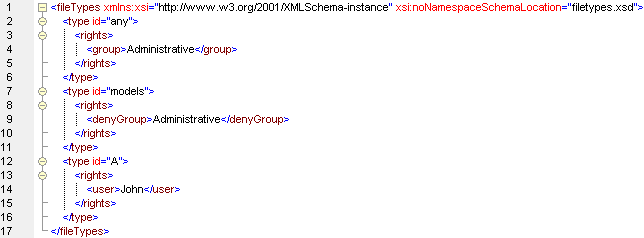
Notice how the explicit right assigned only to the user John for the type 'A' supercedes the general group setting for models.
Note that by default if 'any' is not specified the default setting for this general group is allow, so the explicit authorization for the group 'Administrative' in 'any' here is redundant and has been added only for the sake of conceptual clarity.
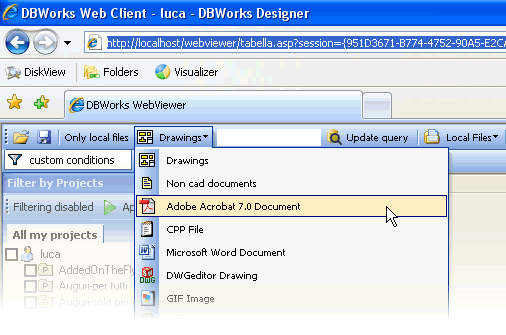
The list of document types in the main header is limited to the types assigned. Consider that if you are as a user still allowed to perform a query of type 'any' (any document) or 'non CAD documents' (generic documents) but at the same time you are not allowed to see Microsoft Word documents, the word documents will not appear in the results because they are filtered out in the original query performed on the server.
If a type is not explicitly denied to you, you are still allowed to see it and download the associated documents.
Denying the entry for 'models' does remove the entry but still allows you to have access to parts and assemblies if they are not explicitly denied
In this case the limitation is implicit, in the sense that unauthorized documents don't appear in the results.
Let's consider the case where you are allowed to view drawings but not parts and assemblies. Selecting a drawing still displays the children parts and assemblies in the Composed of panel, but these tree items do not display any popup menu. Also, double clicking them does not start a download.
The preview images of files not assigned to you are still available if you click the documents in the Used by and Composed of panels, but the eDrawings hyperlink is not there to download a 3D preview of the document.