Custom Document Types
Custom Document Types
You can create custom document types that make the document types virtual. For instance you can define the custom document type 'Technical notes' that include Microsoft Excel files and .txt documents that have a file name that starts with 'note_'.
Creating the document types
A document type has a name and a SQL condition that filters the result when you run a query. It is displayed in the document types drop down list just below the standard ones and above the file extensions.
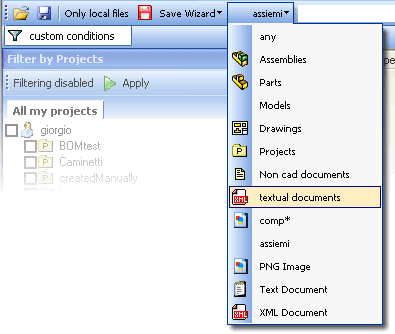
Setting up Custom Document Types
The parameter file that sets the custom document types is ...\Program Files\DBWORKS Stand Alone\WebViewer\customTypes.xml .
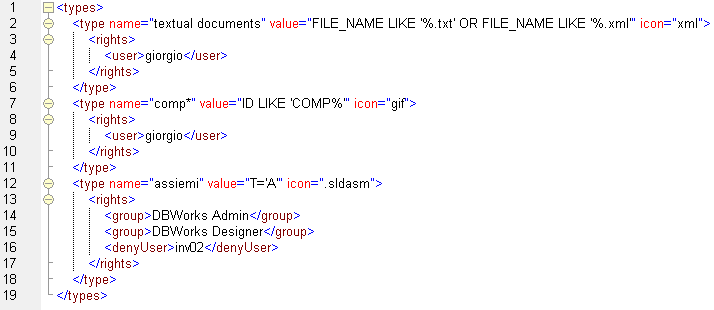
On a clean installation you can find the file customTypes_default.xml that you can rename and edit to activate it. You can edit the attributes 'name', 'value' and 'icon' to test the feature. Name sets the caption in the menu, value indicates a SQL condition that will be applied as a filter to the query and icon indicates either a file extension on the client, or an .ico file on the server.
Assigning the icon
The icon is assigned in the icon attribute of the tag type
If the icon starts with a '.' such as in '.jpg' the client will display the icon normally displayed in Windows Explorer for that file extension. The information is retrieved locally and can vary depending on the client environment, so you will easily see distinct '.jpg' icons on distinct workstations depending on the image editors installed.
If the icon does not start with a '.' then the client will download from the server a file located in the directory ...\wwwroot\webviewer\icons\ of the web server and with the extension .ico . So, if you define in the xml an icon value such as arrow, the client will try to download from the server the file ...\wwwroot\webviewer\icons\arrow.ico that must have been prepared and placed in that directory.
Editing the file does not require to restart any component on the server, but the changes apply only to the users logging in after the changes have been saved. A GUI editor is not available as of today. We plan to release an editor for this file before the 3rd quarter of 2007.
Adding new conditions
Copy and paste a complete type tag and place it below the copied one, then edit name, value, icon and reassign the rights as needed.
Assigning the rights
Inside every type tag you can fin the rights tag. To this tag apply the same rules explained in detail in the section 'Setting the rights' of the topic Defining Custom Menus.