MechworksPDM can connect to all the BricsCAD versions except the LITE.
With this integration you can register BricsCAD documents in the MechWorksPDM database: the registered document gets automatically coded
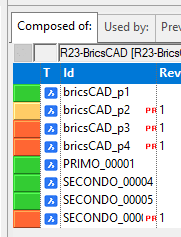
BricsCad integration can register PartRef and Mechanical Components as children of the main drawing in order to create a BOM from the PDM.
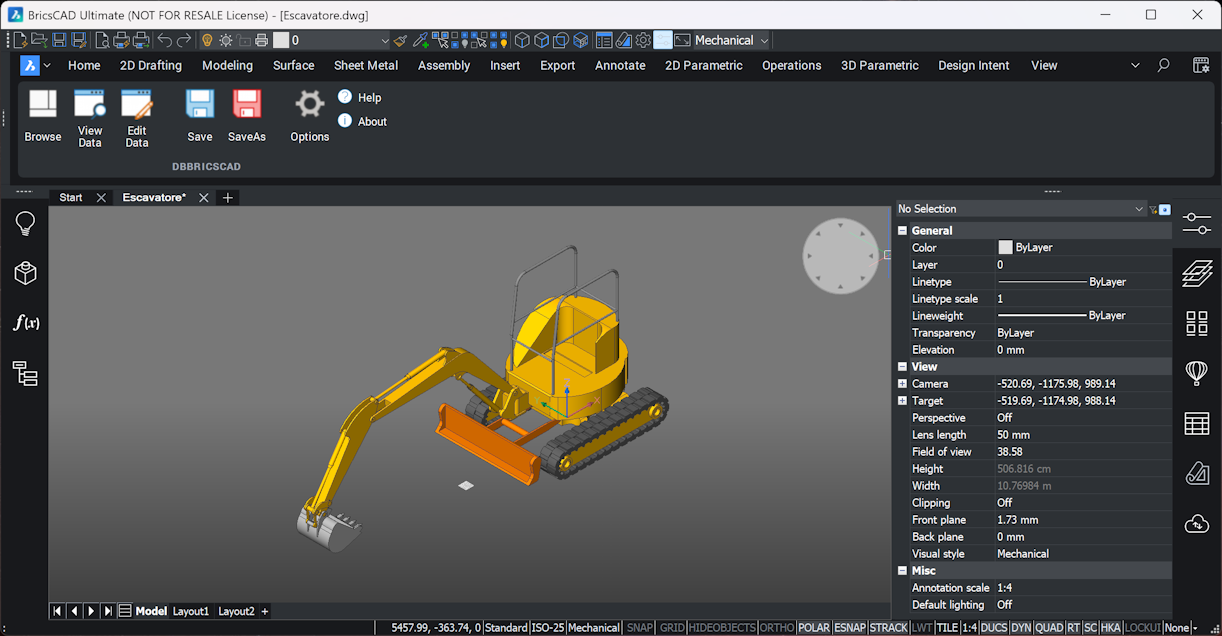
DWG documents are managed as generic - 'G' type
Toolbar


Please note SaveAs command acts according to DBStandaloneClient options from section Open/Save→Save as:
 Use DataEntr.LST data entry script on 'Save as...'
Automatic check-in after a 'Save as...'
Automatic check-out after the check-in
Options
Options
 Update MWPDM field from title block attribute
If checked it lets the user update a database field with the value set in a drawing's attribute.
Update Bricscad title block attribute form MWPDM field
If checked it lets the user update the value of a drawing's attribute with a field of the database.
 Save PartRef as children
If checked it will enable saving the PartRef contained in the drawing as children of the main drawing
Count duplicate PartRef as one
If checked, if the main drawing contains duplicates of a specific PartRef, only the last one will be saved as child.
Save Mechanical Components as children
If checked it will enable recursively saving the Mechanical Components contained in the drawing as children of the main drawing.
Mapped BricsCad attributes on MWPDM document table fields are:
1.Description
2.Material
3.Make/Buy (with the below association):
Regular |
MAKE |
|---|---|
Excluded |
NO_BOM |
Transparent |
BOM_GROUP |
Terminal |
BOM_NO_EXPAND |
TitleBlock Mapping
The mapping between drawing's attribute and database field is created in the second tab of the Bricscad options:
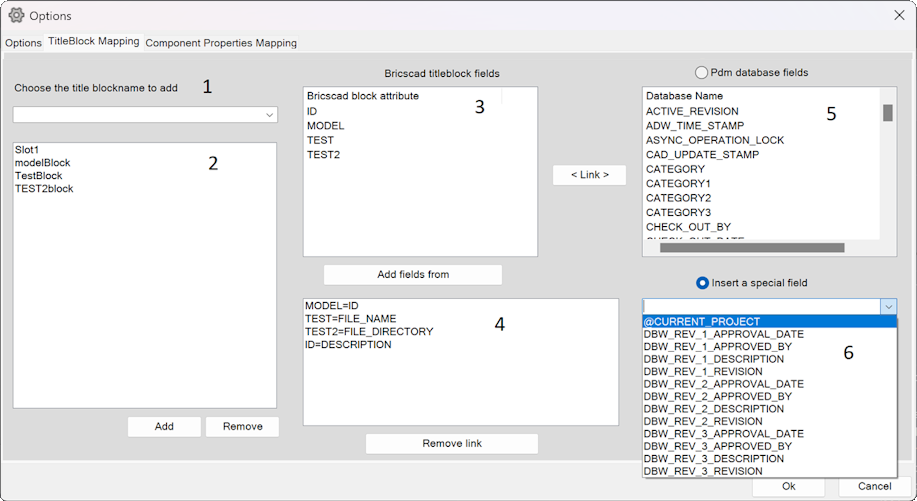
1.Contains all the titleblock of the drawing
2.Contains all the already mapped titleblock from all the drawings
3.Contains all the attributes from all the titleblocks added
4.Contains attribute-field links already created
5.Contains the standard MWPDM fields
6.Contains the special MWPDM fields
In order to create a attribute-field link selecta titleblock from 1 and click the button , select the added titleblock then click the button . Select an attribute from 3 and a database field from 5 or 6 depending on the checked radio button (standard or special database field) and click the button . Special database fields are:
•@CURRENT_PROJECT → returns the ID of the current project in MWPDM
•DBW_REV_N_XXX → Return the value of the selected field in the N revision starting from the last one.
(e.g. DBW_REV_2_DESCRIPTION will return the description of the penultimate revision)
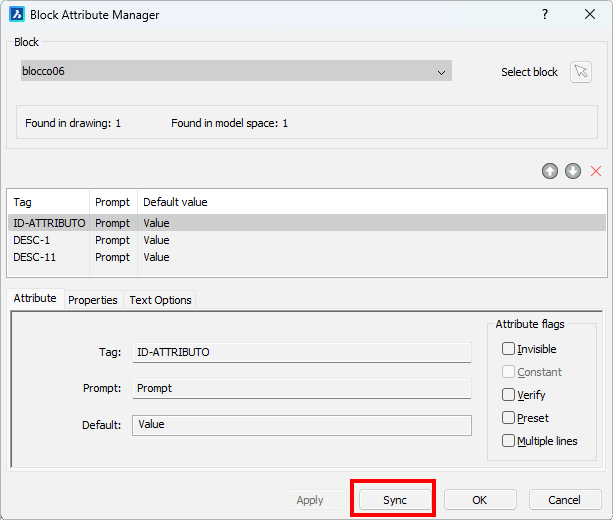
Pay attention when creating or editing Blocks in BricsCAD. In particular, adding or removing attributes from a block requires a mandatory execution of ATTSYNC command from the command line or via the Block Attribute Manager. See image below.
Component Property Mapping
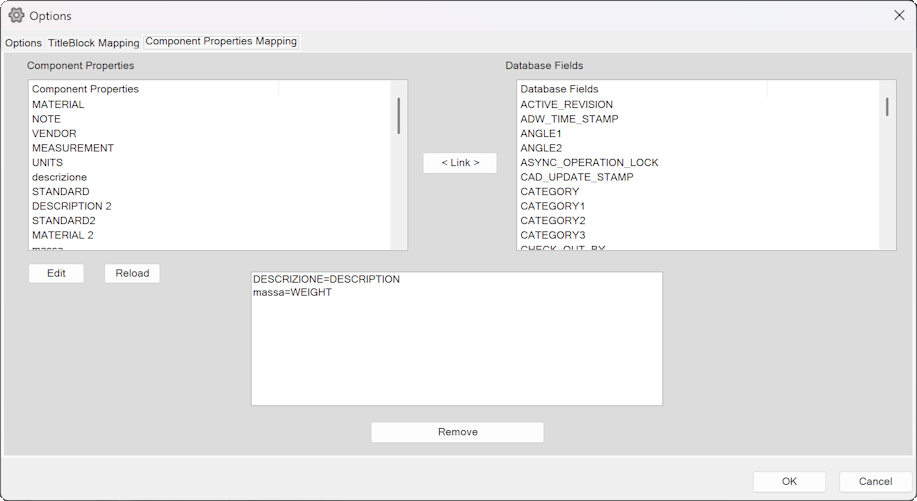
This tab allows the user to edit the component properties defined for every PartRef, adding custom defined ones or renaming them and map those properties on a specific filed of the Document table in MWPDM database.
In the above example the properties MATERIAL and DESCRIZIONE will be stored in the field DOCUMENT.MATERIAL and DOCUMENT.DESCRIPTION when saving the drawing.
The button Edit will open the file GPP/PAR/ BRCDAttributes.txt that contains the list of component properties and it is modifiable by the user.
The list must contain the Display Prompt name of the property.
The list must contain one value between square brackets [ ] that will be recognized by the PDM as ID of the component that will be saved, usually the NAME property.