The Conversion Wizard (CW) allows to convert in an automatic way, older CAD files in a more recent CAD format.
I'ts mainly used when a new version of the CAD application is used and you'd want to have converted the already existent archive components.
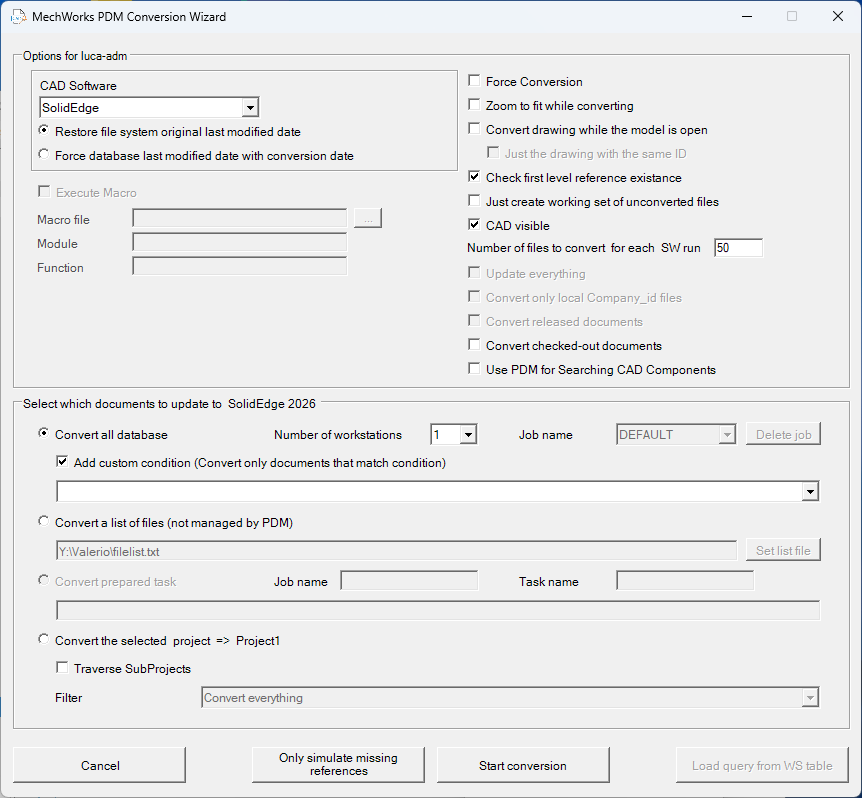
In case of Local Checkout Mode active, the CW does not take in account it.
Files in the local directories are not converted (they would be most likely already converted since users are working on them).
CAD Software
In this dropdown list you've to select the CAD you're converting files with.
Date options
Based on the combination of the date options the following dates are affected.
A warning message is issued if the user decides to change the database date in a remote access installation.
Since the database date is changed, remote sites running the file replication script will generate file downloads for each converted file.
setting |
effect |
|---|---|
|
Restore the file system original last modified date and writes it in fields LAST_MODIFIED_DATE (local time) and LAST_MODIFIED_FILE_DATE (UTC time) |
|
Update both database fields with the file system date; file system date is instead the Conversion time |
Execute Macro
Enabling this option, allows you to choose a Macro (file, module and function) to be run by the CAD when saving the file.
Force conversion
Open and re-save the document, no matter if the file is already saved with the most recent CAD format.
Zoom to fit while converting
When saving the file, a "zoom to fit" process will be done.
Convert drawing while the model is open
If enabled, the wizard will open (and convert) one of the drawing related to the processed assembly/part.
Just the drawing with the same ID
If enabled, the wizard will open (and convert) one of the drawing related to the processed assembly/part only if it has the same ID.
Check first level reference existence
Only for assemblies, checks if every assembly component already registered in the database exists on the file system before opening the assembly (to avoid a lock state due to CAD request of missing referenced components).
No check is performed on the existence of components not registered in database.
Only simulate missing references
This option has been substituted by a specific button named in the bottom of the dialog that performs a specific simulation.
Just create working set of unconverted files
If this option is enabled, no conversion on file will be done; its result is just a working set containing all the files eligible for the conversion.
CAD visible
If enabled, the CAD application will be shown during the conversion process; otherwise the whole procedure will be performed with no user interface.
Number of files to convert for each CAD run
This option is available only if the CW is called from StandaloneClient
It kills and restarts the SW process (every n components) to avoid system crash/hanging/overflow/...
Update everything
This options forces to rebuild all configurations and geometry before saving (Solidworks only - equivalent to CTRL+Q)
Convert only local Company_ID files
self explaining.
Convert Released documents
This option is for converting the released documents in the Released Database Mode.
It is available only if the Release Database Mode is enabled AND the RELEASED tables are in the main database, that means that it is enabled the option "Released Database resides on RELEASED_... tables of main database"
In this case the option is necessary because the user can decide whether to convert the current documents or the released documents. Instead, if the released database is a different database, the option is not needed, since the conversion acts on the ODBC connection configured on the PC running the wizard.
If the RDM is implemented through a separate database, this option is useless.
In this configuration there are some terminals that are working only on the released database, that means only with released files.
Simply using the conversion wizard on these terminals will convert the released files.
Convert Checked-out documents
It allows to convert files checked-out by other users. The option is available only if both LCM mode and ACL file locking options are not enabled. Please note that if files are checked-out by a user working in OffSite mode, the wizard will convert the copy on the server: this could obviously lead to conflicts in file versions.
Use PDM for Searching CAD Components
This checkbox has the same meaning of the option in PDM Environment options.
When starting the conversion this option was disabled by default in PDM, since it is dangerous and could lead to unwanted behavior.
With this enhancement we have added a checkbox in Conversion Wizard which is enabled only if this option is enabled in PDM: the user can then decide to override the default behavior and let the PDM searching for missing components.
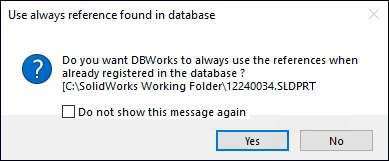
Please note that this option causes a dialog to open, so in order to allow it to work properly from the Conversion Wizard the user has to check the Do not show this message again checkbox in the dialog in CAD first.
 Convert all database
Converts all the database documents.
Number of workstations
Workstations support is active only if you add an extra filter (custom condition, explained here below) and works only with a complete database conversion
When using the shared workstation functionality, no convertion is done. A text file is created containing the custom condition to set on each workstation.
Once obtained the text file, you've to report each different filter condition on each different workstation. This for as many workstations as you've selected.
The reason is to force the user to convert subsets of the database on more computers and not the whole database.
Example
Here below it's an example of a complete database conversion, using 3 workstations.
1.Select Convert all database radio button
2.Select "3" from the combo box of workstations
3.Enable the checkbox Add custom condition and choose condition
FILE_NAME LIKE'%.SLDPRT'
4.Click the button
5.A text file is shown containing 3 filters, one for each line

due to a round operation, it could happen that you'll obtain one query more than the selected workstation number
6.Open the 3 Conversion Wizard on the 3 different workstations, and make sure the workstation combo is set to "1".
7.Copy the text file first line
FILE_NAME LIKE'%.SLDPRT' AND UNIQUE_ID BETWEEN 3138 AND 3228 ORDER BY UNIQUE_ID,FILE_DIRECTORY,FILE_NAME
on the first workstation Custom condition combo
8.Click on workstation 1
9.Copy the text file second line
FILE_NAME LIKE'%.SLDPRT' AND UNIQUE_ID BETWEEN 3228 AND 3294 ORDER BY UNIQUE_ID,FILE_DIRECTORY,FILE_NAME
on the second workstation Custom condition combo
10.Click on workstation 2
11.Copy the text file third line
FILE_NAME LIKE'%.SLDPRT' AND UNIQUE_ID BETWEEN 3294 AND 3403 ORDER BY UNIQUE_ID,FILE_DIRECTORY,FILE_NAME
on the third workstation Custom condition combo
12.Click on workstation 3
13.Now that you've converted parts, change the query in point 3. to
FILE_NAME LIKE'%.SLDASM'
and repeat steps from 4. to 12.
14.Once you've converted the assemblies, change the query in point 3. to
FILE_NAME LIKE'%.SLDDRW'
and repeat steps from 4. to 12.
15.Finally you've converted parts, assemblies and drawings; different records on different workstations.
Add custom conditions (Convert only documents that match condition)
It allows to specify an sql query that subset the total amount of files to be converted. As already set filter you can find:
Parts
Assemblies
Drawings
Parts_Drawings
Assemblies_Drawings
UNIQUE_ID In (Select AL_UID FROM TOP_LEVEL_ASSEMBLIES WHERE A_LEVEL=1)
UNIQUE_ID In (Select AL_UID FROM TOP_LEVEL_ASSEMBLIES WHERE A_LEVEL=2)
UNIQUE_ID In (Select AL_UID FROM TOP_LEVEL_ASSEMBLIES WHERE A_LEVEL=3)
UNIQUE_ID In (Select AL_UID FROM TOP_LEVEL_ASSEMBLIES WHERE A_LEVEL=4)
UNIQUE_ID In (Select AL_UID FROM TOP_LEVEL_ASSEMBLIES WHERE A_LEVEL=5)
We strongly suggest to convert in order parts, assemblies and then drawings. This to avoid the case of assembly conversion with some parts not converted yet.
 Convert a list of files (not managed by PDM)
Conversion Wizard can convert files not managed by PDM. The file list is provided as a txt file containing the full path to the files to be converted, one per line. The file list could be created for example with the command:
dir /b /s > c:\temp\myUnmanagedParts.txt
please note to preserve special characters under certain languages (e.g. German, Italian, ...) we suggest to set the cmd prompt coding before writing into the .txt file:
chcp 65001 && dir *.sldprt /b /s > c:\temp\myUnmanagedParts.txt
When you select a list of files to convert, it is assumed that they are not present in the database, so many options are grayed out as meaningless.
The list of files to be converted can be split into multiple tasks, just as you would when converting the whole database. Simply select a number of workstations greater than 1 and multiple tasks will be created on the database, which can be run from different computers. Please note that:
•It is recommended to convert parts first, then assemblies, and finally drawings. It is the user's responsibility to provide separate lists, one for each of these cases
•When converting a list of files read from a txt list, they are converted in the order they are found in the list. But if the list is used to create tasks,there is no guarantee that the order is maintained during the conversion process.
•Macro execution has been left enabled, but please note that since the files are not registered in the database, there is no data associated with them and wrong accesso to PDM usage could lead to data corruption.
Convert prepared task
Converts using task manager;
The maximum allowed number of task is 500.
In the task selection dialog the tasks can be ordered either by total file size (the current default) or the job and task names.
Convert the selected Project/Assembly => ...
Converts all the documents of the selected Project/Assembly
Traverse subprojects
Active only if you've chosen the conversion of a projects. It converts subprojects documents too.
Filter
Available choices for filtering are:
•Convert everything
•Avoid released and obsolete drawings and assemblies
•Avoid all released and obsolete documents
•Avoid all drawings
•Avoid all drawings and assemblies
•Avoid released and obsolete drawings
Appendix
When converting the whole database with more than 1 workstation, a table named DBW_CONVERSIONTASKTABLE is created to balance the conversion load process;
Here followings are the info/error messages and the corresponding codes:
CONVERSION_INFO/CONVERSION_ERROR |
CONVERSION_RESULT |
|---|---|
"Converted from originalFileVersion" |
0 |
"ERROR: missing references for fileName" |
100 |
"ERROR: unknown error. in UnlockFile file fileName" |
101 |
"ERROR: error finding file format of fileName" |
102 |
"ERROR: failed to open : fileName" |
103 |
"ERROR: failed to get write access for fileName Uid" |
104 |
"Cad name not recognized" |
105 |
"ERROR:Exception to activate the document fileName Uid into cadName" |
106 |
"ERROR:Exception to re-activate the document fileName into cadName" |
107 |
"ERROR:Exception to close the document fileName into cadName" |
108 |
"ERROR:Exception to save document: fileName with cadName" |
109 |
"WARNING: file not found. fileName Uid cadType" |
110 |
"WARNING: File checked out by user actualOwnerUserName not converted fileName Uid" |
111 |
"Skipped - Already up to date" |
200 |
"Skipped - wrong cad format" |
201 |
"Skipped - Autocad dwg" |
202 |
"Skipped - Generic document" |
203 |