The Registration Wizard (RegWiz) registers existing documents in the database.
It's very useful when start using the PDM, so when you're in the need to put an large amount of files (models and drawings) under the PDM management.
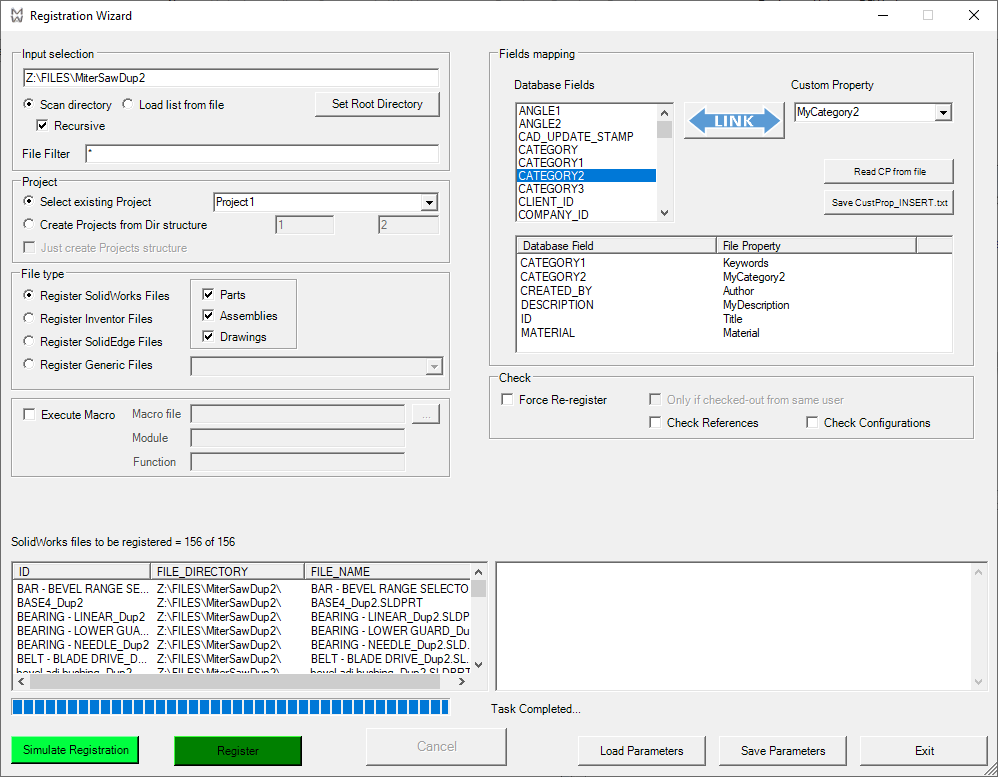
Settings
Source of files
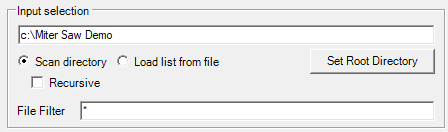
Load list from file / Scan directory
Here you can specify:
•the location of a txt file containing the list (full path name) of the documents to be registered;
when click button a open file dialog will be shown
the required file content is like followings:
Z:\FILES\VALE\PARTS\Pyramid 001_02.SLDPRT
Z:\FILES\VALE\PARTS\Pyramid 001_02b.SLDPRT
X:\ARCHIVE\ASSEMBLIES\Pyramid asm 001_02.SLDASM
X:\ARCHIVE\ASSEMBLIES\Pyramid asm 2 000_02.SLDASM
•a root for the automatic scan of the filesystem in search of suitable files to be registered;
when click button a select folder dialog will be shown
Recursive
This flag makes searching recursively in subfolders for files to be registered.
File filter
You can specify a further filter on file names, e.g. gear*
Destination of records
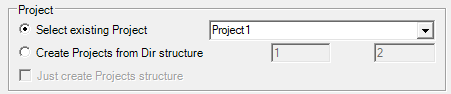
Select existing project / Create projects from dir structure
Here you can choose to
•register documents under a specific project (selecting it in the dropdown list)
•register documents in projects created starting from the path of the files;
in the two textboxes you can specify the starting level and the ending level for project creation ("0" as starting level means "root").
Just create project structure
the above checkbox creates only projects (accordingly to file paths) without register any document
Document types to be registered
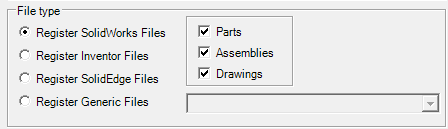
Select the type of files to be registered
The left side (radio buttons) makes you chosing between different CAD file type:
•Solidworks files (*.sldasm, *.sldprt, *.slddrw)
•Inventor files (*.iam, *.ipt, *.idw, *.dwg)
•Generic files: in this case a textbox appears so to let you specify an extensions list separated by semicolumns e.g. *.doc;*.txt;*.pdf
•Solid Edge files (*.asm, *.par, *.dft)
Part / Assemblies / Drawing
It's possibile to select all the document types or only few of them.
Macro execution
It's possible to execute a macro for each document to be registered.
The macro must be declared in all its parts (file, module and function):

Other options
Force ReRegister
It forces re-registration even if the document is already present in the database
Check duplicates (obsolete)
Starting from R23sp1.6 this check is always performed, so no more optionable through the checkbox.
It checks -among the documents selected for being registered- the existance of duplicated files.
It reports in the log area the occurrence of a given file in another folder.
The file 'C:\temp\myfile.txt' is duplicated in C:\temp\anothertemp\
Please note this function does not check if the document is alredy registered in the database
Check references
It checks external references existance before registration
Check configurations
It checks configurations usage and names before registration
Check properties
It checks properties names and values before registration
Custom properties mapping
This functionality depends on the activation of the option Data Input→ Import custom properties as field values using mapping file SCHEMA/CUSTPROP.TXT
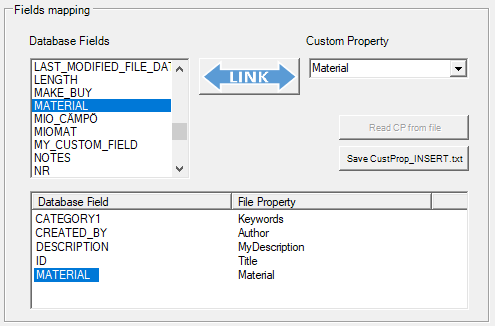
It's possibile to specify association between file custom properties and field of the database (please refer to CUSTPROP.TXT topic for further details). such associations will be shown in the grid DataBase Field ↔ Custom Property;
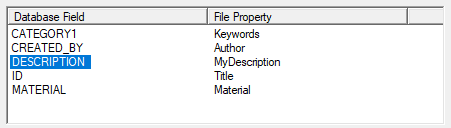
Please note the double click of an entry in such grid will remove the entry from the grid
there's 2 ways to add associations:
1.write manually the custom property name in the blank textbox and click the button
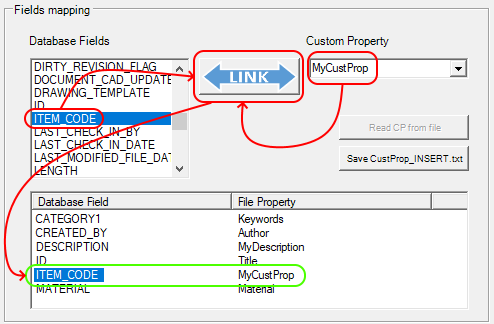
Please note in this way there's no check on custom property name correctness so it's suggested to activate the check properties checkbox explained before
2.load custom property from an existing file that cointan them:
1.suppose the file Part001 contains the properties so it can be taken as template for the associations:
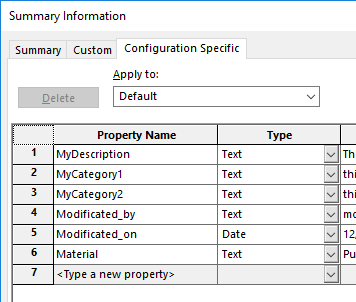
2.click the button
3.select the file Part001.sldprt in the load file dialog:
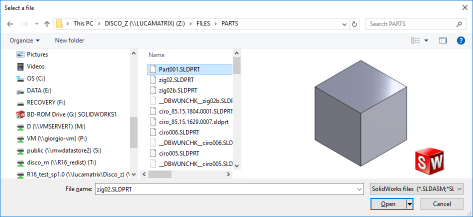
the file will open and close
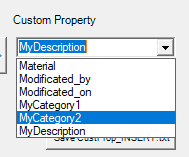
4.the dropdown list has been filled with just read properties:
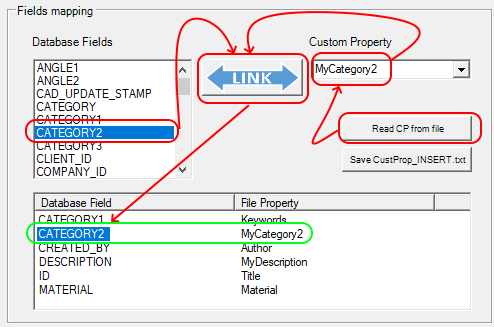
5.associate field and property with button
Save custprop_insert.txt
Once filled the grid with properties and fields mapping, it's possible to save it on the file CUSTPROP_INSERT.TXT for future usage by clicking this button.
Action buttons

Simulate Registration
This button starts the simulation process, that's mandatory for registering the documents in the database.
The button color changes from gray to green as soon as the simulation is completed.
As result, the left side grid will be filled with found documents:
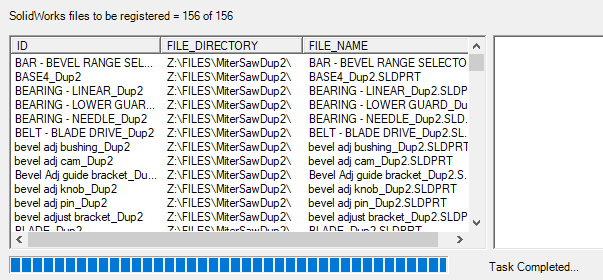
Please note above the grid it's reported the number of documents that will be registered against the total number of the documents found.
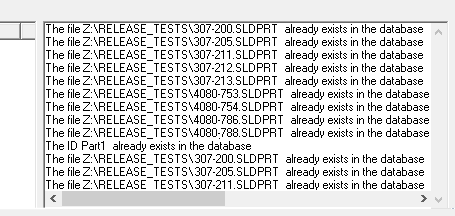
In the right side pane are enlisted the document that will not be registered:
Register
This button starts the actual registering of the documents; a simulation has to be performed as first step.
Cancel
This button stops the simulation process
Load parameters
This button loads a previously saved parameter set
Save parameters
This button saves current settings
Exit
Closes the wizard
RMB actions
On the simulation file list is enabled the remove action: it removes the current file from the registration.
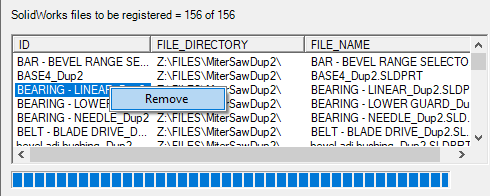
Please note there's no check on dependencies, so if you remove a component from the registration but you won't remove its parent too, the results will be that the component will be registered as well.
Automation
Thanks to the command line parameter AUTORUN, there's no need for the user to input any parameter to run: as soon as it starts, it reads the parameters from the RegWizard.par file, then automatically starts the simulation; when this ends, if no errors occurred the registration starts automatically and then, at the end, the wizard closes without notification.
If an error occurs, this is notified to the user and the process stops.
Example
%programfiles(x86)%\MechWorks\MechWorks_Pdm\bin\DotNetWizards\RegistrationWizard\Registration_Wizard.exe AUTORUN