Custom menu entries
It is possible to add self made scripts as entry in pop-up menus of every page or to the main MechworksPDM menu in the CAD toolbar; they are displayed as bottom entries in the pop-up menu of the related document type following the scheme here below.
Scripts must be written in VBScript language and files must have a .vbs extension to be selected as valid entries for the menu.
You can find more information about the topic in the Write scripting files section.
The scripts are contained in specific directories:
|
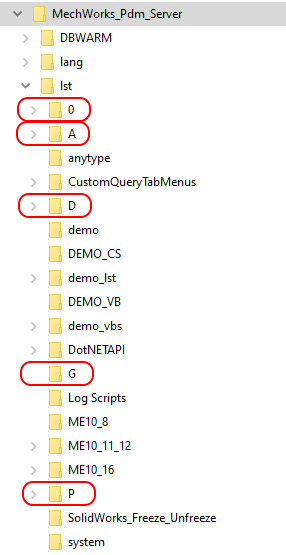
Self made scripts are contained in the subdirectory lst and are divided by kind of document they refer to. Each directory refers to a specific kind of script:
In order to display menu entries in the main MechworksPDM menu in the CAD, script files must be located in the \Mechworks_Pdm_Server\LST directory and must terminate with the extension .vbs . |
Scripts to be displayed in the popup menus of documents of all types
.VBS scripts that should be shared among all the document types (except for Projects), can be stored into a special subdirectory named AnyType, to be created under the LST subdirectory.
Scripts common to all the document types are shown before the document type specific scripts in the RMB popup menus.
Example
|
In the directory \Mechworks_Pdm_Server\LST\P\ you may create scripts referring to Parts and that appear only when you right-click a document of type Parts in the main MechworksPDM browser window. MechworksPDM itself install some scripts in the directory. You may add your own or possibly delete the existing ones
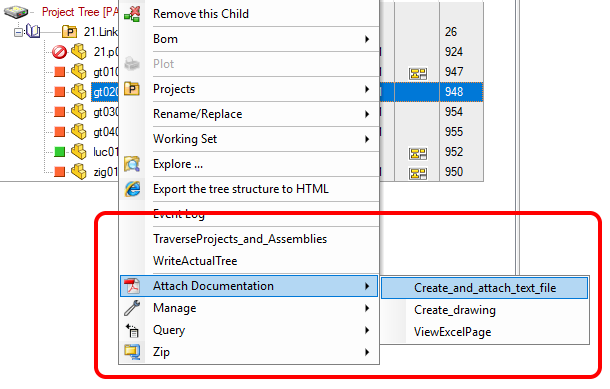
The structure shown in picture is created through a file structure like this: ... LST\AnyType\TraverseProjects_and_Assemblies.vbs please note the icons are shown since of the presence of the files: SCHEMA\IMG\RMBmenuIcons\Attach_Documentation.ico SCHEMA\IMG\RMBmenuIcons\Manage.ico |
Order sequences and separators in Scripts RMB Popup Menus
It is possible to assign a specific menu item order and to insert separators applying the following naming conventions to the scripts:
1.Order sequences: if the script file name begins with a sequence "(...)" (opened round bracket, characters, closed round bracket), the file name is displayed in the popup menu without this particular sequence; this allows to order the file names as desired (see the example below)
2.Separators: if the script file name contains all minus sign characters "-" (except an eventual beginning order sequence), a separator menu item is displayed instead (see the example below)
Any .UIvbs file associated with the scripts must not contain the order sequence in its file name.
Example:
For these file names as seen in Windows Explorer and what you would get as menu
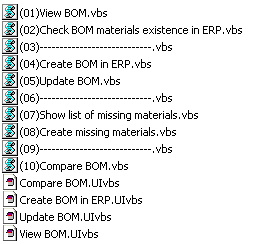
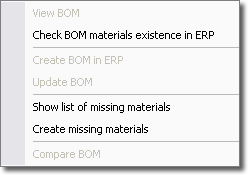
Please note how the names of the .UIvbs files do not contain the order sequence at the begin.
The same method can be used for the folder names, to have them ordered and separated:
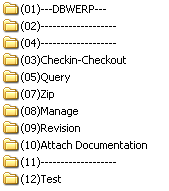
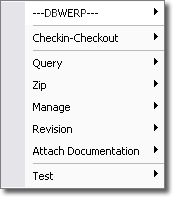
The following is another typical example of how to use these techniques for creating highly customized menus:
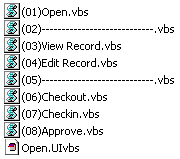
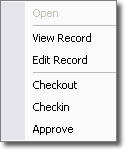
Other RMB menu entries have been disabled through the option User Interface → Show only Scripts in RMB Popup Menus
The Open menu item is enabled/disabled through the Open.UIvbs User Interface Script, that checks if the document is already opened or not:
Open.UIvbs
'
' Open.UIvbs: checks if the current selection is already opened in the CAD
'
'
' The following definitions must be adapted to the specific localization
' of the database
'
const fileNameFieldName = "FILE_NAME"
const fileDirectoryFieldName = "FILE_DIRECTORY"
sub main()
DBWInit(TRUE)
DBWShell("CurrentDocument")
if( okDBW = false ) then exit sub
docUid = DBWResult("@DOCUMENT_UNIQUE_ID")
enabled = 1
fileName = DBWQueryByUid( docUid, fileNameFieldName )
fileDir = DBWQueryByUid( docUid, fileDirectoryFieldName )
filePath = fileDir & fileName
DBWShell("IsDocumentOpened " & replace(filePath," ","|"))
res = DBWResult("@OK_OPENED")
if res=1 then
enabled = 0
end if
DBWOutput "@SCRIPT_ENABLED",enabled,ForWriting
end sub
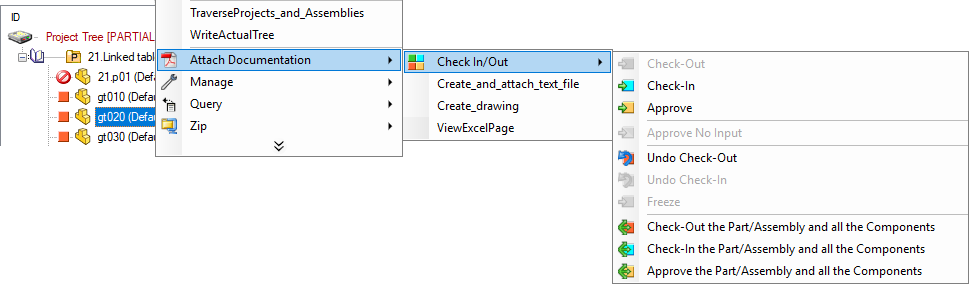
Checkin/out menu at custom level of RMB
The complete Checkin/out menu si shown at any level of the custom script structure. The menu is shown when an (empty) file named @[email protected] does exist in the folder as a script.
Example
Considering a previously explained file structure:
LST\P\Attach Documentation\@[email protected]
LST\P\Attach Documentation\Create_and_attach_text_file.vbs
LST\P\Attach Documentation\Create_drawing.vbs
LST\P\Attach Documentation\ViewExcelPage.vbs
LST\P\Manage\
LST\P\Query\
LST\P\Zip\
produces this:
.UIvbs type scripts for enabling/disabling RMB popup menus entries for scripts
The script type .UIvbs (User Interface for Visual Basic Script) allows the User Interface designer to add scripts that are visible as menu entries conditionally.
Please read the dedicated section in the Command Shell module
Custom menu entries for previous revisions
The folder named AnyTypeRevisions is managed by MechworksPDM and allows a generic script to be listed and executed though the Previous Revisions' grid RMB popup menu available in the Tree Page.
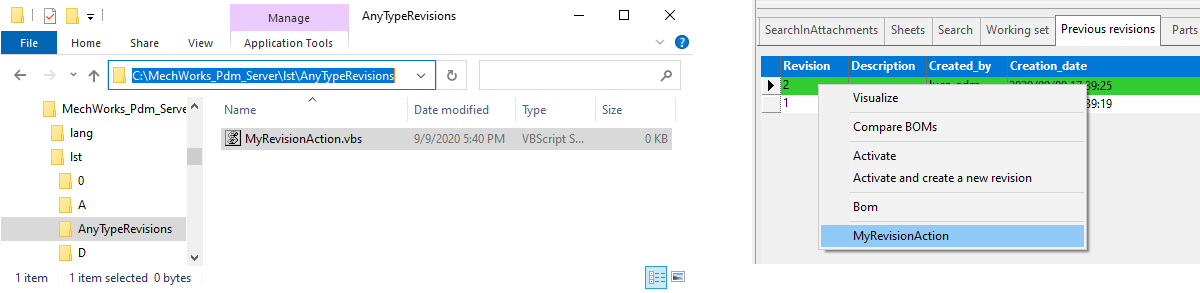
The script receives the additional parameter @DOCUMENT_SELECTED_REVISION, which (together with the @DOCUMENT_UNIQUE_ID) allows to perform any action on the selected revision of the document.
Example
sub main()
DBWInit(TRUE)
documentUniqueId = DBWInput("@DOCUMENT_UNIQUE_ID")
documentSelectedRevision = DBWInput("@DOCUMENT_SELECTED_REVISION")
DBWMsgBox "unique id=" & documentUniqueId & vbcrlf & "selected revision=" & documentSelectedRevision
end sub
Custom Query Grids Popup Menus support
Starting from R16 version it is possible to display an RMB Popup Menu when right clicking a row in a Tree Page's Custom Query Grid, created using a LST\OnCustomQueryTab_xxx.LST script.
The PDM looks now for a subfolder of the shared LST folder, named as follows:
CustomQueryTabMenus\<name of the custom query tab>
and lists in the RMB popup menu all the scripts found in that folder - the scripts names follows the same rules described in the Help Topic "Custom menu entries", in particolar the rules of the "Order sequences and separators in Scripts RMB Popup Menus" paragraph.
Example
Suppose we have a script named
LST\OnCustomQueryTab_MyCustomTab.LST
It will create a new tab named "MyCustomTab" in the Tree Page's Grids panel.
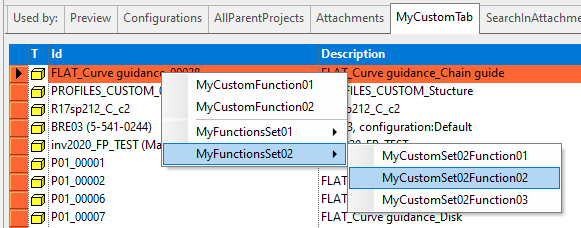
For such tab, let's say we build the following structure of folders and scripts:
LST\
CustomQueryTabMenus\
+MyCustomTab\
+ (01)MyCustomFunction01.vbs
+ (02)MyCustomFunction02.vbs
+ MyFunctionsSet01\
+ (01)MyCustomSet01Function01.vbs
+ (02)MyCustomSet01Function02.vbs
+ (03)MyCustomSet01Function03.vbs
+ MyFunctionsSet02\
+ (01)MyCustomSet02Function01.vbs
+ (02)MyCustomSet02Function02.vbs
+ (03)MyCustomSet02Function03.vbs
The effect will be that when RMB on my Custom Query Grid, I will see the following popup being displayed:
Any script can now execute the
DBWShell("GetBrowserTreeCurrentGridInfo")
for getting the info of the currently selected row.