Create a new jump in a process
You can create new jumps in a process. Every jump is a change of state that is exposed in popup menus for documents in the workflow.
Let's see an example of creation of a new jump:
this is the starting situation in our process
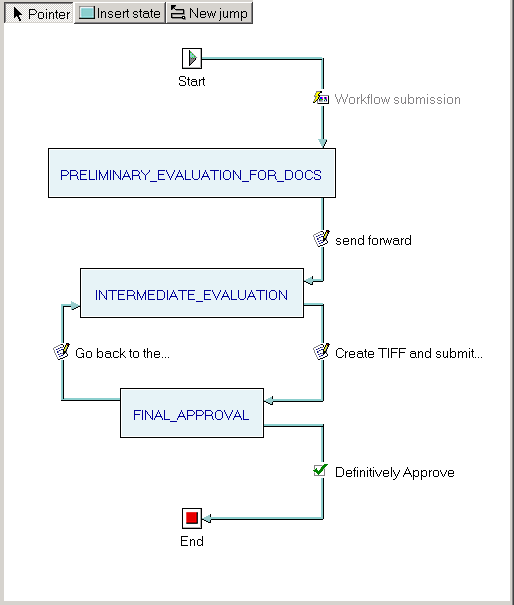
you want to add a new jump from INTERMEDIATE_EVALUATION back to PRELIMINARY_EVALUATION_FOR_DOCS, so that documents can be rejected and sent back to the previous state.
First push the button New jump above, then click the state from which the new jump starts, in this case INTERMEDIATE_EVALUATION.
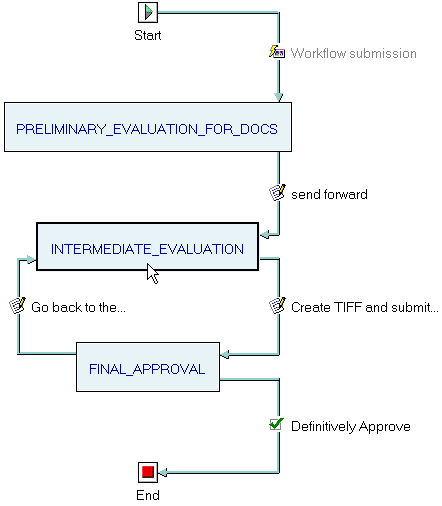
The state is selected. Now, if you move the mouse you see that a line starting from the selected states follows the mouse movements. If a state is a candidate for a jump arrival from the selected state, when the mouse moves over it the state is highlighted and a line joins the center of the two states. Mind that you cannot add a jump that goes, say, two states forward because in the workflow every state represents a check and such steps cannot be avoided. Also, if a jump connects two states you cannot have another jump between the same states in the same direction.
Move the mouse over the state PRELIMINARY_EVALUATION_FOR_DOCS. A line joins the two states.
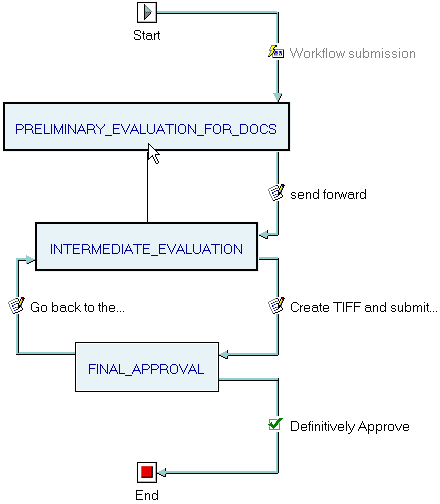
Click and the new jump is added
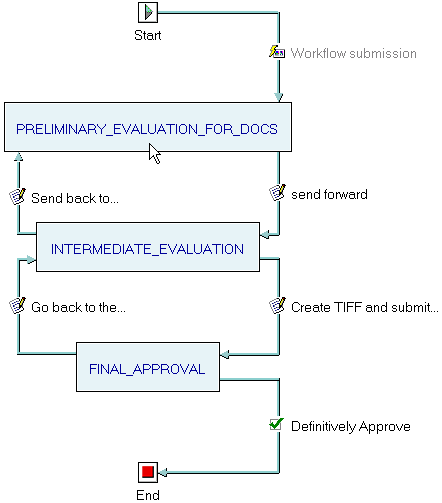
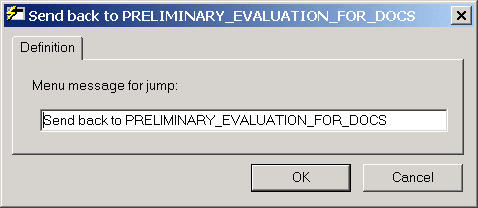
Now you can double-click the jump name to rename it as needed
To add an abort jump, click for jump arrival the start icon that is the first step in the process.