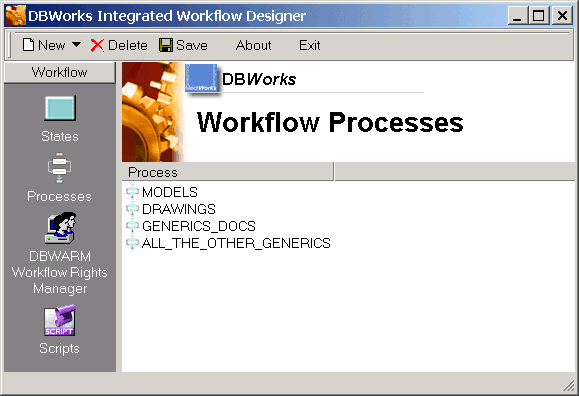
Processes view in the Workflow Designer
This view displays the list of processes available in the workflow
If you right click any of the processes a popup menu appears
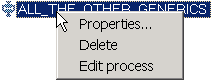
From here you can
Edit the process condition
If you select properties, a dialog appears with the SQL condition that leads to the given process.
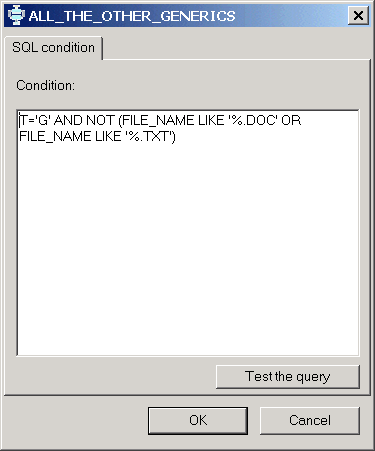
Every process has an SQL condition that has to be satisfied in order to have documents enter in that specific process.
The sql condition must be entered manually. Before you close, test it pushing the button Test the query.
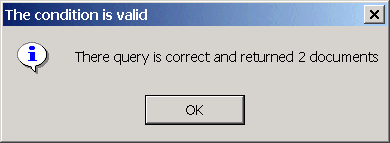
If the sql condition contains errors, they are displayed in a message box. Otherwise, you get a confirmation as the following:
Delete the process
This operation cannot be undone and removes the process from the workflow.
To delete a process, right click it and in the contextual menu select Delete or select a process and push the button Delete in the toolbar.
 Before you delete the process make sure that no documents are currently in the process to avoid malfunctioning.
Add a new process
Click the new button in the toolbar to add a new process. The creation of the process is handled in a separate topic.
Edit the process
If you select edit in the popup menu of a process or double click a process, a graphical representation of the process is loaded for editing.
The editing of the process is handled in a separate topic.