Create a new Process in the Workflow Designer
You can create a new process clicking the New button while you're editing processes or clicking New Process... entry from the list dropped down from the same button.
When you define a new process you have to define a name and assign the condition that would route a document to that process
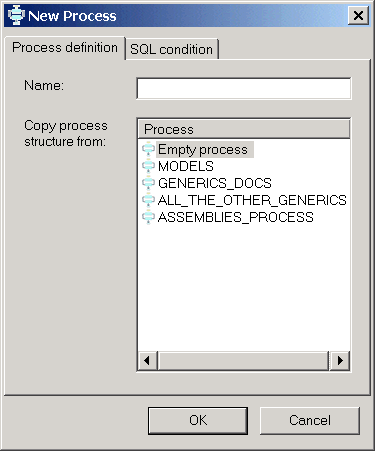
Assign a name
|
The name must be assigned and cannot contain spaces or characters that couldn't be used for a file name. If any of these characters is found, an alert is displayed and the name must be changed. Spaces are changed into underscores. You needn't start from scratch every time you create a new process: if there already is a similar process, you can make a copy of it, then edit it. If you select an existing process as a model, also the condition is copied, so before clicking OK and actually creating the process, you have to edit the SQL condition. |
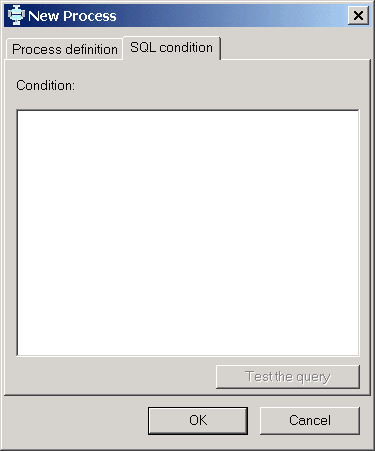
Set the Condition
|
The sql condition determine whether a document will enter or not this process instead of another. The condition is an SQL Condition as any that could apply in an SQL Select statement after the WHERE clause. Before creating the process, you must test the condition using the button 'Test the query'. An invalid query will keep you from adding the new process. |