Edit a process in the Workflow Designer
When you double-click a process in the processes view, the process is open for editing and displays the states and the jumps as a graphical structure:
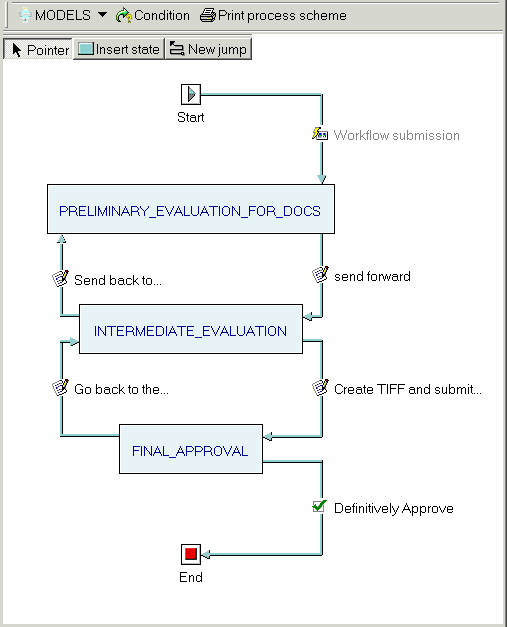
Reading the structure is simple: pale blue boxes represent states, or steps of the workflow process, the arrows represent jumps, or changes of state. The jumps are available in the DBWorks interface as workflow submenu commands in the popup menu of documents currently in the workflow.
Interface elements
The toolbar includes three buttons:
•the first is a dropdown button that allows you to pass to another process. When you the click the small black triangle, a list drops down including a default item that leads back to the list of processes plus each process currently in the workflow
•the second opens a dialog to edit the condition that would filter a document into this process. If you move the mouse over the button the current condition is displayed as a tooltip
•the third prints a hardcopy of the process as you see it on screen for reference
Below the toolbar are three toggle buttons:
•the first is the one normally pushed and allows you to select states or jumps
•the second, when pushed, enters in 'insert state' mode and allows you to insert an existing state into this process
•the third, when pushed, enters in 'new jump' mode and allows you to add a new jump between states in the process
The elements in the structure can be selected and when right-clicked display a contextual menu.
From here you can:
set the condition that would lead a document into this process
edit a state properties, including assigning rights to DBWARM groups and users and view where a state is used