Plot setup
Last plot setup name
Shows the last loaded plot setup name
 Plot only drawings
If enabled, it plots only drawings when selecting several documents in a WorkingSet or in a tree multiple selection.
This means that if you select only one document and Plot it, it will be plotted in any case, even if it is not a drawing type document, just because this option is valid only for multiplotting.
 Plot only main drawings
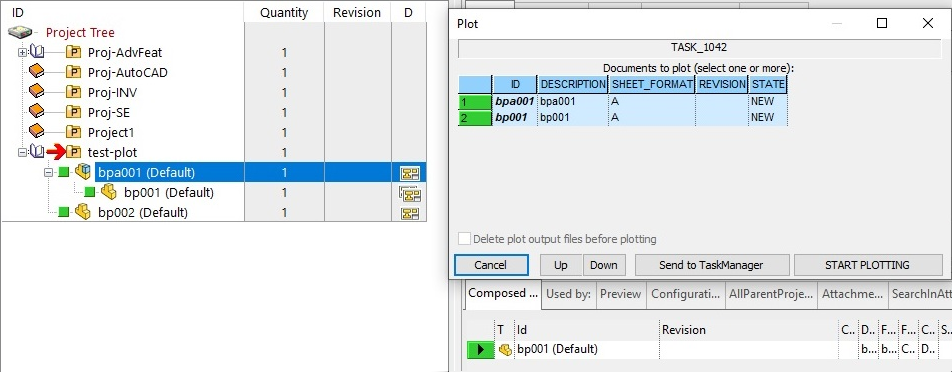
This option allow to take into account plotting only the drawings having a principal relation with involved documents.
Considering also the other option Plot only drawings, they can be both unchecked (to plot part/asm), and for drawing, only one can be checked.
Usually, the option "Plot only drawings" takes into account all drawings having a parent-child relation with the involved documents (i.e. even drawings containing secondary views). In particular, for drawing documents, the PARENT_CHILD reports relationship with all referenced/linked document.
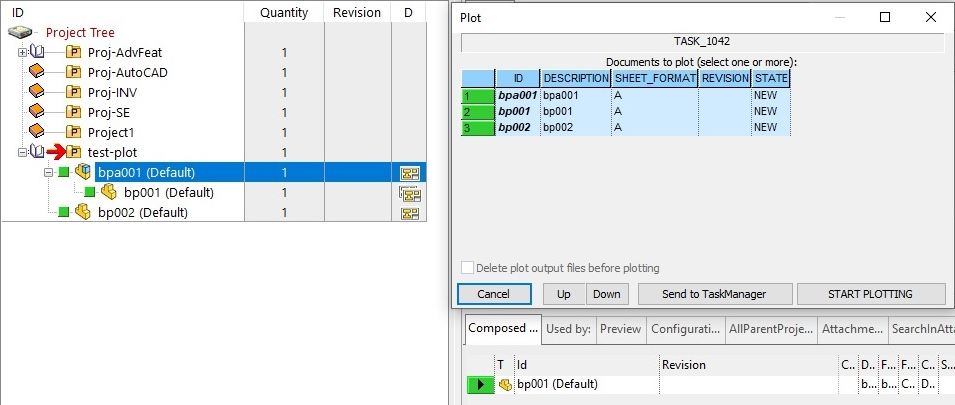
by enabling this option, it is possible to plot only the drawings having a principal relation with involved documents:
[PDF TIF] Additional drawing file extensions to be managed
It may be useful for mixing actual CAD drawings ( like SLDDRW ) with legacy drawings ( like DWG, MI, etc ).
The plotting engine will properly invoke the OnPlotG.LST for any legacy drawing to be plotted.
By using this option it is possible to create a Working Set of mixed actual drawings and legacy drawings, and launch the plotting process. More, the DBWShell("Plotall <list file.txt>") command will accept a list file containing both actual and legacy drawings.
The extensions must be listed WITHOUT the dot at the begin.
Example
Additional drawing file extensions to be managed: DWG MI IDW
Use drawing sheet format
This list associates sheet formats with print/plotting devices, setting also the number of copies and the scale for each device. This functionality can be used, for instance, to redirect automatically all the drawings of size A4 to a given printer and all the drawing of size A1/A0 to a plotter. The scale is expressed so that 1.0 prints at the original size, 0.5 prints at half the original size and so on.
When this option is enabled, the option Display printer setup dialog must be disabled.
Default plotter
It is possible to define a Default entry for the Sheet format!Device association table; to enable this feature add a new line to the LST\Sheet_format.LST file: Default containing the sheet formats available for plotting.
Every drawing with a format not present in the device association table is from this moment on plotted on the device assigned by the Default entry of the table, also when redirecting the output to a file.
Sheet formats dependent from the printer name
The parameter file SHEET_FORMAT.LST is dependent from the printer name.
In order to assign the correct printer paper codes (@A3=…, @A4=… , please refer to the topic Plotting large paper size sheets), MechworksPDM checks the existance of a file with the name as follows:
<SHEET_FORMAT>(<printer name>).LST
were <SHEET_FORMAT> is the localized string of the SHEET_FORMAT database field, and <printer name> is the current printer name on which to plot.
The specific printer file is automatically created at the first print.
Example:
Suppose that your output is meant to go to a printer named:
"Hewlett-Packard HP-GL 2 Plotter"
MechworksPDM checks first for a file named:
SHEET_FORMAT(Hewlett-Packard_HP-GL_2_Plotter).LST
If the file is present and contains any line, the file is used to get the @... printer codes.
If the file is not present in the shared LST directory, the default SHEET_FORMAT.LST is still used.
To help Administrators in the plotting management, when the printer file is still not present in the LST directory, MechworksPDM creates an EMPTY file (0 length) with exactly the name it expects to find; the Administrator can therefore open the file with a text editor and add the necessary codes.
Example:
1) On the first run, MechworksPDM creates a 0 length file named SHEET_FORMAT(Hewlett-Packard_HP-GL_2_Plotter).LST
2) The Administrator edits it with a text editor and adds some printer codes as follows:
@A4 vert.=141
@A3=142
@A2=143
@A1=144
@A0=145
<empty line>
Please note that ONLY the @... codes must be inserted in this file; the standard A2,A3,… codes must continue to be inserted in the SHEET_FORMAT.LST file.
Paper Tray support
The keyword /TRAY:<tray number> can be added to the device name in the Plot Setup Sheet ↔ Device Table to choose the Tray to be used for printing. No spaces must be present in the string.
The Tray number is printer specific; the default ones are:
1 = Upper Tray
2 = Lower Tray
5 = Envelope Feeder
Example
To assign the Tray=2 to the printer hp officejet g series edit the Plot Setup device name as follows: hp officejet g series/TRAY:2 
Please note in rare cases the tray value has to be taken from the printerinfo functionality results.
Typically, this behavior, is for old devices
Scale
Setting a scale value of "0" will enable the autoscaling feature.
Please note some environment may require the scale value declared with a comma as decimal separator while some other with a dot
Always get drawings sheet format from CAD
When this option is checked, the SHEET FORMAT information needed for plotting is taken dynamically from the CAD drawing properties, sheet by sheet, instead of reading it from the database record. This option is needed for plotting correctly drawings that have multiple sheets with different paper sizes.
Never plot frozen drawings
If enabled, all the frozen documents, now obsolete and out of production, cannot be printed.
Read more about frozen documents and revision topic.
Fit to Page
If checked, the document is always printed on the device associated to the selected format by Page format combo.
Example
•Suppose you have a drawing in format A2 and another in format A3
•Suppose you have assigned the sheet format/device association list as follows:
Sheet format |
Print device |
Copies |
Scales |
|---|---|---|---|
A2 |
HP |
1 |
1 |
A3 |
Epson |
1 |
1 |
A4 |
Samsung |
1 |
1 |
A4 vert. |
Samsung |
1 |
1 |
•Suppose you have the fit to page value set to A4 (it means that every format will be redirected on Samsung device)
case 1: Fit to page option is unchecked
How it is processed:
A2 drawings → HP
A3 drawings → Epson
A4 drawings → Samsung
A4 vert. drawings → Samsung
case 2: Fit to page option is checked with the format A4
How it is processed:
A2 drawings → Fit to page A4 → Samsung
A3 drawings → Fit to page A4 → Samsung
A4 drawings → Fit to page A4 → Samsung
A4 vert. drawings → Fit to page A4 → Samsung
The option is available also if you print to a file.
case 3: Fit to page option is checked but specific device files declared
Specific files:
SHEET_FORMAT(HP).LST
@FIT_TO_PAGE=A2
SHEET_FORMAT(Epson).LST
@FIT_TO_PAGE=A3
SHEET_FORMAT(Samsung).LST
@FIT_TO_PAGE=A4
How it is processed:
A2 drawings → Fit to page A4 → Samsung→SHEET_FORMAT(HP).LST overrides combo value → @FIT_TO_PAGE=A2 → HP
A3 drawings → Fit to page A4 → Samsung→SHEET_FORMAT(Epson).LST overrides combo value → @FIT_TO_PAGE=A3 → Epson
A4 drawings → Fit to page A4 → Samsung→SHEET_FORMAT(Samsung).LST overrides combo value → @FIT_TO_PAGE=A4 → Samsung
A4 vert. drawings → Fit to page A4 → Samsung→SHEET_FORMAT(Samsung).LST overrides combo value → @FIT_TO_PAGE=A4 → Samsung
Never fit smaller pages
This option avoids the assignment of the 'Page to fit' declared paper to sheets smaller than the 'Page to fit' itself.
Example
If 'Page to fit' is A3, and the currently plotted sheet has a native size of A4, the page-fit is not executed
Use default driver paper size for formats A0,A1 and A2
If checked, MechworksPDM sends to the plotter driver a paper size coded as 0 whenever processing a drawing of size A0, A1 or A2. This normally corrects some problems in handling such formats: the 0 instruct the driver to use the DEFAULT paper size, that should be normally kept as large as possible so as to contain the larger format used in the drawings.
This leaves to the plotter controller the recognition of the proper paper format, based on the physical dimensions of the drawing sent. The need for such parameter is due to a lack in the SW API for correctly printing the above formats.
Plot multiple sheets
If checked, MechworksPDM plots all the sheets of a drawing instead of plotting only the current one. If plot output is redirected on files, an extra extension named Sheet1, Sheet2, etc. is added to the plotted file names. Please note, however, that because of the uniqueness of the field SHEET_FORMAT, the assignment of a printing device is done using the current sheet format value.
This option is supported by Mechworks StandaloneClient.
Update drawing variant notes before plotting
This option is active only if the  Open in 'view-only' mode when plotting is switched off.
If enabled causes DBWorks to re-query all the variant notes of a drawing before plotting it.
The corresponding shell parameter is UPDATE_VARIANT_NOTES_BEFORE_PLOTTING <0/1>
This feature may be useful when plotting is driven from a script in order to include plot-time-only annotations on the sheet.
Update drawing BOM before plotting
This option is active only if the Open in 'view-only' mode when plotting is switched off.
If checked, it causes MechworksPDM to update the drawing BOM Table before plotting it.
This option is currently not available for DBInventor (Inventor addin).
Open in 'view-only' mode when plotting
If checked, DBWorks will open the SolidWorks documents in view-only mode when plotting them. This is a much faster way to open complex drawings, since no model files is loaded.
Please consider, as side effect, that some DBWorks plotting features like Update variant notes before plotting cannot be used because no model is opened and hence variant notes could be not refreshed.
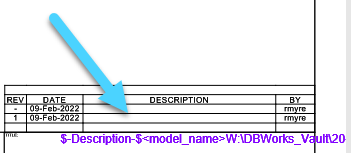
Use Draft quality when plotting with eDrawings from DBW Standalone
When using this option, the needed memory resources are much less than when plotting with standard quality, but, of course, the resulting plotting quality is low.
Use Color and Shade when plotting with eDrawings from DBW Standalone
When checked, the eDrawings plots are created with Color and Shade enabled.
Plot to file
If enabled, it allows you to plot to a file.
In particular, for every printing device declared in the Plot Setup dialog, a directory named after the device to group the plot files by device. The plotting files are named after the original SolidWorks document files and the extension is .PLT .
You can specify the output directory for plotting files directly by typing the path in the Plot output directory box or you can click the ... button to select an existing directory.
Use TIFF output format
If checked, DBWorks creates TIFF files before plotting in accordance with these rules:
•if the  Use drawing sheet format is checked and a format has been found in the table, the file is created in a sub-directory of the Plot files output directory with the same name as the associated device for that format
Example
Plot files output directory: |
Z:\plotFiles |
|---|---|
Format: |
A4 |
Device for format A4: |
HP LaserJet III |
File is created into: |
Z:\plotFiles\HP_ LaserJet_IIII |
•In all the other cases the file is created in the Plot files output directory
The number of copies is considered also for TIFF output files; DBWorks creates the files with the suffix _00xx equal to the copy number
Example
PART1.SLDPRT._.TIFF
PART1_0002.SLDPRT._.TIFF
PART1_0003.SLDPRT._.TIFF
....
The first copy has no suffix.
Use Pdf output format
Acrobat reader has a limit of 14400 points for the PDF being viewed, so DBWorks scales down the DPI resolution for large size sheets (A1, A0) in order to obtain an optimized document
The scaling is as follows:
A1 drawings are scaled down to a maximum of 300 DPI
A0 drawings are scaled down to a maximum of 150 DPI
Use direct 'Save as PDF'
This option allows the creation of a PDF file using the MechworksPDM Plot functionality, but invoking directly the 'save as PDF' SolidWorks functionality (the default way of creating PDF files is to create TIF files, that support all the sizing parameters, and convert the TIF files to PDF files).
Since such functionality does not expose any sizing parameter, no parameter of the Plot Setup page will be applied, except the "Header and Footer" parameters section"; the size of the PDF will always be the exact size of the drawing. More, in order to create PDF files with gray tones, the option "General→More...→Drawing→PDF: create full color PDF must be checked.
Use alternate Name for Output File
This options lets you chose the name of output file via macro definition.
Example
$(FILE_NAME)_MacroDefined
Allow User Defined Plot Setup
When checked, it is allowed for every single user to change the Plot Setup data.
MechworksPDM saves the Plot Setup data in the global parameter file DBWAPP.PAR so that every user uses the same Plot Setup data on every workstation.
If the Allow User Defined Plot Setup option is checked, MechworksPDM saves a local copy of the plotting options in every user local parameter file (USERS\<user name>\DBWLAPP.PAR) to allow every user to have different Plot Setup data on his/her workstation.
Programmable Headers and Footers
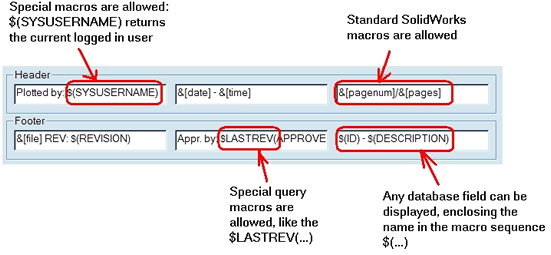
These options control the header and footer strings shown on a plotted page.
LIMITATION: because of limitations in the actual API of SolidWorks, headers and footer support is activated only when using formats different from TIFF and PDF.
The options are self-explaining, being the top-left edit box corresponding to the left header string, the top-center edit box corresponding to the center header string, and so on.
The options accepts macros in both the SolidWorks and in the DBWorks formats.
About the SolidWorks format, they are actually limited to five cases:
&[file] |
the file name currently being plotted |
|---|---|
&[date] |
the current date |
&[time] |
the current time |
&[pagenum] |
the current page number |
&[pages] |
the total number of pages |
For further information, please refer to the chapter Query macros.
Text formats parameters
It is possible to assign the text format (font, char spacing, etc.) for the Headers and Footers in the Plot Setup Options Page.
Two separate edit boxes with the label "Text format parameters:" can be filled with the list of parameters that can be controlled. They are:
param name |
values |
meaning |
|---|---|---|
BackWards |
0/1 |
sets whether the text is displayed backwards |
Bold |
0/1 |
sets whether the text format is bold |
CharHeight |
value in meters |
sets the height of the font in meters |
CharHeightInPts |
value in points |
sets the height of the font in points |
CharSpacingFactor |
a double ( 1.0 = default ) |
sets the factor that controls the spacing between characters |
Escapement |
text angle in degrees |
sets the text angle in degrees |
Italic |
0/1 |
sets whether the text format is italic |
LineSpacing |
a double ( 1.0 = default ) |
sets the text line length in meters |
ObliqueAngle |
angle in degrees |
sets the text slant |
StrikeOut |
0/1 |
sets the whether the text format is strikeout |
TypeFaceName |
font name |
sets the name of the font |
Underline |
0/1 |
sets whether the text format is underlined |
UpsideDown |
0/1 |
sets whether the whole text string is upside down |
Vertical |
0/1 |
sets the individual characters as vertical |
WidthFactor |
a double ( 1.0 = default ) |
stretches the text by the specified factor |
The parameters are assigned as <parameter name> = <parameter value>, with NO blanks, separated by commas.
Example
To show the Headers with a font Arial, in Bold characters and with Italic style:
Text format parameters: TypeFaceName=Arial,Bold=1,Italic=1
Save plot setup to file and Load plot setup from file
It allows to load/save custom plot settings.