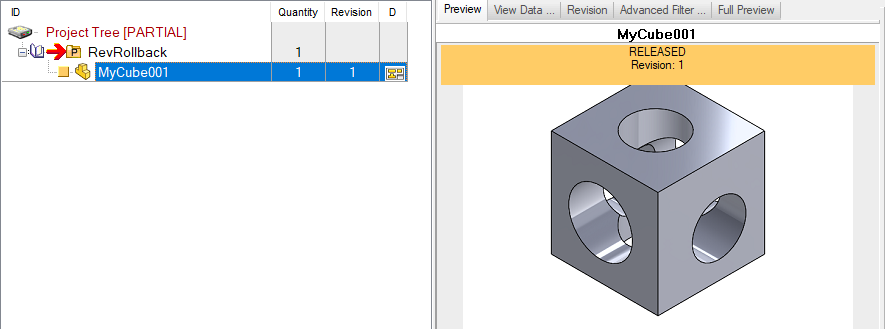
Approve on the previous revision
If you have an approved model/drawing but you need to modify it without changing it radically (so with no need of an official new revision) it is possible to create a new revision value but actually approve on the same revision value of the current model
Example
Suppose you have a model and its drawing in revision 1: 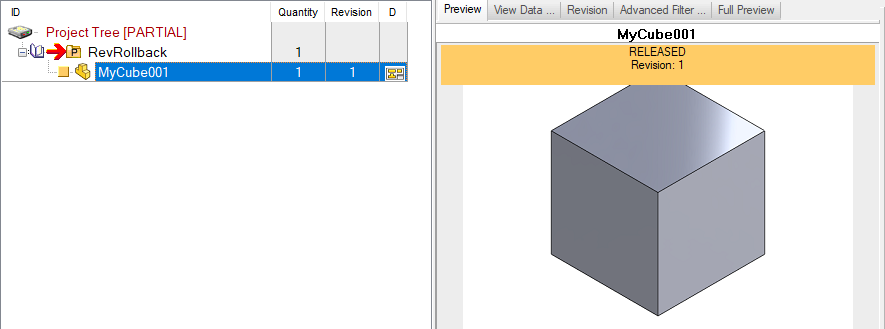
Suppose you need to add a little feature (e.g. a drawing template modification) but you do not want to approve to revision 2 the model and the drawing.
To achieve this goal, you have to:
1.increment the revision state of the model (so the drawing will follow too):
2.checkout the model:
3.perform the modification (suppose we create holes on cube faces)
4.checkin the model
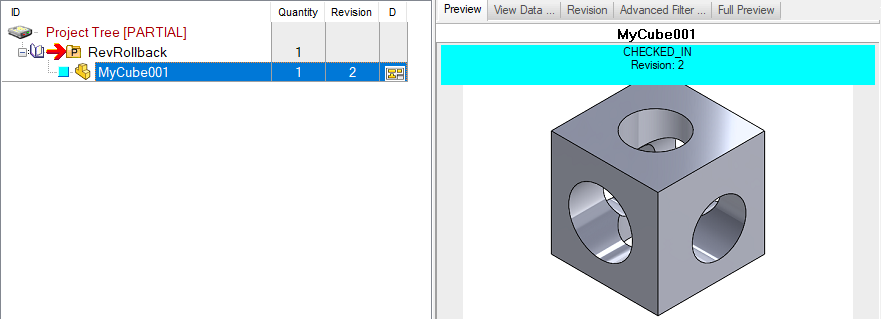 please note the record is now in revision 2
5.approve now the model and in the displayed dialog choose the previous revision 1 instead of the suggested new revision 2: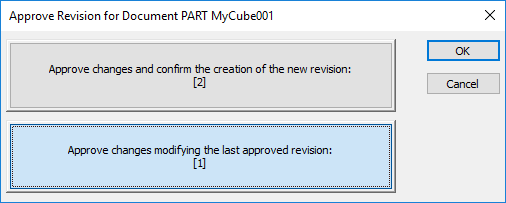
Please note that depending on the status of the following options: Revisions→Approval→ Update Previous Revision Record on Previous Revision Approval Revisions→Approval→Update Approved_By and Approval_Date on Previous Revision Approval the "Approve Revision" dialog shows different messages in the Previous Revision button:
Update Previous Revision Record on Previous Revision Approval 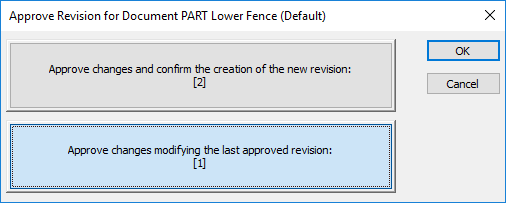
 Update Previous Revision Record on Previous Revision Approval Update Approved_By and Approval_Date on Previous Revision Approval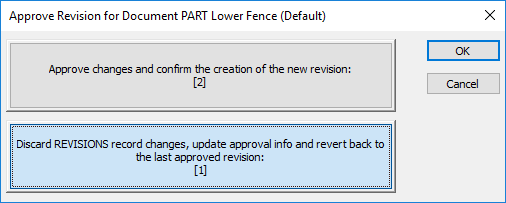
Update Previous Revision Record on Previous Revision Approval Update Approved_By and Approval_Date on Previous Revision Approval 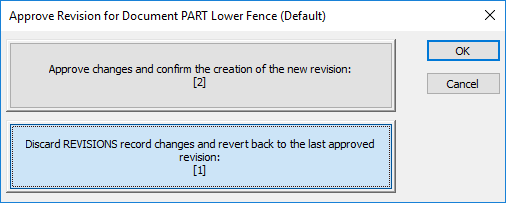
6.At the end of the process you will have the modified model with the same revision vlaue of the start: