Revision rollback / Restoring previous revisions
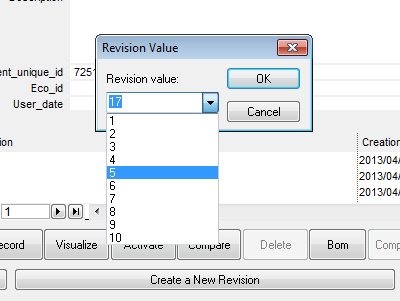
When creating a new revision of a document, it is possible to indicate a previous revision number, in which case MechworksPDM asks if you want to collapse the actual revision number to the one indicated. Answering YES will delete every intermediate revision.
Be very careful in using this function: it should be used only by an administrator to align revisions of linked documents before starting using the Link Mode
Please note that rollbacking is different from deleting an old revision.
To remove an old revision simply:
•open for updating the browser
•click RMB→Edit/Revision... on a record
•press button
•select revision(s) to delete
•press button
Example
Suppose you are currently in revision 5 and you find out that some mistakes have been done.
A rollback to revision 3 is required.
So you want to delete revision 4 and 5, returning to revision 3 as last valid one.
Let see step by step the procedure:
1.Make sure the option
Revision→Files→Restore revision in a different directory
is unchecked (this because we want to overwrite an existing revision file.
Please note that if you're acting on an assembly you will overwrite components file too
Because this is a global option (valid for every case) we suggest to enable its sub-option
Always ask the modality on the ACTIVATE of an older revision
that allows to decide separately, case by case.
2.Select the part to rollback
3.Click the button  Restore a previous revision for the node and all the children
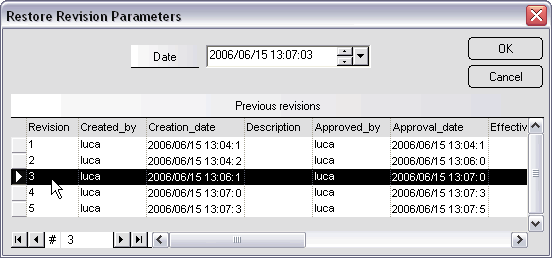
4.A dialog shows the available revision. Choose revision 3 and click OK.
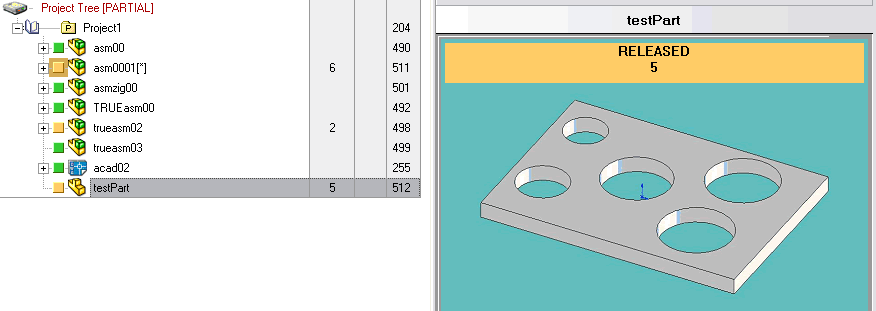
5.Now the revision 3 has been restored.
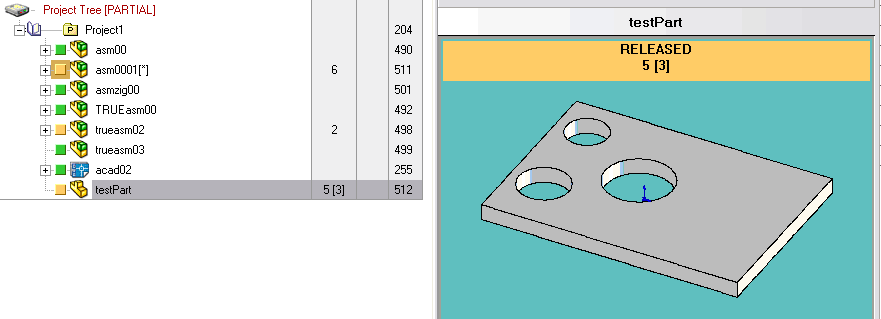
Please note the revision label 5[3]: 5 is the last revsion approved, while 3 is the active revision. Every component modification affects revision 3 file (the preview image is up to date with active revision).
At this point you still have revision 4 and 5.
6.As final step, we've to make the active revision becoming the last revision.
Click Edit / Revision ... → →
Then enter 3 in the dialog
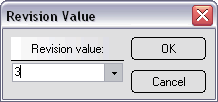
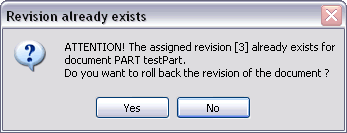
7.A final dialog warns you that you're going to perform a roll-back operation
8.Finally the Active revision has been collapsed to the last revision
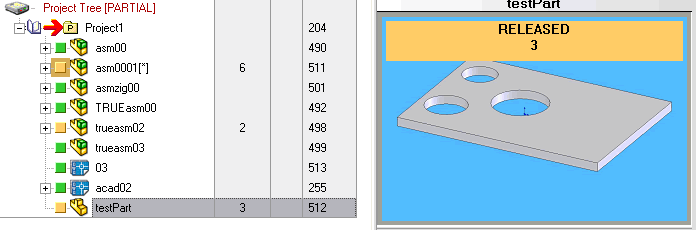
At this point you haven't revision 4 and 5 anymore.
Remarks on activating a part component revision
To rollback a part component, you can use th RMB menu available from the Previous revisions grid in the TreePage.
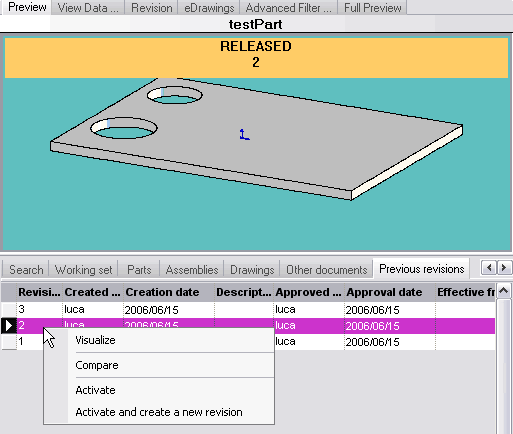
In the menu you can choose between:
Activate: same as RMB on a part in the tree → Edit / Revision... → → select a revision→
Activate and create new revision: to create a new revision starting from the selected one (eg. for creating rev 6 starting from rev 2)
Remarks on activating an assembly component revision
Please consider that when activating a previous revision for an assembly, all its components are taken back too, to revision they had in that specific assembly revision.
Example
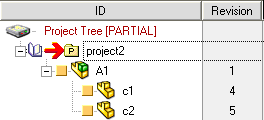
Suppose you have this structure for assembly A1 in revision 1:
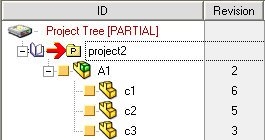
Suppose now you have this structure for assembly A1 in revision 2:
(please note component c3 has been added)
from A1 revision 2 you restore revision 1
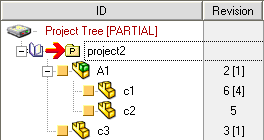
Let's see what has happened:
•components c1 has been taken back to revision 4
•compoent c2 has been left in revision 5
•component c3 has been removed from the assembly because it has been added only in assembly revision 2
DBWARM right to control rollback ability
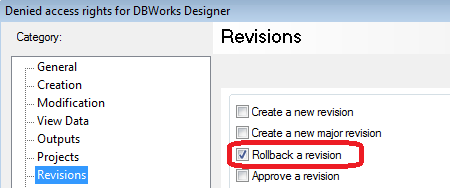
You can control the permission on performing a roolback through DBWArm Editor's Revisions page.
The option is for denying the "rollback revision" action when using the button from the Edit/Revision form and selecting an already existing revision from the REVISION combo box.