Briefcase
Introduction
The Briefcase is a container where you can put the documents that you want to exchange with some other companies.
The briefcase includes the latest files as well as all the history of the documents and a subset of the database, which is all the data and information related to the subset of documents you selected. This package is used by the PDM to synchronize database located remotely. The handling of unique IDs is also handled completely by the PDM.
Compatibility
The default application for running briefcase functionality is the 64-bit Standalone Client
The use of a separate process (the Standalone Client) allows to return to the CAD application and continue the work (typically on a different project than that managed by the Briefcase) - more, the memory used by the Standalone Client is fully returned to the O.S. when the operation terminates - finally, any possible exception that happens during the execution of the Briefcase functionality has no impact on the CAD application
Such version allows to read and write Briefcase files directly from the 64-bit applications
Common cases of use
The briefcase allows you, for example, to save an entire assembly structure together with the related files and information in one zip file. You can put on a CD and send it for exchanging data.
Equally, you can put the zip files in a protected area of your ftp site and tell your customers/partners to download the assemblies they need from the ftp site and restore the data on their local MechworksPDM systems.
The briefcase is an ideal tool for cooperating with subsidiaries when a huge amount of data need to be exchanged periodically.
How to save/reload entire subsets of your database
A shortcut bar section named Briefcase includes two buttons to put and get documents in and from the Mechworks PDM.
When you click a button, it launches automatically the Standalone Client and start the operations.
The use of a separate process (the Standalone Client) allows to return to the CAD application and continue the work (typically on a different project than that managed by the Briefcase).
More, the memory used by the Standalone Client is fully returned to the O.S. when the operation terminates - finally, any possible exception that happens during the execution of the Briefcase functionality has no impact on the CAD application
Put into the briefcase
Open the browser and select the documents that you want to put in the briefcase.
In the Project Tree, you would need to expand the root of an assembly and to select all the documents pressing helping yourself with the Shift key.
In the shortcut bar, press the button Put into the briefcase: you are then asked to enter a name for the zip file that is to be created.
After the assignment of the file name, a confirmation dialog will appear to confirm the operation: press OK to start the creation of the briefcase.
Note: the temporary files needed to the briefcase creation are written in the %temp%\BRIEFCASE folder, so the drive hosting the %temp% folder must have sufficient free space.
No parent relations (except project→document and drawing→document) are added when inserting reference-only documents into a briefcase
Rules for drawings
Only the 'main' drawings are added for each document.
When the option Environment→Link Mode→ Manage related drawings is active, the drawings are always inserted into a briefcase when the document is sent for MODIFICATION, independently of the state of the briefcase creation options Do not add drawings/Add all related drawings/Add only drawings of documents to be modified.
Get from the briefcase
This command requires that the Remote Access Mode is enabled. Read more on this limitation
Only writeable documents can be restored (so in NEW or CHECKED-OUT state)
Only documents in the same state can be restored (so, if existing, the documents must have the same state of those present in the briefcase)
In the short-cut bar, press the button Get from the briefcase: you are then asked to enter the name of the zip file that is to be loaded into your MechworksPDM system. After the assignment of the file name, you are asked to assign the Project where the loaded documents should belong and a root directory or a new directory where the files are copied.
DBW_GetFromBriefcase.LOG log file
The DBW_GetFromBriefcase.LOG file is created in the %TMP% directory and records every message like 'overwriting a proprietary record', together with the unique id of the processed document.
Check for avoiding the import of documents already replicated through the GDE
Starting from R15 release, the Briefcase import procedure avoids conflicts when exchanging data with other companies working with the GDE (Geographically Distributed Environment) replication.
This functionality requires a specific database field named REPLICATION_PARTNERS (varchar(128)) in the DBW_COMPANY_INFO table; it must be filled with the comma-separated list of COMPANY_IDs of each of the companies partecipating into the same GDE replication.
The field value is read by the Briefcase import procedure, and for each document in the briefcase, a check is made on the document REPLICATION_PARTNERS against the DBW_COMPANY_INFO::REPLICATION_PARTNERS of the current company.
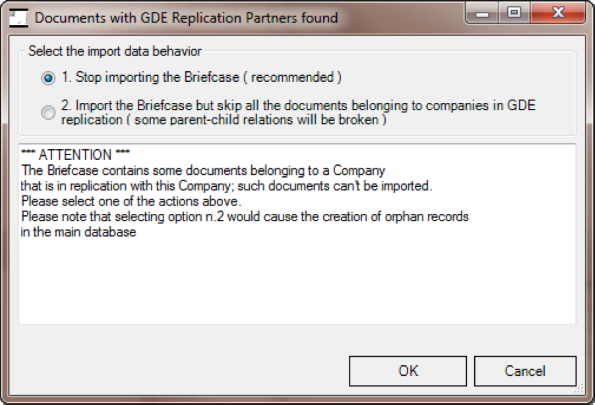
If at least one company ID is declared in both the DOCUMENT::REPLICATION_PARTNER field and in the DBW_COMPANY_INFO::REPLICATION_PARTNERS, then a message box is displayed:
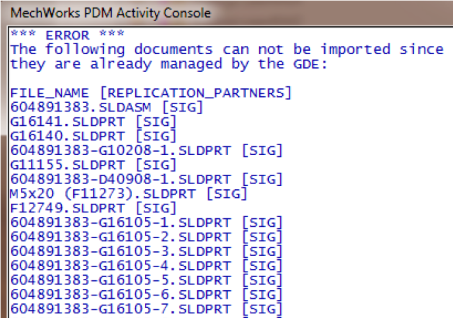
The Activity Console reports the list of documents with a conflicting REPLICATION_PARTNERS field value
The initial check is active only if the current company (importing the briefcase) is partecipating to a GDE replication.
How to exchange 3D CAD documents through the Briefcase
The sender and the receiver must have a common folder structure to avoid problems with CAD missing references. The Briefcase automatically rebuilds the folder structure when restoring the zip file. When asked, the Briefcase must be restored with the following options:
Files restore modality
When this mode is selected MechworksPDM restores keeping the original paths. Optionally you can backup the original files. Read briefcase advanced options for more.
Root where to restore the files and directories
This root must be the same root as previously agreed with the briefcase sender.
If the sender packed files originally located in m:\... then the root where to restore the files and directories must be m:\
Database data restore modality
When selected unzips the files and rebuilds every record and parent-child relation in the database
How to get the files without updating the database
It is also possible to get only the files from the briefcase, without bringing about any update on the database. This could be useful while working on files that will not undergo any modification both in the parent-child structure and in the versions (typically checked-out files).
Limitations
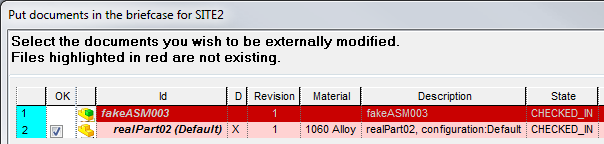
Since Briefcase functionality is based on physical files, it's not possible to create a briefcase where the main document is fake (i.e. an entry for the BOM):
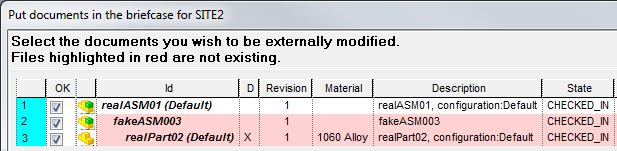
Nevertheless is possible to include fake documents in a briefcase when the main document has a physical file: