Cutlist support in Solidworks
 Solidworks users only
The single Cut List Items can be registered as distinct child records under the Part Record containing the Cut List.
Settings
To properly see the cutlist items as distinct records in DBWorks, you've to enable the option
Environment→ Cut List →Save Cut List as Distinct Records.
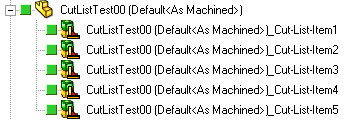
Then you've to make sure that the structure of cut list in SW feature manager is Updated to finally save and see records in the DBWorks tree:
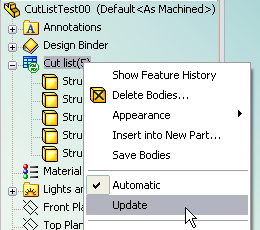 →
→ 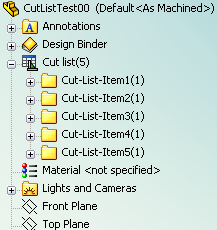 →
→ 
Selection
If the option
User Interface→DBW Feature Manager Behavior→Keep DBWorks Feature Manager synchronized with selections
is checked, DBWorks selects the cut-list feature whenever a new cut-list record is selected in the DBW Feature Manager.
Please note that since the model must be loaded in memory for the selection to be completed, DBWorks resolves the part if in light-weight state.
Properties
With the Part loaded in memory (even as standalone model or resolved into a container assembly), the DBW Feature Manager displays the Child Tree of the Part; by editing the records by RMB into the Child Tree cut-list records, it is possible to update the cut-list properties of the corresponding cut-list features in the Part.
DBWorks uses the mapping defined in the Environment→Cut List→Property→Field association list for creating/updating a selected set of properties.
In order to have the above features to work properly, the cut-list names must not contain the underscore character ‘_’, since it is used as separator for extracting the feature name from the file name in the cut-list record
FILE_NAME convention
Starting from build 20060926, FILE_NAME convention for cut list has been changed from
<PartID>_<CutListId>.CUTLIST
to
<PartID>_<CutListId>@UID@<Part UniqueId>.CUTLIST
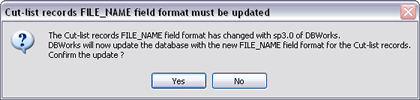 At startup, DBWorks will check if any record of the above type, and eventually apply the necessary updates to the database.
Example
Given the following Cut List in SolidWorks:
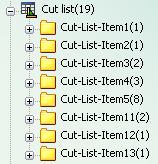
with Cut List Properties as the following:
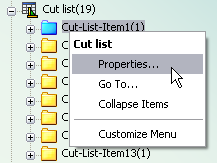
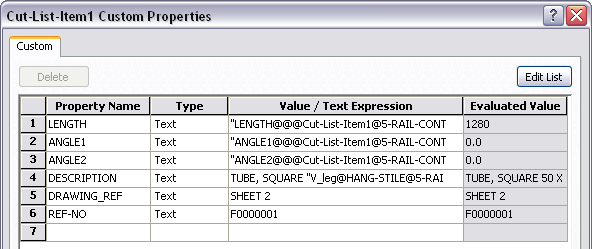
and with Options→Environment→Cut List as below:
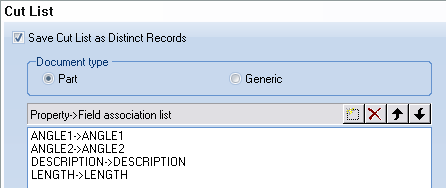
MechworksPDM inserts the Cut List as distinct records, children of the Part containing the Cut List:
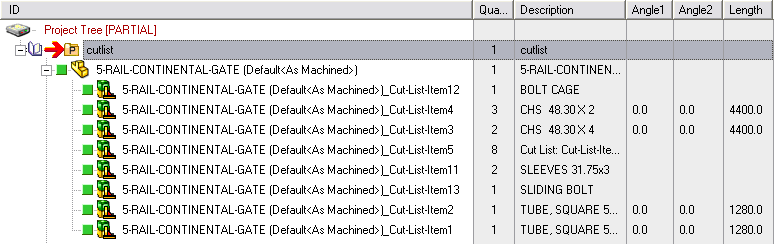
Properties have been filled because of the associations in the options.
ID customization
Against the fact you cannot customize the file name of a cutlist element, you can otherwise modify its ID (what you see in the trees).
Here below it's an example of an OnOk.LST script that changes the id
.VBSCRIPT
Sub Main()
DBWInit(TRUE)
fileName = DBWInput(DBWLookUp("NAME_FIELD_FILE_NAME"))
DBWOutput "@OKDATA",1,ForWriting
if ucase(right(fileName,8))=".CUTLIST" then
'change here below according with your naming policy
id = left(fileName,len(fileName)-8)
'DBWMsgBox "ID=" & id
DBWOutput "ID",id,ForAppending
end if
End Sub
BOM behavior
Inserting a part into a weldment structure generates both a derived-part relation and a cut-list item in the parent part:
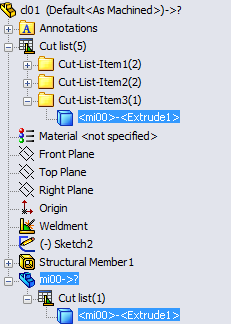
DBWorks marks as NO_BOM the cut-list records generated by a part (in the above example, the Cut-list-item3(1)):
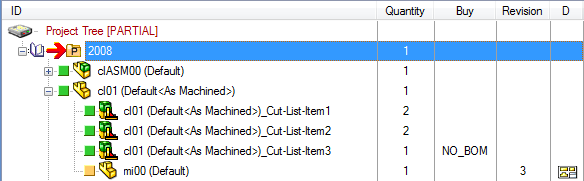
so to create a correct BOM:

Excluded from the cutlist property
It's possible to exclude an item from the cutlists.
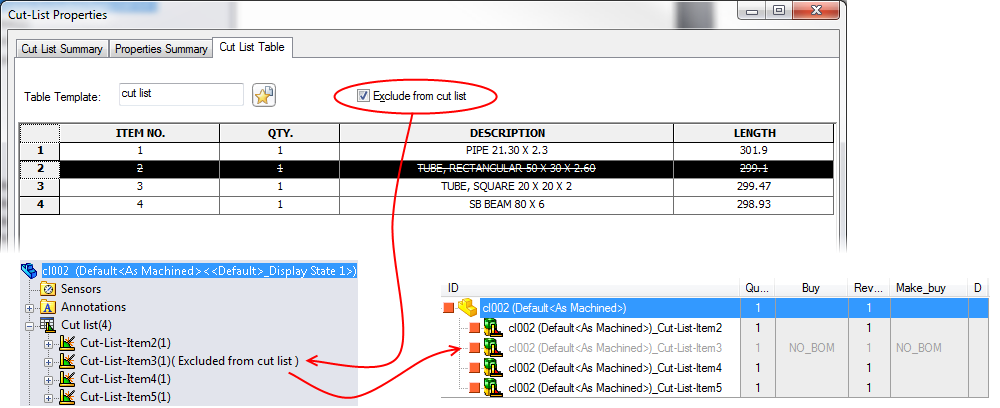
DBWorks will detect this exclusion and:
•marks the record with a grey font
•set the DOCUMENT.MAKE_BUY field to NO_BOM (column Buy of the above image)
•set the PARENT_CHILD.PARENT_CHILD_MAKE_BUY field to NO_BOM (column Make_buy of the above image)
Optionally it's possible to completely ignore the cutlist element through the option Environment→Cutlist→ Never create child records for cutlists marked as 'NO_BOM'
Link mode
For consistency reason, starting from R10, the cutlist elements follow the part state: a change in the part state will produce the same change in cutlist elements state too.
Anyway, no Link-Mode field alignment is applied to cut-list records.
To avoid this behavior, you've to specify in the Options→Environment→Link mode that records with FILE_NAME matching *.CUTLIST criteria has to be excluded from linkmode management
Mapping Cut List Properties into PARENT_CHILD Fields
Solidworks users only
It is possible to map Cut List Properties into PARENT_CHILD Fields.
The PARENT_CHILD fields must be entered manually, prefixed with the localized name of the PARENT_CHILD table followed by a dot.
Example
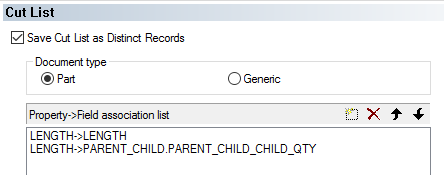
Let's map the LENGTH Property into either the DOCUMENT::LENGHT and the PARENT_CHILD::PARENT_CHILD_QTY fields.
The association list will be:
Assign a specific numeric format to cut-list properties when importing
Solidworks users only
It is possible to define a numeric format for the property→field mapping, by adding, after the field name, a "|" (vertical bar) character followed by a string formatted in the same way of the Options→General→Units→Use internal CAD system units for calculation
Example
Suppose you defined
TOTAL LENGTH->LENGTH|%.1f
in the option: 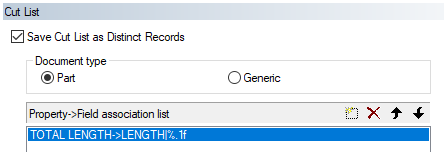 with such definition, if the cut-list property TOTAL LENGTH will be evaluated as 5.31, the LENGTH field will be populated with the value 5.3