Introduction
Legacy License Manager (DBWLM.EXE)
Package content
Files to be retrieved from client installation
Requirements
Installation
Monitor
Server configuration file
Troubleshooting
Logging
Server node down
Server node not responding
Wrong service initialization
Change port number
Change IP of the server
Monitor returns .NET error
Clients returns Server x on port y is not available
Cannot connect to the server
No match with Solidworks serial
Introduction
The Mechworks floating license manager is required to be installed by all users that have a license based on a Solidworks network license.
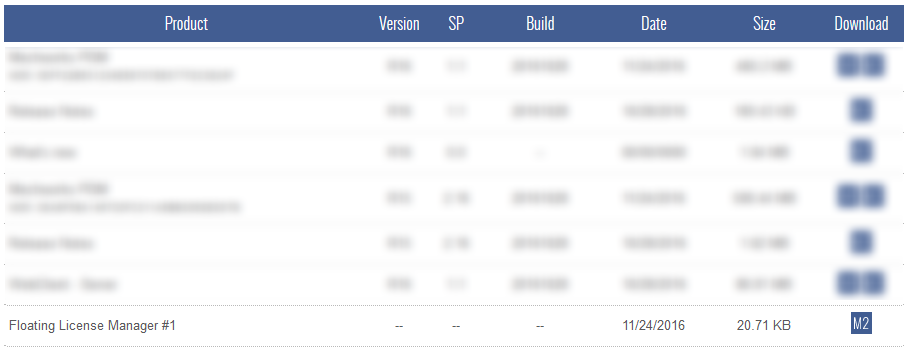
If your SolidWorks serial number has the character "1" (one) in the third position (ex. 0010 1234 5678 9876 A12B 3456) then you will need to install the MWLicenseManager and a new MechWorksPdm serial number to get the PDM running. All customers with a valid subscription service will find their license manager <Serial>_DBWLM.zip in the download section when they login to the support area of www.mechworks.com
Package content
The <Serial>_DBWLM.zip contains the following files:
Installation_of_MechWorks_floating_license_manager.pdf |
This document |
|---|---|
MwPdm.mwlic |
License file (required!) |
License serial number.txt |
Text file with license serial number and license details |
In case the zip file is containing also other files (such as MwLicenseMonitor.exe) you must use the client version as explained in the following chapter.
Files to be retrieved from client installation
Other files must be copied from a client installation to the server folder; you have to copy the whole content of the folder <installFolder>\bin\MwLicenseManagerServer\ to the server location:
InstallMwLicenseManager.bat |
Batch file to install the service |
|---|---|
InstallMwLicenseManagerWithSc.bat |
Alternative batch file to install the service |
UnInstallMwLicenseManager.bat |
Batch file to uninstall the service |
MwLicenseMonitor.exe |
Utility to monitor the license manager activity |
MwLicenseClient.dll |
Library required by the license monitor |
MwLicenseManager.exe |
License Manager executable |
Requirements
•Microsoft .NET 4.0.0319
•Administrator rights
•Operating system version 6.x (Greater than windows XP or windows 2003 server)
Installation
1.On the PC/Server where the service will be installed:
The installation requires copying all the Dbwlm_R15.zip contents to a folder on a windows pc and execution of the batch file InstallMwLicenseManager.bat
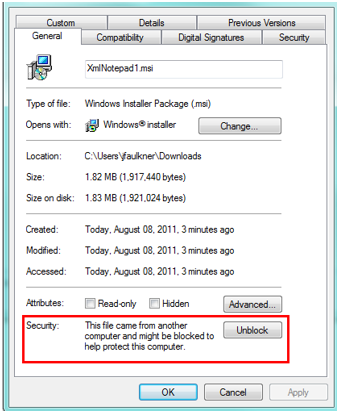
After unzipping CustomerName_Dbwlm_R15.zip, please check that the file MwLicenseManager.exe is unblocked. To make this check right click MwLicenseManager.exe and select properties:
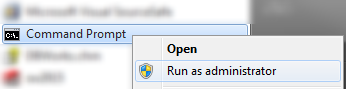
To properly run the batch file installMwLicenseManager.bat, open a MSDOS prompt as admin
and enter the location of the .bat file, then execute it from there:

If you have Windows firewall active please ad a new rule to allow inbound/outbound connections for the MwLicenseManager.exe application.
In case this is not effective, edit the alternative batch file InstallMwLicenseManagerWithSc.bat by specifying the exe location (if different from the default one):
sc create MWlicensemanager binpath= C:\MwLicenseManagerServer\mwlicensemanager.exe start= auto
Then execute it from an administrator MSDOS prompt.
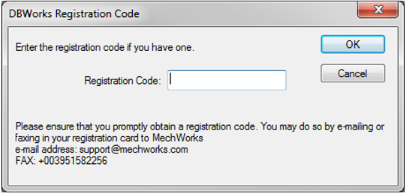
2.On the client running the MechWorksPdm integrated or standalone: the new serial number must be input when requested by the application after the first run of MechworksPDM.
3.In the MechWorksPdm GlobalParametersPath you must edit the DBWconn.par file and add the following lines:
MWLICENSEMGR_SERVER_NAME ServerName
MWLICENSEMGR_SERVER_PORT 11000
Where ServerName is the server where we have installed the Mechworks License Manager in point 1.
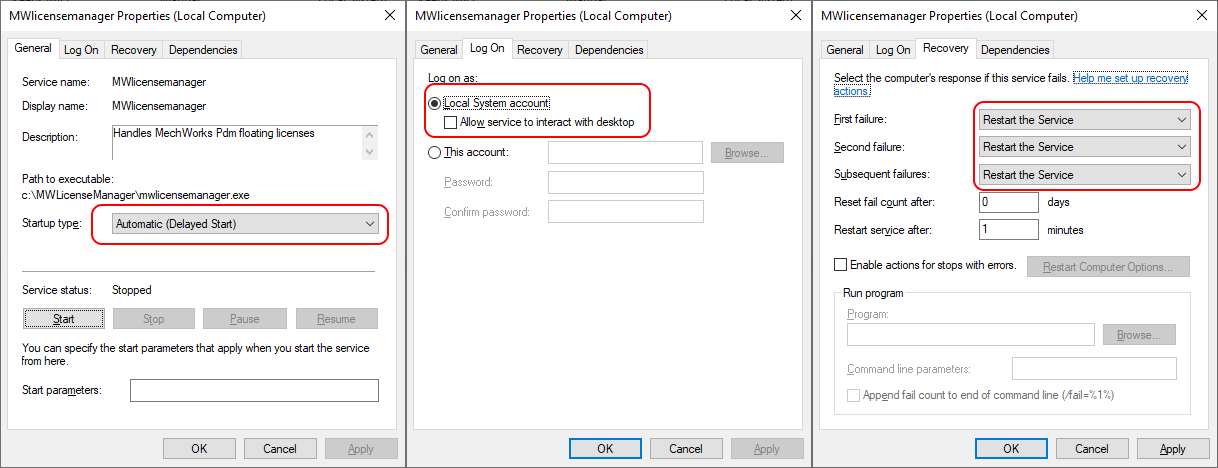
4.In the service properties make sure that:
•the Startup type is Automatic (in some environments you may need to select Automatic (Delayed Start)
•the Log On is as Local System Account
•the recovery is set on Restart the Service
Monitor
On a MechWorksPdm client, with admin tools installed, an application called MwLicenseMonitor.exe can be used to monitor and administer the all client licenses.
The application is located in following folder C:\Program Files (x86)\MechWorks\MechWorks_Pdm\bin\MwLicenseManagerServer\
License Usage
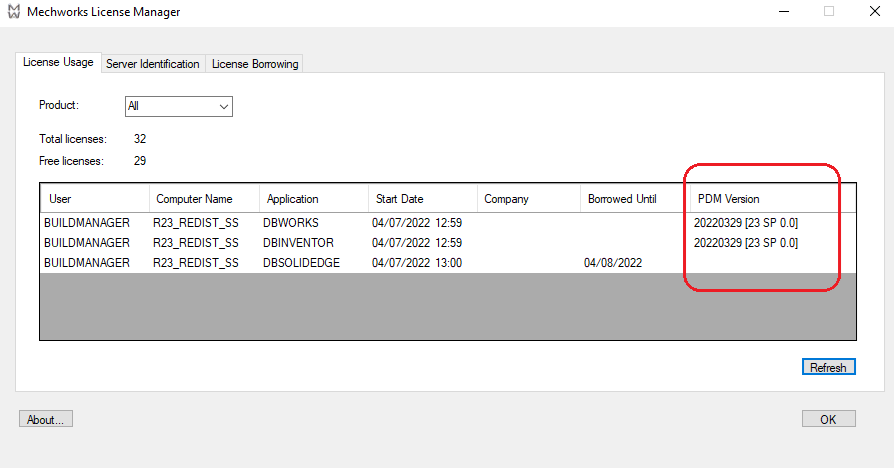
Please note on the most right column you can see the version of the MechworksPDM running.
Server Identification
Here you have info about the server: Name and port taken from the DBWconn.par and version taken from the service: 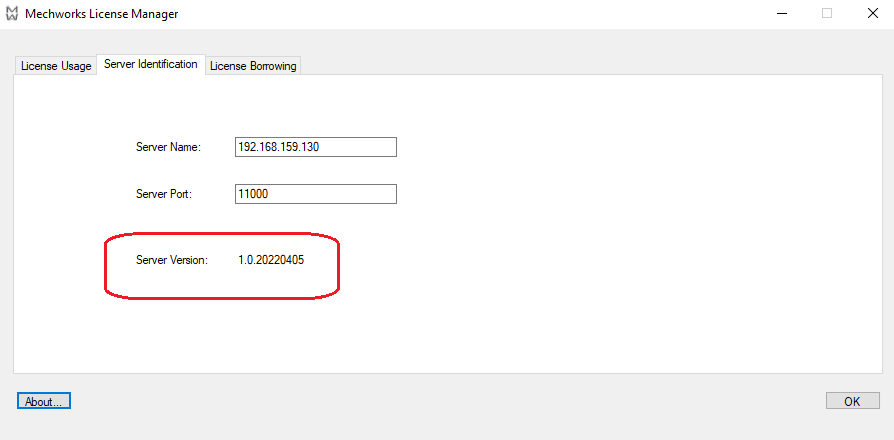
Server configuration file
It’s possible to create a configuration file beside the exe and named MwLicenseManager.config to declare parameters that will override default settings about the service running on the server.
Available parameters are:
MWLICENSEMGR_SERVER_NAME |
overrides the server name (usually detected by the service) |
|---|---|
MWLICENSEMGR_SERVER_PORT |
overrides the default 11000 port number |
MWLICENSEMGR_CREATE_LOG |
if "1" creates a logfile, no log otherwise |
MWLICENSEMGR_MWLIC_DIR |
declares the folder containing the .mwlic file |
MWLICENSEMGR_LOG_DIR |
declares the folder to create logs into |
MWLICENSEMGR_RECEIVE_HELPER |
if "1" makes the license check timing more slack |
Troubleshooting
Here below are known issues about installing the MechWorks License Manager
1. Logging
Please note 2 logfiles are created:
•Server log: in the same folder of the MwLicenseManager.exe, named like MwLicenseManager_<yyyymmdd>.LOG
•Client log: in the %tmp% (temporary folder for current user), named like MwClientManager_<yyyymmdd>_<hhmmss>.LOG
2. Server node down
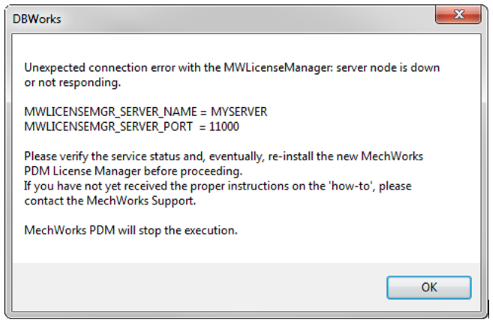
If you receive this message the server is not reachable from a networks point of view; in this case please verify no Antivirus/Firewall is blocking port 11000 communications. Try to disable it all (for a while) to verify its implication.
Otherwise, if the server is reachable (service up and running), please try to specify IP address in DBWConn.par rather than the server name:
MWLICENSEMGR_SERVER_NAME 101.102.103.104
MWLICENSEMGR_SERVER_PORT 11000
Please note to know which IP has to be specified, look into Server logfile rather than trusting the results of a ping command performed from the client towards the server. Sometimes they’re different and the correct value is the one specified in the server log; here is an example of a server logfile row with in red the specified IP:
20160120_034039: IP: 192.168.0.12:11000. Text: PING 0099FLOW00000000 | Luca WIN-PK2USTJABGF
3. Server node not responding
In Server logfile you may see blocks like followings:
20170309_161128: Listener.Accept: OK
20170309_161128: Handler.POST Receive: 62
20170309_161128: IP: 192.168.0.12:11000. Text: PING 0099FLOW00000000 | Luca VMW7GER DBWORKS DBWorks
1. Version: 1.0.6163.28377
20170309_161128: Handler.Close: OK
A proof that the server is not receiving client packages is the difference of the green text above:
20170309_161128: Handler.POST Receive: 0
20170309_161128: IP: 192.168.0.12:11000. Text: <missing text here> Version: 1.0.6163.28377
4. Wrong service initialization
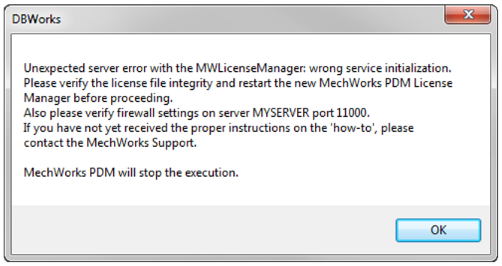
If you receive this message, the service could be not running.
Please check it in services and in case start/restart it.
If this is not effective, reinstall the service.
5. Change port number
The default value is set to 11000 but it's possible to change it to a more suitable value.
•Client side: edit the DBWConn.PAR file in the shared server folder
•Server side: edit the MwLicenseManager.config on service folder
such file is not distributed with default installation;
e.g. set port to 12000:
MWLICENSEMGR_SERVER_NAME <serverName>
MWLICENSEMGR_SERVER_PORT 12000
MWLICENSEMGR_CREATE_LOG 1
6. Change IP of the server
In the same way you can specify a different port number, you may need to change the IP of the server to be used by the service and to be pointed by the clients. This could be useful on a server with multiple network cards with different IP on the same pc.
•Client side: edit the DBWConn.PAR file in the shared server folder
•Server side: edit the MwLicenseManager.config on service folder
MWLICENSEMGR_SERVER_NAME 192.168.101.1
MWLICENSEMGR_SERVER_PORT 11000
MWLICENSEMGR_CREATE_LOG 1
Please note you can have a list of the different IPs by analyzing the client logfile.
e.g.
...
20160120_144228: Dns.Resolve: 192.168.0.12
20160120_144228: Dns.Resolve: 0 192.168.0.12
20160120_144228: Dns.Resolve: 1 192.168.101.1
20160120_144228: Dns.Resolve: 2 192.168.162.1
...
7. Monitor returns .NET error
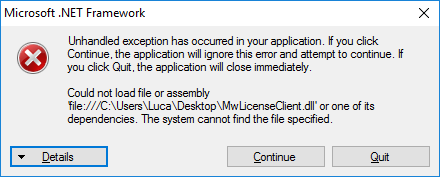
License monitor (MWLicenseMonitor.exe) can run properly only when located on a workstation where a MechworksPDM product has been previously installed or where the file MwLicenseClient.dll is present beside the license monitor executable (e.g. in case you want to run it on the server with no Mechworks application is installed).
In case such DLL is missing or not properly registered, you will see the above message.
To register it manually you have to run the following command from an administrator command line prompt:
"%windir%\Microsoft.NET\Framework\v4.0.30319\regasm" /codebase "%CommonProgramFiles%\MechWorks\Shared\MwLicenseClient.dll"
8. Clients returns Server x on port y is not available
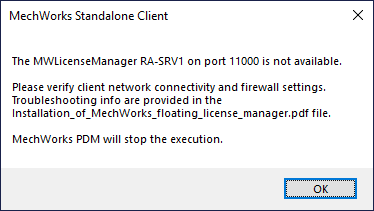
The missing of the mwPdm.mwlic file produces this error, but the only way to figure out properly is analyzing the server log. In the above case the reported error is:
20190618_102006: ERROR: license file not available C:\MwLicenseManagerServer\MwPdm.mwlic
9. Cannot connect to the server
The presence in the log server of a considerable amount of lines like this
20200325_202228: Handler.POST Receive: 0 Available=0 ReceiveHelper=0
indicates the server is not receiving client’ contact in the expected time.
The solution is to add the directive
MWLICENSEMGR_RECEIVE_HELPER 1
to the .config file and restart the service.
10. No match with Solidworks serial
In environment with Solidworks CAD installed, MechworksPDM looks for Solidworks serial to detect if a networks license is in use, as already explained in the introduction of this document.
If the Solidworks serial is not properly set in the registry (e.g. after a serial/version change) MechworksPDM is not able to detect Solidworks network installation and then run as Mechworks floating license.
So make sure that all of the following registry keys contains the same Solidworks serial:
HKEY_LOCAL_MACHINE\SOFTWARE\SolidWorks\Security
HKEY_LOCAL_MACHINE\SOFTWARE\SolidWorks\Licenses\Serial Numbers
HKEY_LOCAL_MACHINE\SOFTWARE\WOW6432Node\SolidWorks\Security
HKEY_LOCAL_MACHINE\SOFTWARE\WOW6432Node\SolidWorks\Licenses\Serial Numbers