 Open
Open
Opens the selected document.
Open related commands:
Open with...
Open in Large Design Review Mode
Open in view-only Mode (Obsolete function)
Open Light-Weight Mode
Open Selective Mode
Open Advanced Mode
Open a part/assembly configuration
Missing references
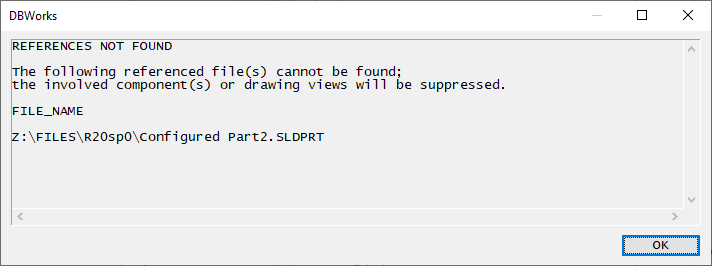
If some reference is missing, a dialog will inform about that:
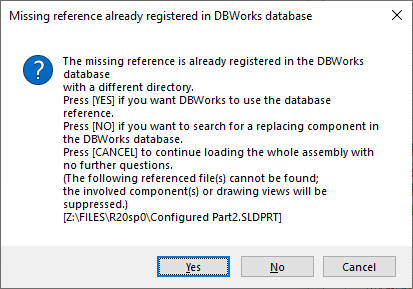
If the missing reference is already registered in the database, another dialog will inform about that, asking for using it or searching as well:
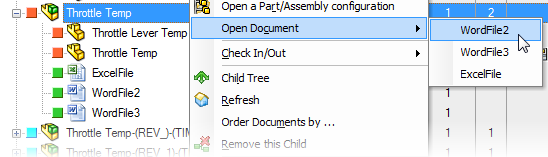
Open Document subMenu
If the cad document has at least one associated document, it is possible to open it directly from the contextual menu, in a way similar to opening a drawing when it is present.
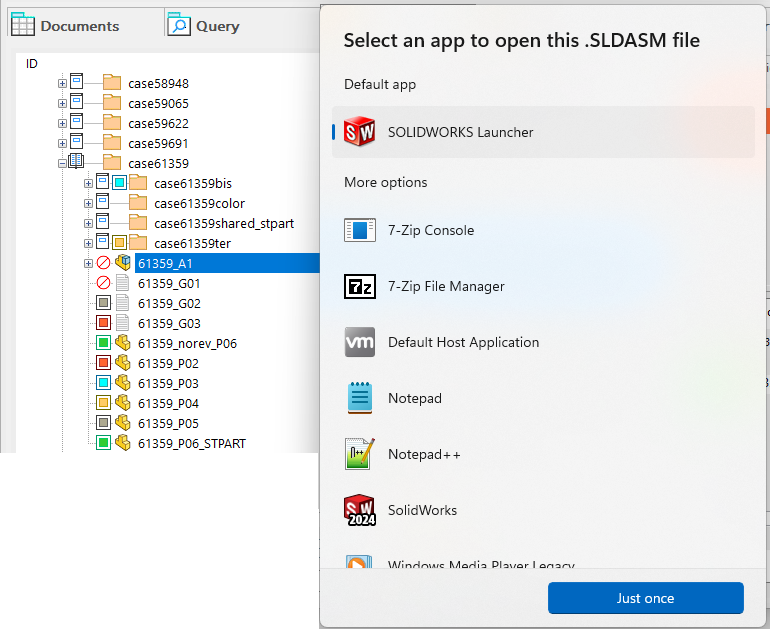
Open With...
In the same way the operating system lets you choose the application to open a document with, also MechworksPDM asks you how to open a selected record:
Open in Large Design Review Mode  Solidworks users only
Opens the currently selected document in Large Design Review mode.
Open in Light-Weight Mode Solidworks users only
Opens the currently selected document in Lightweight mode.
Open in Selective Mode Solidworks users only
Opens the currently selected documents in Selective mode.
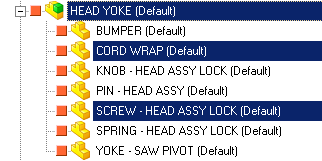
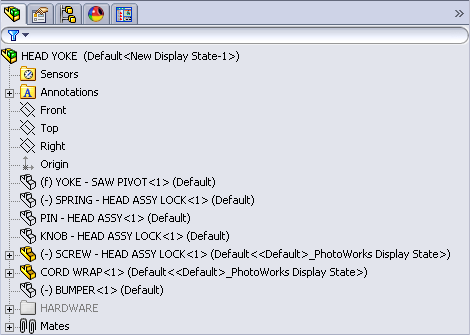
Open in Advanced Mode
Opens the currently selected document in Advanced mode.
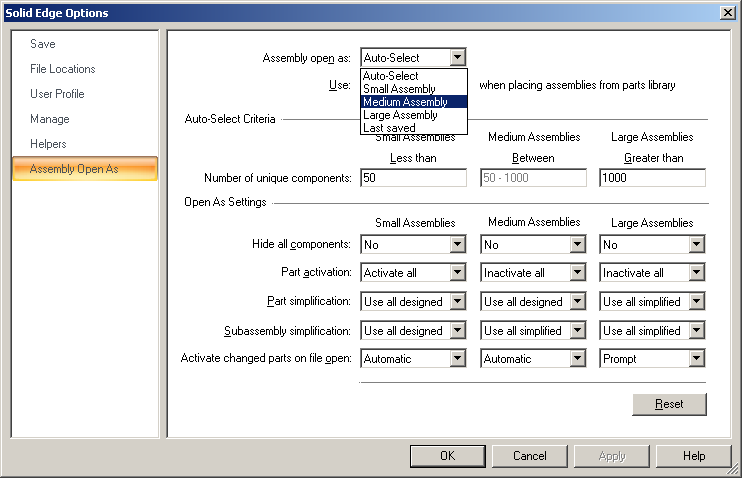
The user can select between the Open as Small|Medium|Large Assembly mode to open the related document.
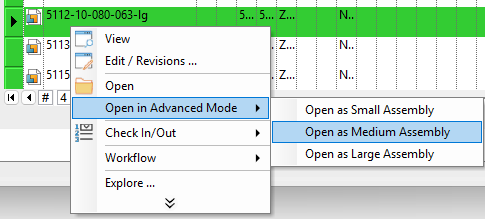
Once selected the required mode, the document is opened according to the SolidEdge Asm registered Options:
Open a part/assembly configuration
It depends on the state of the following option:
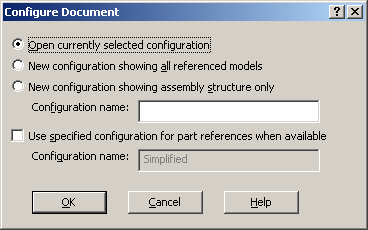
Open/Save → Choose configuration when opening a document.
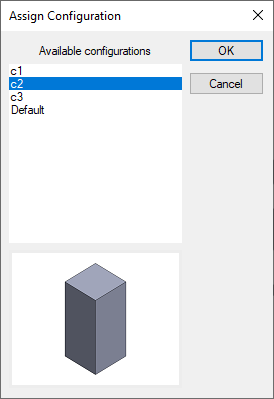
It opens a specif configuration of the currently selected file.
A dialog is shown to select which configuration to open.
Open a part/assembly configuration (OBSOLETE)
You can open a document as view-only clicking the entry in the right-click pop-up menu.
This function loads in SolidWorks the last image (OpenGL display list) saved for a document, no matter if any of the dependent documents have changed in the meanwhile. This feature comes in handy when you want to take a look at very large assemblies avoiding a long wait during document loading.
An analogous function is also present in the RMB pop-up menu of the selected component in an opened assembly; however in this case it works only if the component is still in a light-weight state; if the component is resolved, SolidWorks refuses to open a different instance of it in view-only.
Because of this, if you call the Open component in view-only mode you will actually fully open the component.