Performance issues
When using Mechworks PDM you could experience some delay according to actions you're performing, database type, system settings and network environment.
Here below you find a list of factors that affect system performances.
Server side
Network efficiency
often performances losses are due to bottleneck in switches networks hardware.
Server performance
RAM memory is always welcome
Servers differentiation
it is strongly suggested to keep the file server and the the database server separated
Maintenance
it is strongly suggested to periodically shrink the database and to rebuild database indexes
Client side
prefer Feature manager
open the browser only if necessary; all action can be performed from Feature Manager too
project tree
visualization
less project you visualize, faster is the system (show only selection of projects)
number of items
if you visualize only one project but containing 10000 items, performances decrease (avoid more than 1000 records per project)
current project
prefer the option User Interface→Browser behavior→Always open browser with current project
structure
use sub-project categorization; if possible organize projects in a "real" way: one for each order (so to check it out only when needed)
standard parts
define them carefully and then declare standard parts as "not managed"
stay up-to-date
it is always reccomended to use the latest MechworksPDM build.
tree page
prefer TreePage because it uses less memory than other pages.
legacy components
in some cases (>100.000 records) you can let legacy components (released/frozen issues) inside the database but without making them belonging to any project; you can find them with the full text search as well but saving on projects number
Working with large assemblies
When managing large assemblies, it is mandatory that components never resolve their light-weight state, to avoid loading in memory unnecessary geometry.
There is a set of API of SolidWorks that, in order to be executed, needs to load the models in memory, in which case the components are "resolved".
When managing large assemblies, this should be avoided for performance reasons.
It is easy to find out if DBWorks needs or not to resolve the light-weight components: load an assembly and save it:
if after the save/checkin the components are still in light-weight state, it is all OK;
if not, you need to uncheck the following options:
Environment → Derived Parts → Track derived parts
Environment → Always make writeable new and checked-out read-only components
Environment → Always notify editing of read-only components
Open/Save → Save → Always calculate mass properties on save
Open/Save → Save preview images as files
Revisions → Always calculate mass properties when doing a check-in
Data input → Import also for child components
and check the following:
Environment → Traverse only first level of assembly structures
This is absolutely mandatory for managing large assemblies; eventually the option file DBWAPP.PAR must be differentiated for the users not managing large assemblies.
Since of the features introduced with SW2006, DBWorks (starting from build 20061016) does not automatically resolve the light-weight assemblies anymore during:
•mass property calculations
•high-resolution preview images generation
Performance issues and SW Option External References → Open referenced documents with read-only access
We verified a problem of performance in SolidWorks when the SolidWorks option:
External References → Open referenced documents with read-only access is checked.
DBWorks, by default, sets this option to CHECKED, because this is the easier way of installing DBWorks in a shared environment.
Locking problems on checked-out writeable files could happen (on the DBWorks side) without this option being set; typically, the case is that:
1.USER1 checks-out a component, without opening it
2.USER2 loads an assembly, referencing that component: the assembly locks the component
3.USER1 then loads the component he has checked-out and see that it is READ-ONLY, because it is LOCKED by the opened assembly.
The standard, and more robust, solution proposed by DBWorks is the use of the DBWServer service, that ensures that the files are writeable at NTFS/ACL level, this avoiding any problem like the above.
In conclusion, to improve the SolidWorks assemblies loading time, we suggest to work with:
•SW → Options → External References → Open referenced documents with read-only access: UNCHECKED
•DBWorks → Options → Environment → Avoid SolidWorks User Preferences setting: CHECKED (in order to avoid to check automatically the SW option at the next DBWorks start)
•DBWServer running
Note that DBWServer can run with any version of DBWorks (Enhanced or Enterprise).
Performance issues on renaming
When renaming an assembly, please note this option will impact the speed of the process:
Rename → Enable Assembly Traversing beyond the first level for in-context dependencies discovery If enabled, it makes the Rename action more time consuming (since it traverses the whole assembly structure to resolve the found dependencies) but it grants an up to date status at the end of the task.
Performance issues in Solid Edge when saving FOA through the network
You may experience a long time delay when checking in (so when saving) a family member.
please refer to specific topic about.
Many thousands of stored records
The performance of MechworksPDM when many thousands of records are stored in the database depends essentially on three main factors:
1.The indexing of the first two fields of the PARENT_CHILD table ( or the equivalent for any localization of the same )
If not yet done, you are encouraged to create two indexes using MS-Access on the first two fields of the PARENT_CHILD table. All the installations of MechworksPDM starting from December 1999, have these fields indexed.
To create these two indexes:
•open with MS-Access 97 the dbworks.mdb file of your database ( create a backup copy of it if not yet done )
•select the PARENT_CHILD table, then press the STRUCTURE button
•select the PARENT_UNIQUE_ID field, and, in the form at the bottom of the page, click on Indexed and choose Yes ( duplicated allowed )
•close the database
2.The dimension of a row of any of the three tables: DOCUMENT, REVISIONS and EVENT_LOG
If not yet done, you are encouraged to resize at the minimum needed, using MS-Access, the sizes of every text field in the database:
•open with MS-Access 97 the dbworks.mdb file of your database ( create a backup copy of it if not yet done )
•select the DOCUMENT table, then press STRUCTURE
•for every text field look at Field Size value in the form at the bottom; the followings are our suggested dimensions for the standard text fields:
T |
1 |
|
|---|---|---|
ID |
80 |
|
DESCRIPTION |
128 |
|
CONFIGURATION |
80 |
|
FILE_NAME |
128 |
|
FILE_DIRECTORY |
255 |
|
CREATED_BY |
40 |
|
LAST_MODIFIED_BY |
40 |
|
MATERIAL |
40 |
|
SCALE |
20 |
|
SHEET_FORMAT |
20 |
|
ITEM_CODE |
80 |
|
CATEGORY |
40 |
|
SUPPLIER_ID |
40 |
|
CLIENT_ID |
40 |
|
MAKE_BUY |
20 |
|
NOTES |
255 |
|
STATE |
30 |
|
REVISION |
20 |
|
ACTIVE_REVISION |
20 |
|
CHECK_OUT_BY |
40 |
|
FROZEN_BY |
40 |
•close the table and select the REVISIONS table, then press the STRUCTURE button
•for every text field look at Field Size value in the form at the bottom; the followings are our suggested dimensions for the standard text fields:
REVISION |
20 |
|
|---|---|---|
DESCRIPTION |
128 |
|
CREATED_BY |
40 |
|
APPROVED_BY |
40 |
|
NOTES |
255 |
•close the table and select the EVENT_LOG table, then press the STRUCTURE button
•for every text field look at Field Size value in the form at the bottom; the followings are our suggested dimensions for the standard text fields:
USERID |
40 |
|
|---|---|---|
COMPUTER |
40 |
|
ACTION |
80 |
|
DOCUMENT |
255 |
|
EVENTDATE |
40 |
|
EVENTTIME |
40 |
•close the table
•before closing the database, we suggest also to compact it clicking in MS-Access: Tools, Database utilities, Compact .
3.The dimension of the ODBC buffer on the client WorkStation
Open the Control Panel and double-click ODBC Data Sources; when opened, double-click DBWORKS to modify its properties. Press Options >> and in Field Buffer insert the value 2048.
Confirm and close all the dialogs.
Database performance
Here below some points related to database (and system) performances:
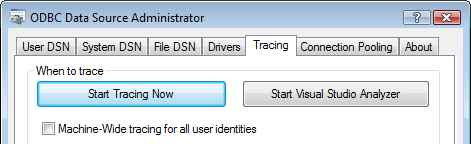
1.Having the tracing enabled get the system slow
2.Many records means much resources usage; anyway the main resource is the SERVER memory.
3.SQLServer time response is fundamental for MechworksPDM performance.
4.Maintenance issue that can be done:
•database shrink: useful to free disk space but not related to performances
•indexes: a special index (now automatically created when upsizing from MDB to SQLServer through Administrative Tools) speed up the db.
here below a version that suits english and italian db:
USE [DBWORKS]
GO
CREATE NONCLUSTERED INDEX [_dta_index_PARENT_CHILD_14_165575628__K2_1] ON [dbo].[PARENT_CHILD] (
[CHILD_UNIQUE_ID] ASC
)
INCLUDE ( [PARENT_UNIQUE_ID]) WITH (SORT_IN_TEMPDB = OFF, DROP_EXISTING = OFF, IGNORE_DUP_KEY = OFF, ONLINE = OFF) ON [PRIMARY]
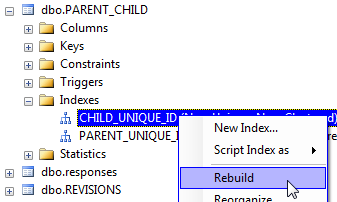
•indexes: rebuilding all the indexes periodically (e.g. monthly) is a best practice
5.Avoid to use the same server to host both database server and file repository.
6.A daily reboot (e.g. in non-working hours) is a good way to reset memory usage since Windows itself consumes more and more memory along the power-on time.
7.Network routers/switches quality matters: bottlenecks are very often caused by them.
8.Checkin performances have been improved starting from DBW2007sp2.4f or DBWR10sp0.0 since a specific bug fixing.