Adding and removing documents to/from a project
Both operations are implicitly referred to the project indicated by  in the Projects tree. Select the correct project before starting the operation
 Add documents to a project
Add a document to the current project
Click Projects → Add to project
Add all the documents in a grid to the project currently selected
1.Click the grid, then the button.
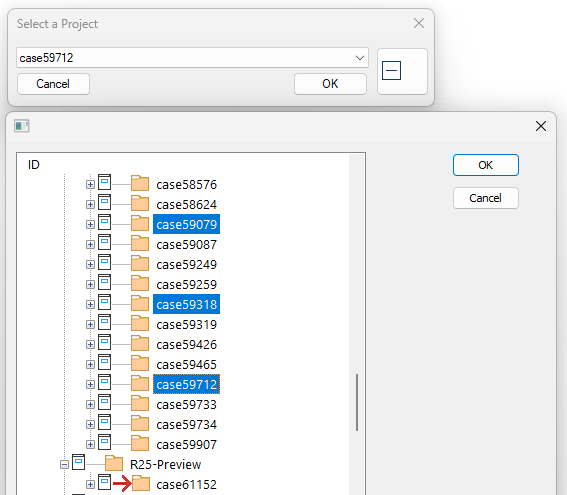
2.The user interface allows you to choose which project to add (multiple selections are allowed, the right button expands a tree list of the project, as for the TreePage)
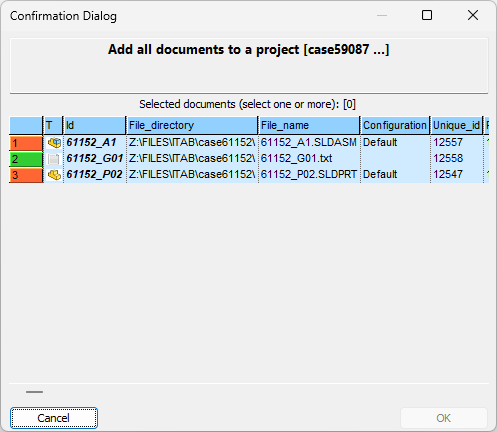
3.In the dialog displayed you have to select the documents you want to add to the project and press .
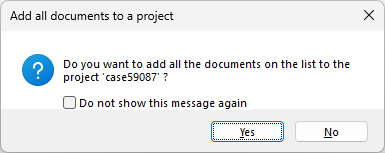
4.A second dialog asks for a confirmation:
 Remove documents from the project currently selected in the Documents Page
Please note that removing a document from a project does not imply neither that the document record is deleted nor that the file is deleted: the document simply does not belong to the project anymore. A document can belong to no project or it can belong to many projects at the same time.
Remove a document from the current project
Click Projects → Remove from project
Remove all the documents in a grid from a project
1.Select the documents and click the button.
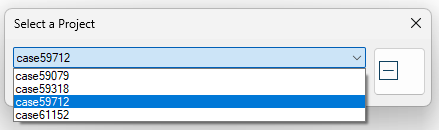
2.A dialog allows you to choose the project from which the document will be removed. The list of projects includes only the projects containing the document (the right button expands a tree list of the project, as for the TreePage)
3.In the dialog displayed you have to select the documents you want to remove from the project and press .
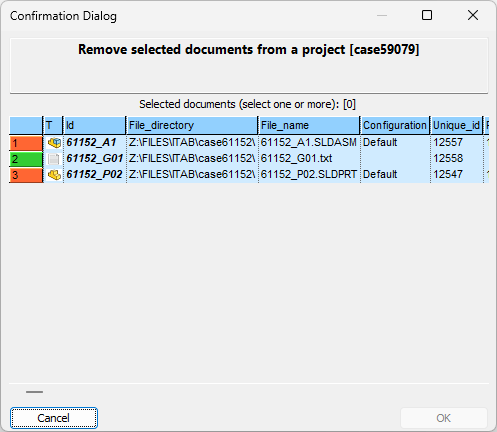
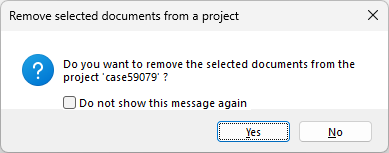
4.A second dialog asks for a confirmation:
Projects and working sets
From the Documents Page or the Tree page you can multi-select documents, choose Create Working set function to switch in the Query page and then add/remove the working set documents to/from the currently selected project.