eDrawings preview
Tree Page
The eDrawings preview is available in the tab of the upper panel in the MechworksPDM Tree Page.
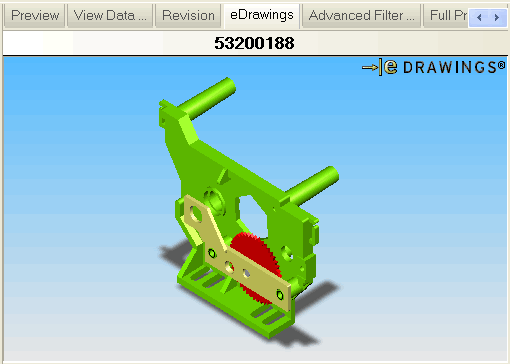
When you click the tab the eDrawing of the document is loaded in the panel, allowing normal interaction as in the eDrawing application.
Document selector dialog
A button is available for creating eDrawings windows of the selected components in the document selector dialog.
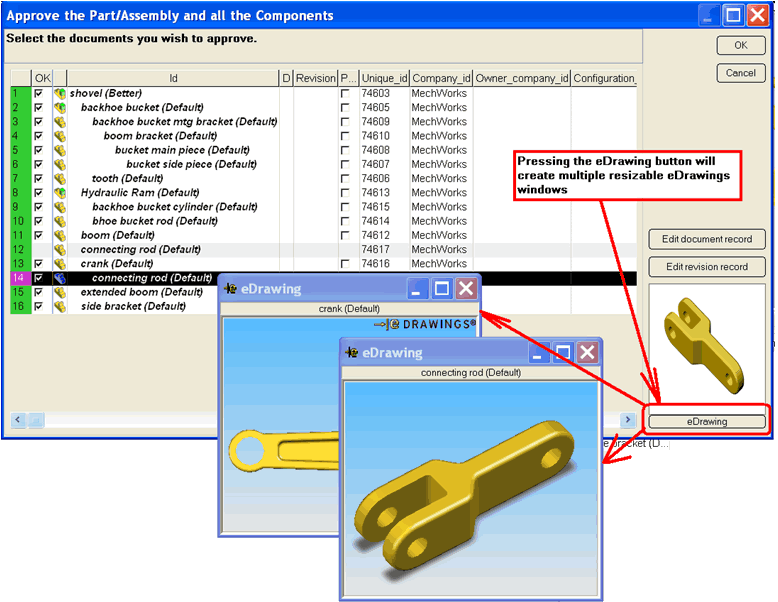
Other edrawings previews
Other eDrawings previews are available from the preview window of the Document Page and from the Feature Manager.
eDrawing and configurations
Unfortunately eDrawing is not able to manage configurations of SW documents directly; it can manage configurations only of .eprt and .easm files, that is of files saved in eDrawing format.
MechworksPDM, when displaying the eDrawing preview, looks first for a file with the same name but with .eprt/.easm extension, and if it exists, it uses the native format, otherwise it uses directly the SW file, not supporting configurations.
Please note that the same is true also from the eDrawing program User Interface.
Extract from the eDrawing Professional help file on the subject:
Saving Configurations in eDrawing Files
If a SolidWorks part or assembly document has multiple configurations, you can select which configurations to save to the eDrawing file when you publish it from the SolidWorks application. If you publish multiple configurations, the file size and the time required to save the eDrawing file may increase.
NOTES:
You must have eDrawings Professional installed to choose the configurations to save. If you have the free eDrawings Viewer, only the active configuration is published with the eDrawings file. You must select the eDrawings2005 check box under Tools, Add-Ins to display the eDrawings toolbar and to publish eDrawings files. Comments you add are specific to the configuration that was active when you added the comments.
In assemblies, eDrawings displays component configuration names next to part names for components that have multiple configurations. To save configurations when you publish eDrawings files:
In the SolidWorks application, open the SolidWorks document containing multiple configurations that you want to publish as an eDrawings file.
Click Publish an eDrawings 2005 file on the eDrawings toolbar, or File, Publish an eDrawings 2005 file.
The Configurations to Save to eDrawings dialog box appears.
Select one of the following:
Current configuration (default). Save the active configuration only.
All configurations. Save all configurations.
Selected configurations. Select the configurations to save from the list displayed below.
Click OK to publish the eDrawings file.
A progress bar reports the publication process. The eDrawings Viewer opens with images of the saved configurations displayed on the Configurations tab in the eDrawings Manager.
To display the different configurations in the graphics area, click the images on the Configurations tab, or click the tabs with the configuration names below the graphics area.
In the eDrawings Viewer, click Save to save the eDrawings file with the configurations.
DBWorks Standalone and eDrawings Professional
Since eDrawings Pro locks any file in writeable state, DBWorks Standalone, when opening any writeable document (NEW state) associated to eDrawings, makes now a local copy of the document in the %TMP% directory and then opens the local copy.
The copy is not executed if an existing local copy has the same date/time of the original.
The cleanup of the %TMP% directory must be done regularly by the user.