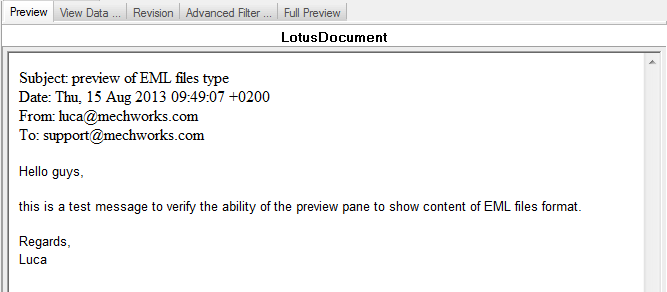
The Full Preview Page
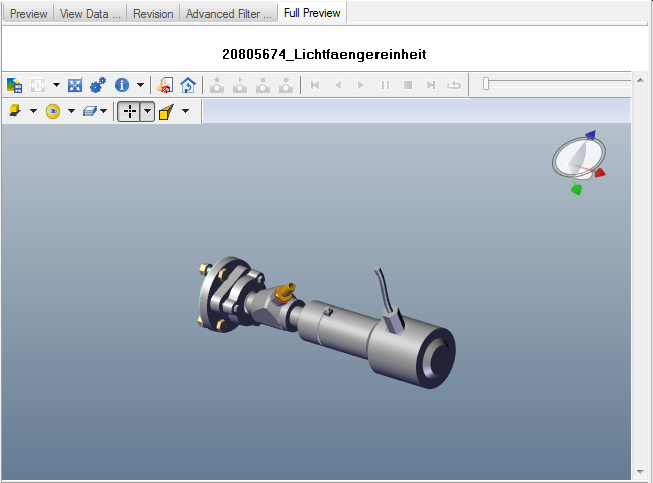
On the right side of Pages tabs, you can find another standard tab named Full Preview (localized for each language), so to have a browser-wide preview.
It's aligned with the document currently shown in the Full Preview tab of the TreePage.
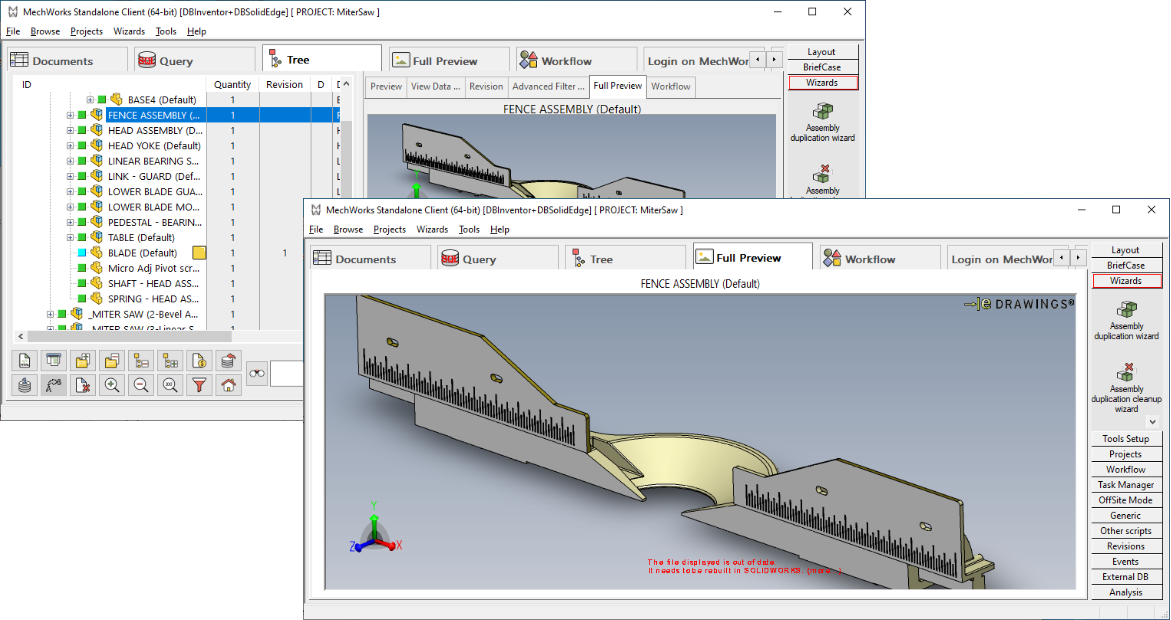
Change the Full Preview tab position
It's possible to change the position of the Full Preview Page in the tab bar by declaring it in the file SCHEMA\DBWIEDEF.TXT;
Please note the TITLE of the page must be the same declared by the key T_IDC_TAB_FULL_PREVIEW in the DBWORKS.MSG file (localized), and the URL must be about:blank;
TITLE Login on MechWorks
URL https://reservedarea.mechworks.com/login/
TITLE The Weather channel
URL https://weather.com
TITLE Full Preview
URL about:blank
TITLE Microsoft
URL https://microsoft.com

External Full Preview
It's possible to enable the creation of the full preview in external windows, rather than in the PDM browser.
Such behavior is driven throug the following UI → Preview option:

When enabled, the external preview mode:
•removes the Full Preview Page from the browser (see also option UI→BrowserBehavior→ Disable Full Preview Page)
•removes the Full Preview tab from the TreePage upper right pane
•enables the Full Preview button in the bottom button bar
|
→ |
|
|---|---|---|
Internal Full Preview |
External Full Preview |
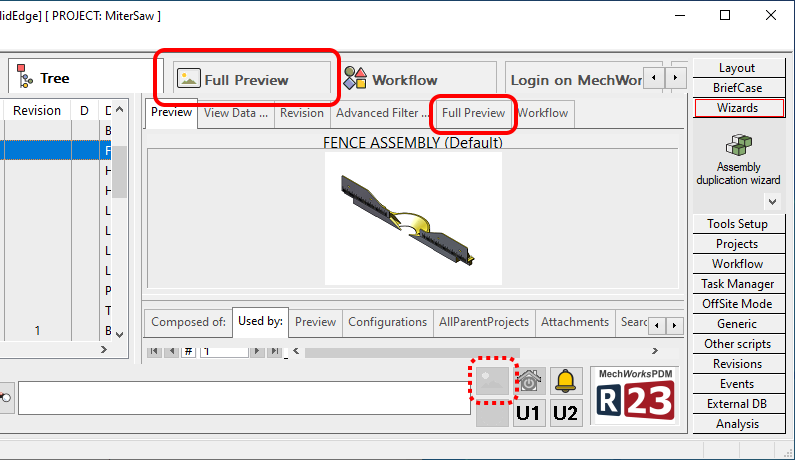
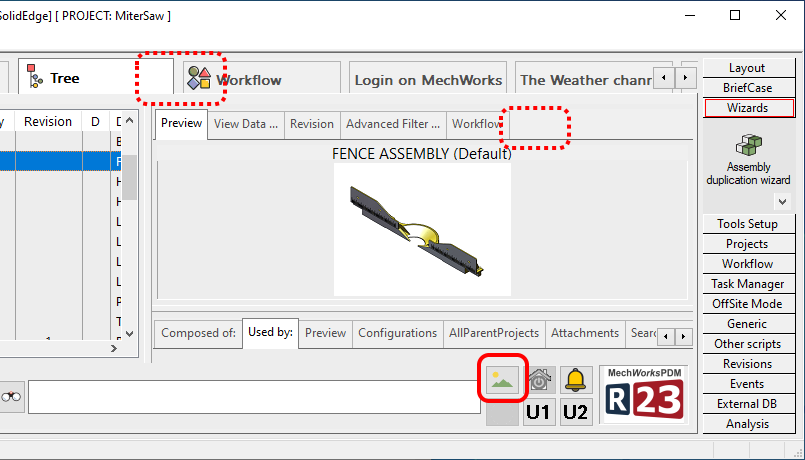
Then when the button is pressed, a new dialog independet from the browser is show with the full preview:
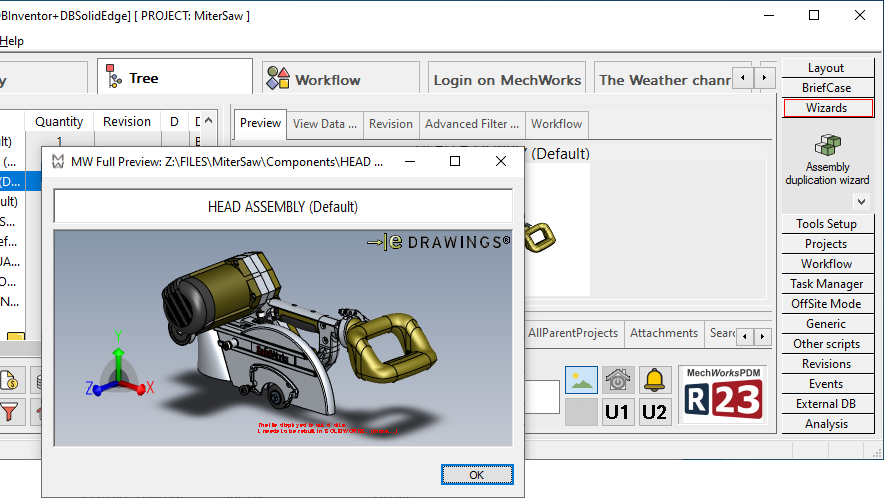
Please note the external dialog is a separated process that's not affecting the main PDM process; of course such process will be terminated together with the PDM process
eDrawings preview
Please note the eDrawings module used by MechworksPDM functionalities is an external components.
Any delay or malfunction could be experienced on eDrawings application too, since it's not our control.
eDrawings checkbox
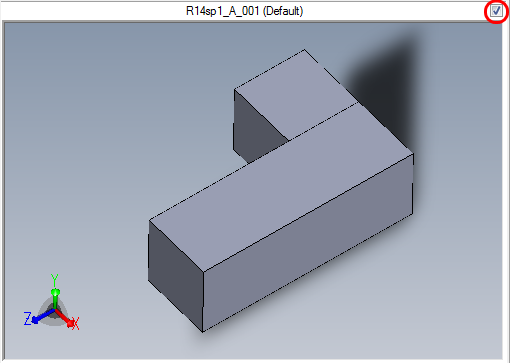
In the DocumentsPage, if you check the checkbox placed on the top right corner of the Preview Pane, the preview uses eDrawings, where installed.
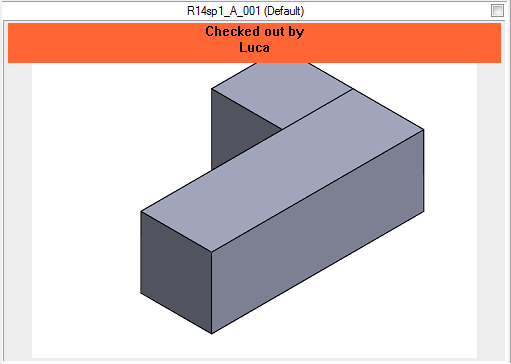 →
→ 
In the TreePage the functionality is not submitter to a checkbox since there's a specific tab (different from simple Preview tab) in the upper right pane:
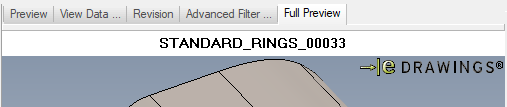
Preview support for eDrawings files (.eprt, .easm, .edrw)
MechworksPDM is able to create an image of the eDrawings files and to use such image (a .JPG) as static preview file.
The image file is kept aligned with the eDrawings file, and it is updated whenever the eDrawings file is updated.
The reason for a separate preview is that the loading of the eDrawings control can take a long time, so a cached image is necessary for any subsequent static preview request.
3DVIA full preview (SMG SMGXML files)
Previews for 3DVIA files are provided by a specific module:
Simple Preview
The preview window displays, where possible, a correct aspect ratio preview of the current document.
If the document is undergoing a revision process, the preview window displays information about the current state and both the latest revision and the current revision in its upper part:
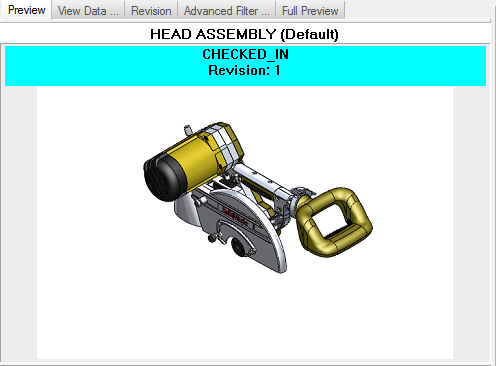
The title shows the ID of the component and not the file name. This helps in distinguishing the component titles for configured records
The dates displayed in the preview window in this case are in the format assigned in Options→General→Drawings→Date format for variant texts.
You can set alternative previews for documents for which MechworksPDM does not support online preview.
For non CAD documents, you can optionally display a full preview, which loads the entire document, which can slow down the performances and be heavy on the system if performed often.
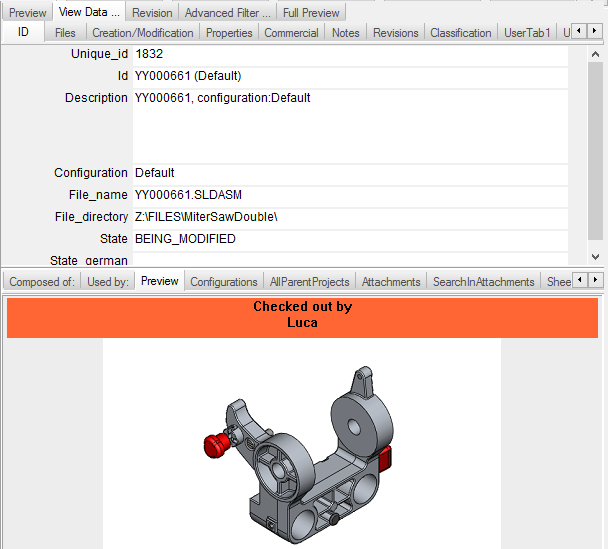
Starting from R17 release, the preview tab is available also in the lower pane of the TreePage:
Project Preview
Suppose you have created an image file named Z:\projectsImages\Project1.bmp representing the scope of the project named Project1.
You can edit the Project1 record and manually insert "Z:\projectsImages\" in the FILE_DIRECTORY field, and "Project1.bmp" in the FILE_NAME field. When you click the Project1 you see the preview of the associated image file. The formats supported are all that supported by a non 3D CAD document ( .BMP, .JPG, .TIF ).
Previews are currently available for projects where specifically set but not for other documents.
When no built-in viewers are available for the specific document type or when a project is selected, MechworksPDM displays textual information:
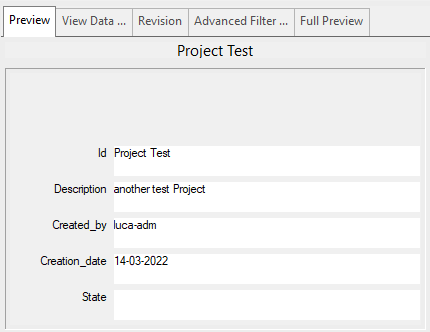 such information can be customized through the parameter file SCHEMA\DBWProjectPreviewFields.txt
PDF documents
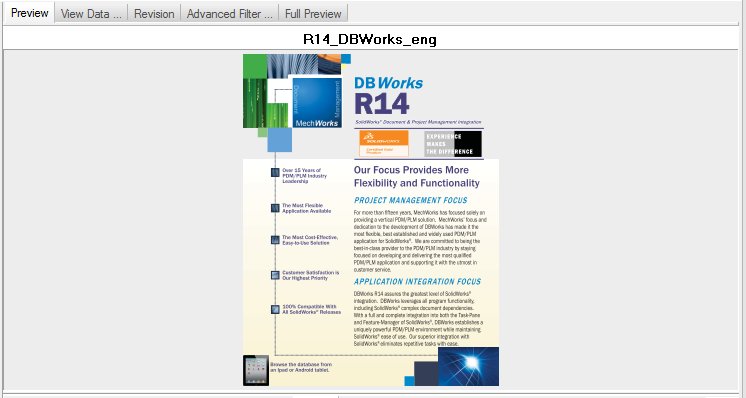
When it's requested a simple preview of a PDF document, Mechworks PDM shows a jpg image of the first page of the PDF
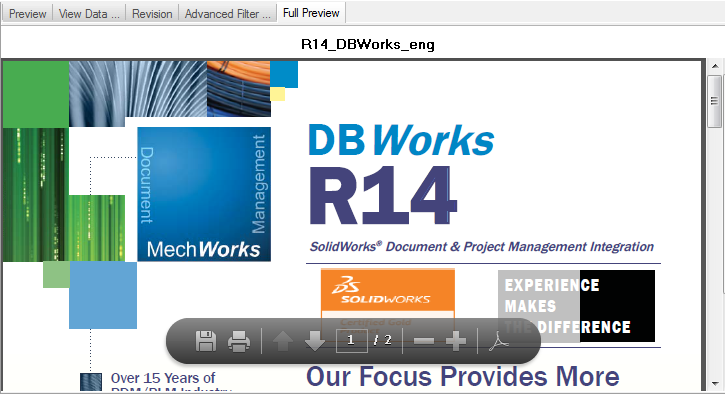
when the Full preview is invoked, an Adobe control manages the document as it is in a web browser.
|
|
|
Tip for speeding up the display of the preview image for JPG files with a very large resolution
Sometimes it may happen that JPG files with resolutions higher than 200 dots-per-inch are displayed in the preview window in a very long time (up to 30 seconds); in these cases it is needed to create images with lower resolution (using converters like www.batchconverter.com). Eventually, you must move the lower resolution images in a separate shared directory (suppose M:\ThumbNailImages) and declare this mapping using the SCHEMA\ALTPREVW.TXT file, containing lines like the followings:
JPG
JPG,M:\ThumbNailImages
Then, whenever you click on a file of type JPG, MechworksPDM looks first in the alternate preview directory, searching a file with the same name as in M:\ThumbNailImages or any other directory you set), and, if found, displays that file instead of the original one.
TXT documents
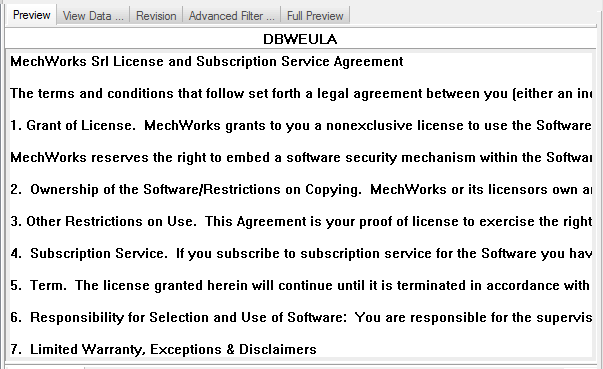
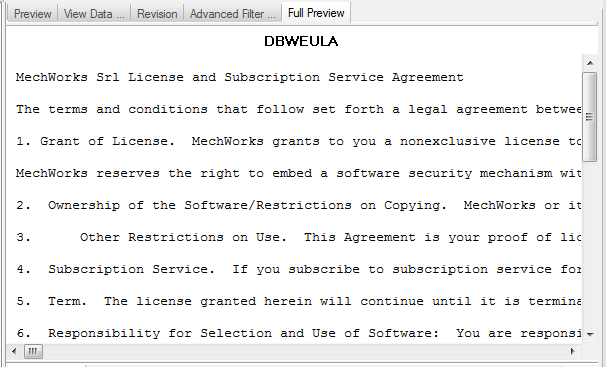
Starting from build 20140430 it's possible to create a full scrollable preview for text files.
The AltPrevw.txt file is considered for any extension marked as useTxtViewer or useTxtViewerUnicode.
Files with extension .TXT, by default, are always managed as text files
|
|
|
Enhanced preview for EML (Lotus Mail) files
The preview window displays the Subject, Date, From and To information