Look and feel of a grid of documents
The grids of documents are displayed both in the Documents Page and in the Query Page as query results.
The main characteristics of the interface of a grid are:
To select a column for sorting operations, just click on a cell on that column. Though the whole column is not be highlighted, the sorting operation is performed on the indicated column.
Double click on a document opens it in the CAD.
CTRL-C copies the selected records to the clipboard.
To sort records by a field value, double click the field header or use the sorting button.
The columns in the tables can be set using AdminTools.
The color of each entry in the grid depends on its current state in the revision process. Please read the topic States for further information.
By pressing the SHIFT key together with the CTRL-C, it is possible to copy in the clipboard also the column headers of any data grid - this allows the paste operation to properly fill the column headers
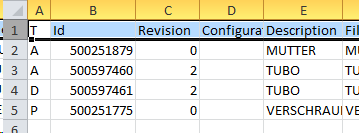
e.g. for copying data in Excel
Icons in the Browser grids
Every grid in the Browser has the ability to display icons for cad and most common non cad documents.
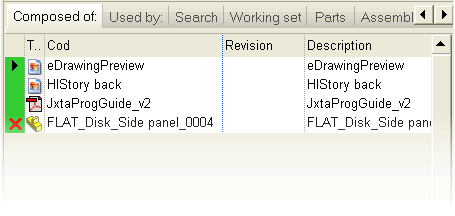
To see the icons, the field T must be declared NOT HIDDEN in the SCHEMA\Tables2.DFL file and put in the first position of the views.
Example:
ASSEMBLY FROZEN_COLS 2
T
ID
...
...
The same operation can also be performed in a graphic environment using DBCustomizer.
Icons for most commonly used Generic Document types
Most common non cad generic documents types display a proper icon both in trees and grids.
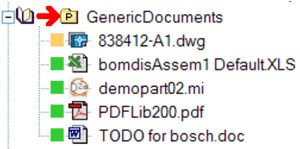
The icons are supported for file types:
BMP,GIF,JPG,PCX,TIF,HTM,MI,DWG,DXF,PDF,DOC,XLS
Custom or specific icons
Only for such documents where no Windows program association exists, it is possible to show a specific icon for any type of Generic document, both in trees and in grids.
Mechworks PDM looks in the SCHEMA\IMG\ICONS folder for an image file named <file extension>.BMP (example: DOC.bmp, XLS.bmp, MYEXT.bmp), and it displays it when available for the given document type.
Shortcut to quickly find a document in the grid
If you press any key while the grid is active, MechworksPDM finds and select the first document of which the ID starts with the key pushed.
If, for instance, you're looking for a part starting with 's', you should click any document in the parts grid to make it current, then push the key 's' and MechworksPDM will select the first part with ID starting with 's'.