The Revision form
The revision form is in the interface for managing the revision process for a given document. In this topic we will not go into an explanation of the revision process but will show the form and how to interact with it.
To open the revision form or start a revision process, click the Revisions button from the Documents Page:
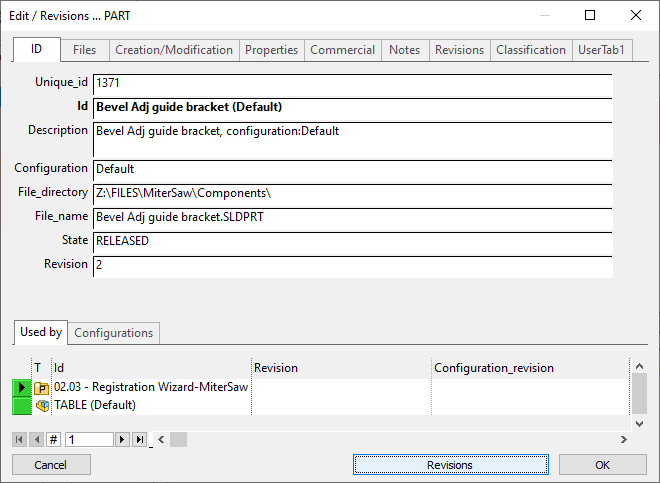
Then, the form appears:
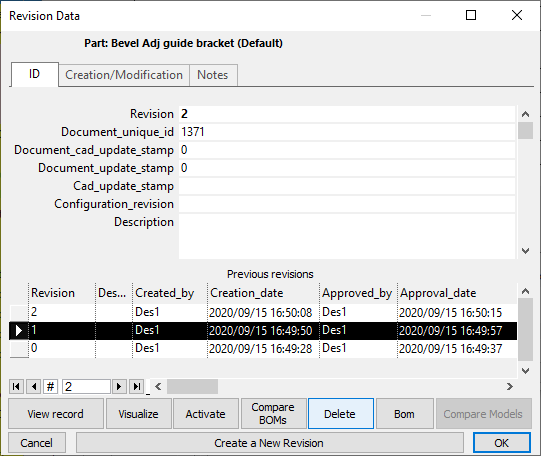
to see enabled the button you've to open the browser for updating
View previous revision record in distinct form
It is also possible to display the record of a previous revision in a separate form to make it more readable:
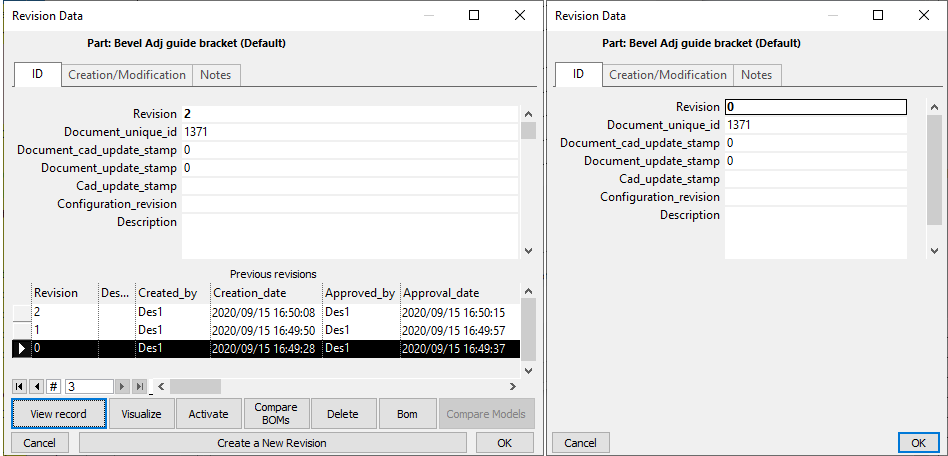
After having selected a previous revision in the grid and having pressed the View record button, on the right side of the revision form is displayed the record data of the previous revision.
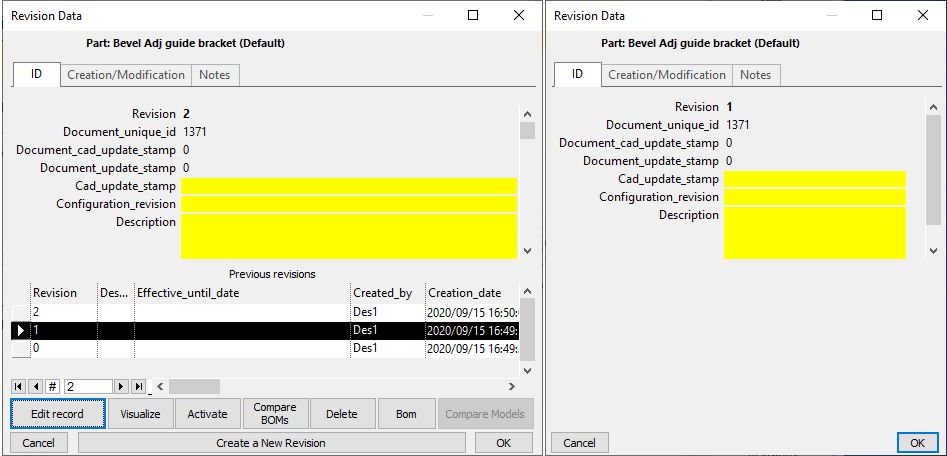
Editing of a revision record
The button, available from the Revisions Input Form when selecting a revision, and when unchecked the option
Revisions→ Avoid database record editing if released or checked out by someone else
changes its functionality into if the document record is currently edited (yellow background).
Compare models
See specific topic
Interface elements
You can find a short description of the interface elements below. To see how the same elements in action, refer to Revisions by example.
Interface elements
Header |
It's the identifier of the document |
||||||||||||||||||||
|---|---|---|---|---|---|---|---|---|---|---|---|---|---|---|---|---|---|---|---|---|---|
List of fields |
|
||||||||||||||||||||
Previous revisions grid |
Includes a record for every previous revision |
||||||||||||||||||||
Create a new revision |
Starts a new revision for the document |
||||||||||||||||||||
Approve this revision |
Approves the current revision; the document state becomes Released |
||||||||||||||||||||
Activate |
Activates an older revision. You have to select one in the Previous revisions grid before clicking this button Please note that this command is valid only for the currently selected record and not for its children. If you perform this command on an assembly you won't activate older revision for its children too, but only on the assembly file, and missing file will be reported. Because of this, to activate an older revision for an assembly and all its children, you have to use the specific functionality Restore a previous revision for the node and all the children you can find in the button bar of the TreePage.
|
||||||||||||||||||||
Visualize |
Opens a previous revisionseparately as a read only document. The current revision remains untouched. |
||||||||||||||||||||
BOM |
Make a BOM of revisions |
||||||||||||||||||||
Compare Models |
Allows to compare the models of a Part/Assembly at different Revisions |
||||||||||||||||||||
Delete |
Deletes both the record and the associated files. Multiple selection available. |
||||||||||||||||||||
OK |
Saves to the database the field values displayed on the screen |

Custom commands associated to scripts
It is possible to add custom commands that are displayed as added menu entries.
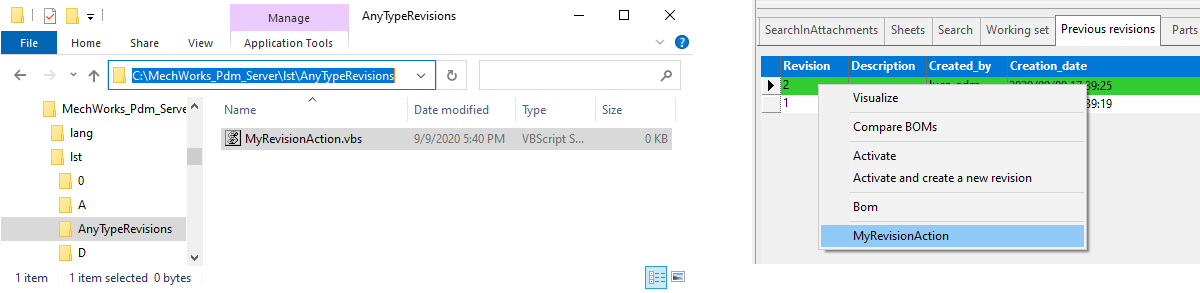
Read the topic Custom menu entries for more information