On the bottom right of the Tree Page and of the Documents Page you can find the interface for effective, quick search:
|

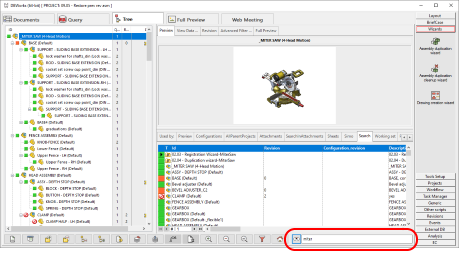
How to quickly find documents
In the text area put the keywords that you want to find. Keywords must be separated by blank spaces; when an exact sequence is searched, it must be enclosed between double apexes "" (quoted strings). The search matches every sub-string of every text field of the DOCUMENT table. This means on one hand that the search is very general, on the other that you are not searching numeric values. For these kind of serch, as for instance specifying a diameter between two values, please use more specific tools like the Advanced Filter.
The search starts when you press the button  on the left of the edit box or hit the key; if you are in the Documents Page, all the grids are filtered accordingly, displaying the list of results.
This functionality is very useful when it is unknown the field WHERE a specific word has been inserted.
The search result is reset when reopening the Browser.
Searching dates
For fields of type DATE, the format for searching is "mmm%dd%yyyy" as in the following example: "mar%27%2002" where "mar" is for March and must be localized depending on the language of the database engine.
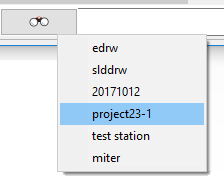
Retrieve a recent search
Righ-clicking the search button, a pop-up menu appears displaying the Most Recently Used search strings:
COLLATE directive used in the Search Queries
In order to improve the performance of the Search Queries, by default the LIKE operator is prefixed with a COLLATE SQL_Latin1_General_CP1_CI_AS directive.
If for any reason this new behavior has some conflicts with other procedures used by the customers, it is possible to restore the old behavior by adding the DBWORKS_SEARCH_LIKE_OPERATOR parameter to the DBWCONN.PAR.
Search synonyms
MechworksPDM is able to support an intelligent PHONICS search string.
This is because of inconsistency between users' input - either by mistake or because of changes to corporate standards.
See specific topic about Search Synonyms.