Advanced data input
MechworksPDM allows you to define for any field a special behaviour in order to help you to choose the right value or perform some actions related to the field. The behaviours can be shared on a network if you share the directory that contains the behaviour files. All fields where such behaviours have been activated display special tags that notify what to expect while editing.
There are two different events that can trigger a behaviour: a click on the editable part of a field or a click on the label part of the field.
In this case the label on the left is active (a script has been defined) as the label is displayed as a pushable button. The yellow part on the right is the editable part of the field, containing the field value.

The label is associated with performing actions while the editable part is associated with behaviours that enhance data input.
Data input enhancements
All data input enhancements are defined in LST files in the \lst directory. If you define a .LST file in the \lst directory with the name of an existing field, MechWorksPDM considers the file as a behaviour definition and tries to interpret it accordingly.
How to create a new lst file
To create a new lst file (provided you have the necessary rights), open an edit dialog and right click the label of the field for which you want to define a custom editing behaviour.
The available behaviours are:
Pick a value from a list in a file

You can define a static list of elements from which you pick one. To define your own list for a given field, right-click the field name: notepad appears displaying the content of the related editing behaviour file. If no behaviour has been previously defined for the field, what you get is an empty notepad sheet, while if you had previously defined a behaviour and you modify it, the existing one will be lost (you can make a backup copy with a SaveAs...).
In the following example you attach a list to the field category.
1.Right-click the label of the field
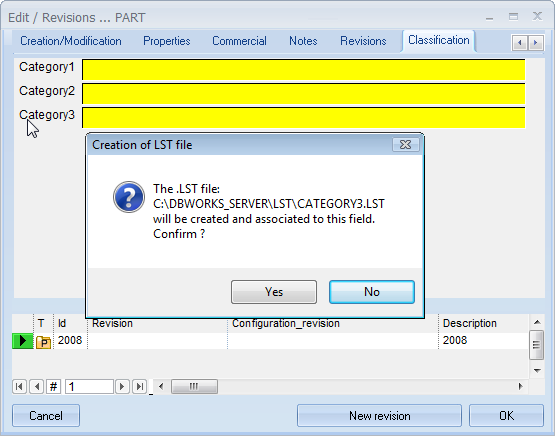
2.Allow for creation of a new file where necessary
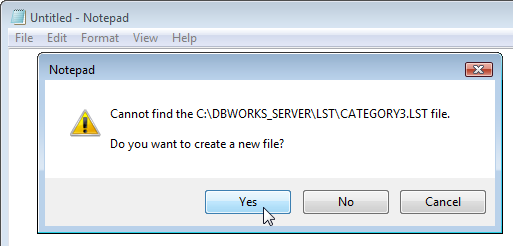
3.Enter the lines pushing Enter to end each line, the last one included
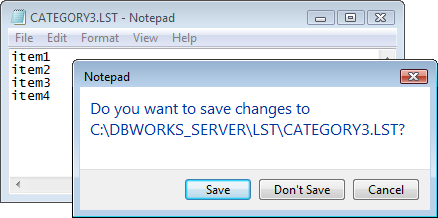
4.Save and close
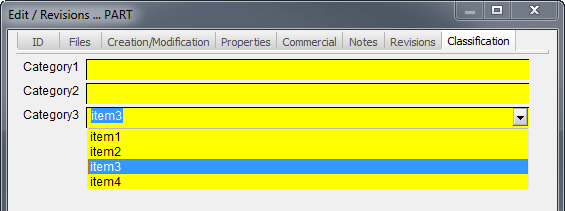
5.Click the dropdown button of the field Category3 to see the list
DEFAULT value
You can define a value as being the default with the command
.DEFAULT <default value>
that must be at the beginning of the file.
In the example:
.DEFAULT RED
BLUE
YELLOW
RED
PINK
when you save a NEW document (with the WHITE background input form), the field CLIENT_ID is automatically filled with the default value RED. Note that the default value must exist in the list of possible values for that field.
If if you specify .DEFAULT not followed by any value, then the field is initialized with an empty string.
DEFAULT for a single VIEW only
It is possible to limit the .DEFAULT clause adding the name of the View for which the .DEFAULT must be activated, prefixed with the '_' underscore character.
Example: if I need a .LST file with a .DEFAULT only for the ASSEMBLY view, the lst file must by filled as follows:
.DEFAULT_ASSEMBLY myValue
myValue
DEFAULT for BOOLEAN fields
To speficy a default (active or not active) for a boolean field is enough to speficy the .DEFAULT keyword followed by 1 or 0
.DEFAULT 1
DEFAULT_IF_VISIBLE value
For a specific field, it is possible to declare a Default Value that will be applied only if the field is actually visible in the current Form (typically a Sub-Classed Form)
The definition is:
.DEFAULT_IF_VISIBLE <any valid .DEFAULT definition>
the standard .DEFAULT (or the Database-View-specific .DEFAULT_A/P/G/D/0 ) always applies the value to the record created in the Document Table, no matter if the field itself is visible in the currently displayed Data Input Form or not.
Macros to enhance the DEFAULT value
Some macros can be used to adapt the DEFAULT value to the specific record data.
$(USER_DATA) |
Returns the current user ID |
|---|---|
$(DATE_TIME) |
Returns the current date/time |
$(.VBSCRIPT <custom .LST script>) |
Returns the @DEFAULT_VALUE outputted from the <custom .LST script> |
The REVISIONS.<field name>.LST and <LINKED TABLE>.<field name>.LST are supported as well, for initializing fields in the REVISIONS table or in any <LINKED TABLE>
Example
For the field DESCRIPTION2 we like to automatically assign the following .DEFAULT in the DESCRIPTION2.LST:
.DEFAULT My name is: $(USER_NAME); the date/time is: $(DATE_TIME); my script out is $(.VBSCRIPT descr2dflt.lst)
We’ll write a script LST\descr2dflt.LST as follows:
.VBSCRIPT
sub main()
DBWInit(TRUE)
myScriptCalculatedDefaultValue = """Value calculated with a script"""
DBWOutput "@DEFAULT_VALUE",myScriptCalculatedDefaultValue,ForWriting
end sub
For every new record, the result will be:

Pick a record from a list obtained with an SQL query

You can also define a list of elements where each line is a record taken by any data source available from your workstation. In order to let MechWorksPDM understand that the following file does not indicate a static list of items but a SQL query, the first line must be .SQL. Here's an example of a valid SQL list of commands:
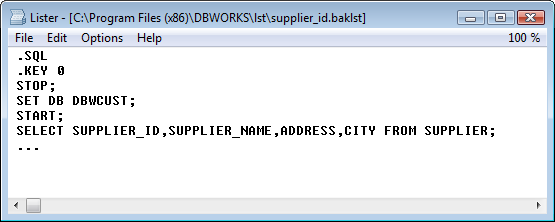
The elements to take note in this SQL command lines are:
.SQL The file .LST must start with this line to set MechWorksPDM interpreter to sql mode
.KEY n The nth field of the selected record will be the one that will be input into the field
START and STOP are necessary to change the connection and link to other data sources
The rules are the followings:
1.the .SQL command needs to be the on the very FIRST line (also before any comments)
2.comment lines begin with the # char
3.every command not starting with a dot ends with a semi-colon ;
4..KEY <number> indicates the index of the column is to be used as an input for the field
5..REQUERY is OPTIONAL, and force a requery for every data entry; without the .REQUERY, MechWorksPDM accesses the database only the first time the query is done, storing the results for next times.
6.There should be only ONE SELECT instruction in a .LST file
7.The STOP/SET DB .../START sequences first unactivates the DBWORKS database, then activate the DBWCUST database, in which the SELECT ... query must be executed.
Starting from DBworks2007, it is not necessary anymore to restore the normal state for the subsequent queries with STOP/START DBWORKS after a query on another datasource.
Note that there is always an active database; the default database is DBWORKS, this is the reason for the first STOP instruction.
Starting from R15 version, the STOP/START statement is not supported anymore, so you can obtain the same result by programming a vbscript that queries an external database through classic vbscript methods (e.g. ADO).
Example
migration from .SQL script to a .VBSCRIPT.
A previous SQL script:
.SQL
.KEY 0
STOP;
SET DB MY_EXTERNAL_DB;
SET USER Mylogin;
SET PASSWORD Mypwd;
START;
SELECT * FROM MY_EXT_TABLE;
STOP;
SET DB DBWORKS;
SET USER MyDBWlogin;
SET PASSWORD MyDBWpwd;
START;
you can simply remove the START/STOP statement and add the table name in the SQL query:
SELECT * FROM [MY_EXTERNAL_DB].[DBO].[MY_EXT_TABLE];
Or you can rewrite it with different user interface; here is the equivalent vbscript with DBWListFromQuery1 function (simpler, suggested for choosing among few results)
.VBSCRIPT
dim sResult
Sub main()
datasource = "MY_EXTERNAL_DB"
login = "Mylogin"
pwd = "MyPwd"
ColumnToChooseFrom = 1
Title = "Select a value"
SQLQuery = "SELECT * FROM MY_EXTERNAL TABLE"
ok = DBWListFromQuery1(datasource, SQLQuery, ColumnToChooseFrom, Title, login, pwd, sResult)
dbwoutput "MY_FIELD",sresult,ForWriting
end sub
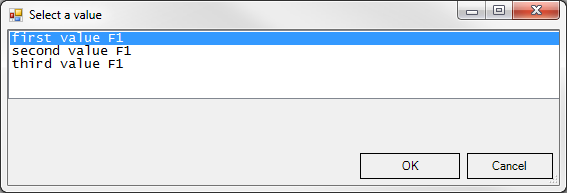
Here is the equivalent vbscript with DBWFilterSelect3 function (allows to further filter on results)
dim sResult
Sub main()
datasource = "MY_EXTERNAL_DB"
login = "MyLogin"
pwd = "MyPwd"
Title = "Select a value"
SQLQuery = "SELECT * FROM MY_EXT_TABLE"
FieldToRead = "FIELD2"
FieldToFilterOn = "FIELD3"
FilterValue = "value"
position = 0
ok = DBWFilterSelect3(title,datasource,login,pwd,SQLQuery,FieldtoRead,FieldToFilterOn, FilterValue, sResult, position)
dbwoutput "MY_FIELD",sresult,ForWriting
end sub
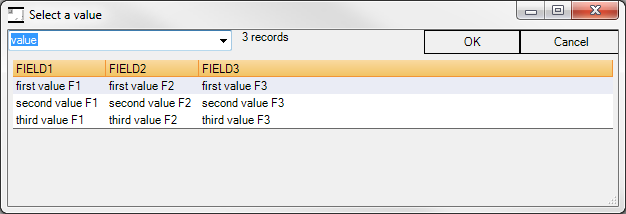
In this case you connect to an external data source to obtain information and then display it as a list of rows. Please note that the Windows application DBCustomizer includes a specific wizard to connect to any available data source and simplify the process of creating the .LST file without having to write a single line of code.
Once the sql query is enabled, if you click the dropdown button, you see a list of records:

Only the most relevant field of the selected record will be stored into the Supplier_ID field of MechWorksPDM. This field is defined by the line .KEY in the .LST file.
You can define a value as being the default with the command
.DEFAULT <default value>
Remarks: in order to work properly, the <default value> must be in query results.
Example:
.DEFAULT c1
.SQL
.KEY 0
SELECT DISTINCT CLASS_ID FROM DBWARM_CLASS_GROUP;
this example returns values if DBWARM_CLASS_GROUP concontains a record with CLASS_ID='c1'
.DYNAMIC SQL queries
It is possible to declare the new clause .DYNAMIC in the header of a .SQL type .LST file that typically contains a macro $(...) referencing a different field, whose content will be used for driving the list of choises in the dropdown list box.
The .DYNAMIC clause forces the requery of the drop-down list box at run time; without it, the $(...) macros are resolved only one time, when the form is displayed
Example
Let's create a CATEGORY2.LST file so that whenever the CATEGORY1 field will change, its list box will display values related to the just assigned CATEGORY1 field.
The LST file will look as follows:
.SQL
.KEY 0
.DYNAMIC
SELECT ID,ShortCode,Description FROM dbo.TblCodeChoices WHERE LinkToCategory=$(CATEGORY1)
Notes:
Without the .DYNAMIC clause, the $(CATEGORY1) macro is resolved when the form is displayed - any further change to the CATEGORY1 value will NOT affect the dropdown list box related to CATEGORY2.
With the .DYNAMIC clause, the $(CATEGORY1) macro is resolved each time the dropdown list box, related to CATEGORY2, is displayed for getting a choise, so the current value of CATEGORY1 is used for requering the database.
Execute an application

Depending on the definition in the lst file you can start an application by indicating its path. This enhancement has been introduced mainly for those of you who are willing to perform complex operations that are better handled by a separate application.
Call the Microsoft Scripting Engine to execute VBScript code
MechWorksPDM allows you to write your own code that will be run at edit time for a given field. Though many of you don't like writing code please note that this possibility improves dramatically the control and power you have at edit time: you can guide externally all Microsoft Office applications, the 3D CAD and MechWorksPDM itself. You can have calculated fields or fields that determine the values of other fields. You can call the SaveWizard and select a category system to fill the basic fields and more...
For further information about the scripting engine, please read the topic The scripting engine.
See an example on how to retrieve values from an Excel file for filling an input data form field.
Parametric queries
You may need to display a list that depends on the current value of any given field.
In this case you can add a parametric value to the query as in the following example:
.SQL
.KEY 0
.REQUERY
SELECT ID, DESCRIPTION FROM DOCUMENT WHERE CATEGORY LIKE '$(CATEGORY)%';
In this case you add a limitation based upon the current value of the field CATEGORY and in practical terms you show a list of items belonging to the same category as the current one.
Every parametric query requires the command .REQUERY before the SELECT statement as in the example.
Parametric queries can be used in .SQL files as well as in .LST during the process of save or save as of a document
Actions enhancements
When action enhancements are defined for a given field, its label becomes a button. Pushing it triggers the actions.
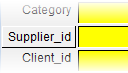
The actions enhancements are defined by .SPT files in the lst/ directory. For each field you can define an action:
Display of a Form
It's possible to associate a field to a Form to enhance input and calculation of field values. See details here.
Document table fields specific scripts
To associate a script to a Document table field only so to avoid running it for a field of the Revision table that could have the same name, you can specify a prefix such as
DOCUMENT.<fieldname>.LST
or
DOCUMENT.<fieldname>.SPT
The table name DOCUMENT is localized for each supported language.
Example
The field named DESCRIPTION exists both in DOCUMENT table and in REVISIONS table.
In the following table you can see the behavior of the application according to specific table field existence.
existing files |
click script button in |
click script button in |
|---|---|---|
DESCRIPTION.LST |
DESCRIPTION.LST |
DESCRIPTION.LST |
DESCRIPTION.LST + |
DOCUMENT.DESCRIPTION.LST |
DESCRIPTION.LST |
DESCRIPTION.LST + |
DESCRIPTION.LST |
REVISIONS.DESCRIPTION.LST |
DOCUMENT.DESCRIPTION.LST + |
DOCUMENT.DESCRIPTION.LST |
REVISIONS.DESCRIPTION.LST |
Revisions table fields
.SPT script associated to REVISIONS table fields
You can associate .SPT file to REVISIONS table fields naming the script REVISIONS.<field name>.SPT The table name REVISIONS is localized for each supported language (REVISIONS, VERSION, REVISIONI, REVISIONS, REVISIONES).
.LST files specific for the REVISIONS table
DBWorks looks for a file named REVISIONS.<field name>.LST, and if it exists, it loads it for populating the combo box of a field in the database Input Form.
The table name REVISIONS is localized for each supported language.
Example
DESCRIPTION.LST against REVISIONS.DESCRIPTION.LST
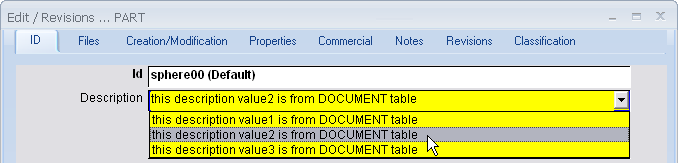
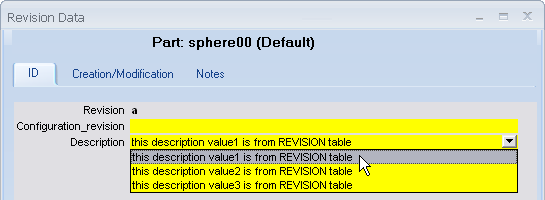
DBWUI.MSG strings specific for the REVISIONS table
It is possible to differentiate the .LST files and the DBWUI.MSG strings for any field name in common between the DOCUMENT and the REVISIONS table
DBWorks applies to the REVISIONS table any entry of the DBWUI.MSG that has the following format:
UI_REVISIONS.NAME_FIELD_<field name>
If it does not exist, it applies the default rules (see Localization files in MechWorksPDM topic).
Example
DBWUI.MSG:
...
UI_NAME_FIELD_ID "Cod"
UI_NAME_FIELD_DESCRIPTION "Desc."
UI_REVISIONS.NAME_FIELD_DESCRIPTION "EC Desc."
UI_NAME_FIELD_FILE_NAME "File N."
...
Date fields
Every time you activate a date field by clicking or by moving with the arrow keys on it, three buttons appear on the right of the field:
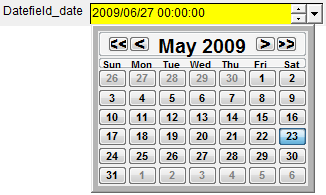
The two thin buttons are the 'spins' of the year/month/day values shown in the date. The larger one displays a calendar for quick date setting.
Typing any key in the text box displays the date of today, which can be a handy shortcut in many cases.
DATETIME info
By default, MechWorksPDM manages every DATETIME fields (that has to be declared with a _DATE localized suffix), in the format YYYY/MM/DD HH:MM:SS.
Due to the above, it is not possible to name a field with the DATE substring if it's not of a DATE/TIME type
custom field |
type |
|
|---|---|---|
MY_DATE_FIELD |
varchar(17) |
|
MY_DATE_FIELD |
datetime |
|
MY_D_FIELD |
varchar(17) |
|


The previous format _DATEHMS (so appending the string "HMS" to the localized NAME_DATE_SUFFIX string) is obsolete but still supported.
Examples:
MY_NEW_FIELD_DATE
accepts values in the format "YYYY/MM/DD HH:MM:SS" ( ex: '2008/01/20 13:15:00' )
MY_NEW_FIELD_DATEHMS
still supported but obsolete format
Weblink in a field
To make action include a link in a field, you can associate a script to such field (.LST or .SPT) that open a webpage through a web browser.
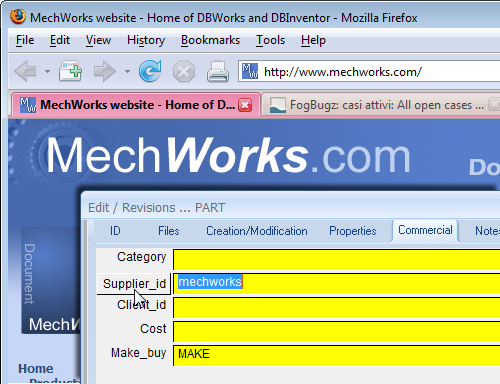
The following example shows a SUPPLIER_ID.SPT script that according to the value of the field opens a webbrowser on a specific page.
In details, if the SUPPLIER_ID value is "mechworks" the mechworks webpage is loaded in an external webbrowser.
.VBSCRIPT
sub main()
DBWInit(TRUE)
supplierId = DBWInput("SUPPLIER_ID")
if UCase(supplierId) = "MECHWORKS" then
Set Shell = CreateObject("WScript.Shell")
Set okExec = Shell.Exec("""C:\Program Files\Mozilla Firefox\firefox.exe"" ""http://www.mechworks.com""") 'using mozilla firefox
'Set okExec = Shell.Exec("""c:\program files\Internet Explorer\iexplore.exe"" ""http://www.mechworks.com""") 'using ms internet explorer
end if
end Sub
Variant notes syntax text field (CAD independent Variant Notes)
You can insert a text value in a field with the same syntax of a Variant Note.
The text value will be dynamically resolved:
•at visualization time
•at file properties write time
Example
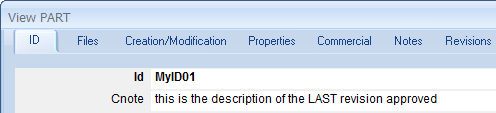
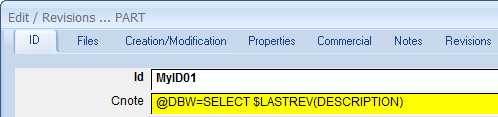
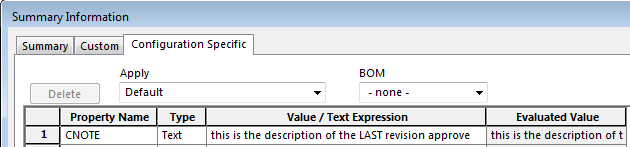
Suppose we want to show the last approved revision description in the field CNOTE.
We can set the value of CNOTE as:
@DBW=SELECT $LASTREV(DESCRIPTION)
Here below the results when:
•viewing the record
•editing the record
•viewing the custom properties (filled with the resolved value)
Floating point fields
In some cases, since floating point values contain decimal digits, you've to specify the decimals when you compare such data type against a different value.
Example
If you want to declare a visual cue against a criteria such as "COST=3", since the COST is a floating value field you've to write it as "COST=3.0"
Radio button fields
It is possible to insert a horizontal/vertical values radio button control in the data form;
Please note that for the "vertical" case, a proper row size must be declared for that row (in the below example it's set to 45, corresponding to 3 lines)
The control must have an associated .LST file, containing the values to be displayed - for the following example, where the CATEGORY2 field has been used for the radio button:
Example
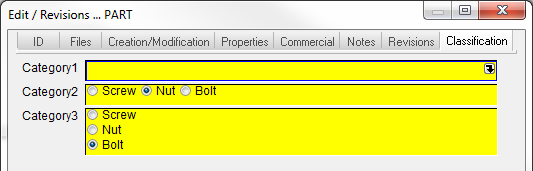
File names: LST\CATEGORY2.LST and LST\CATEGORY3.LST
Content:
Screw
Nut
Bolt
<empty line>
the corresponding DATAENTR2.TXT file is like followings:
Classification
CATEGORY1
CATEGORY2 radiobuttonhor
CATEGORY3 45,radiobuttonver
Please note the return value of a Radio button field is not the label string but an integer corresponding to the chosen value position, starting from 0:

In the above case the field value is 3 rather than "delta".
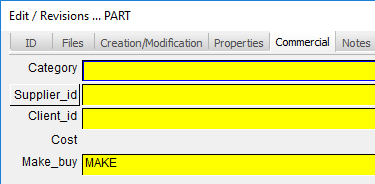
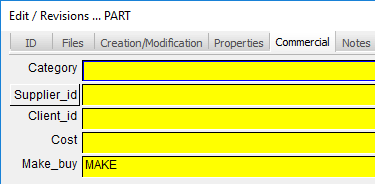
Disable field visualization for specific DBWArm group users
It is possible to declare a list of DBWArm Groups after the disabled directive in the SCHEMA\DataEntr2.txt definition file.
The list must be:
1.enclosed between square brackets
2.composed of the DBWArm Group names without any blank or comma character, and without the prefix "DBWorks " (e.g. the group DBWorks Manager must be declared as Manager)
3.no spaces have to be inserted between the disabled directive and the following open square bracket
Example
Suppose to disable the field COST, in the Commercial tab of the datainput form, for users belonging to DBWorks Manager and DBWorks Trainee DBWArm groups.
The SCHEMA\dataentr2.txt parameter file contains following declaration:
...
UMM
Commercial
CATEGORY
SUPPLIER_ID
CLIENT_ID
COST disabled[Trainee/Manager]
MAKE_BUY
Notes
NOTES 75
...
the results are like followings:
|
|
Please note this control type is suggested for few values fields only.