The Assembly Duplication Wizard (ADW) performs the duplication on an assembly in a complete way or defining a subset in order to create a new assembly similar to the original with only the selected components being duplicated.
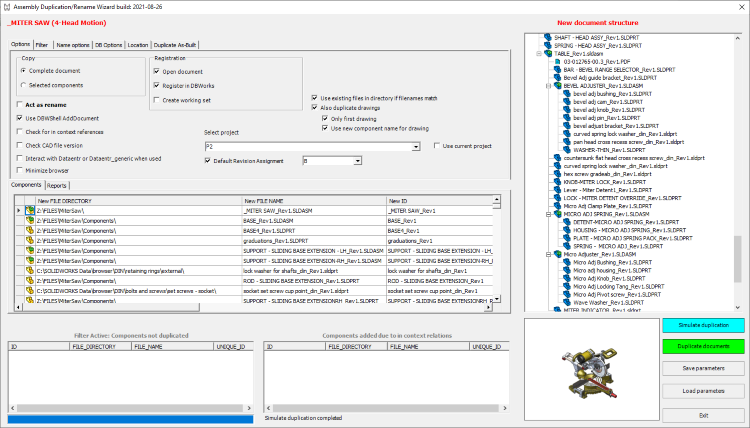
Settings
Options | Filter | Name options | DB options | Location | Duplicate As-Built
Options
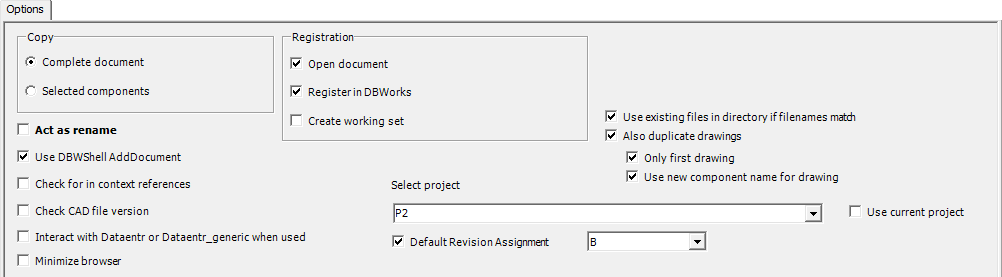
Complete document/Selected components
You can duplicate a complete assembly or only selected components.
In the latter case, you must select in the MechworksPDM browser the components that will be duplicated.
Example
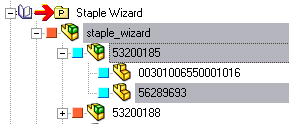
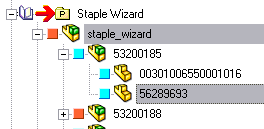
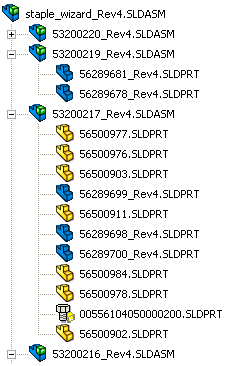
If you want to duplicate assembly Staple Wizard duplicating only the part 56289693 you must select as indicated (part itself and every parent subassembly)
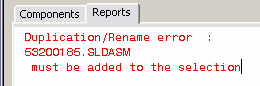
In case you forget to select every subassembly in the path from the part to the main assembly, you will be notified by simulation process.
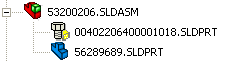
You must return to the MechworksPDM browser and select missing subassemblies.
Act as rename
With this option the duplication wizard does not duplicate but renames the original one with the new calculated names.
When Acting as rename, the prefix name mode can be null allowing to move files to different directories.
That's very useful to move large assembly from a path to another.
Select Act as Rename and Register in DBWorks/DBSolidEdge/DBInventor in the tab:
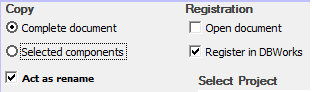
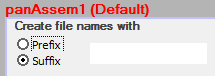
Select Prefix or Suffix and empty the value in the tab:
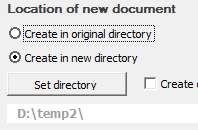
Select Create in new directory and browse for the new location folder in the tab:
More, if new name generates an existing file name, ADW continues the process using the existing file instead of stopping
Use DBWShell AddDocument
This option speeds up the duplication process but only for parts.
Check for in-context references
Enable this option if in-context references are used in Solidworks assemblies.
Check CAD file version
This option will check that all duplicated components are in the current CAD version.
It is not recomended to duplicate assemblie that references components in different CAD versions, since reference changes may fail.
Interact with Dataentr or Dataentr_generic when used
If enabled and in case the ID is calculated through dataentr.lst/dataentr_generic.lst script file, a variable named USE_CATEGORYMAKER is pssed by ADW to the called script so to customize its behavior accordingly.
Minimize browser
The browser is minimized while performing the duplication
Open document
The duplicated assembly is opened at the end of the duplication process.
Register in DBWorks/DBSolidEdge/DBInventor
With this option the duplicated assembly is registered in Mechworks PDM database under the selected project.
Create working set
Creates a working set of the implied records
Use existing files in directory if filenames match
The ADW tool automatically uses existing files in directory if filename matches; it is enabled by default.
Unchecking this option will produce a warning for the user if any file with the same name exists in the destination directory, preventing the duplication.
Also duplicate drawings
Self explanatory
Only first drawing
Self explanatory
Use new component name for drawing
In case only one drawing is duplicated for the component, the new drawing name will be exactely the component name with the drawing extension.
Select project
This option is activable only if the "Register in DBWorks/DBSolidEdge/DBInventor" option is enabled.
It allows to choose a project for the duplicated assembly.
Use current project
Set the beside dropdown list to the current project value
Both the projects combo and the Use current project checkbox are disabled when Act as rename is checked since the project is not affected during a rename.
Default Revision Assignment
This option requires the PMD option Revisions → Use OnNewRev.lst script to assign a new revision name and the ADW options
ADW→Options→Register in DB
ADW→DB Options→Automatic CheckIn/CheckOut
It permits to choose the starting revision from a drop down list containing the values of PAR\MwADWRevisionsToShow.par, a file that contains the revision values separated by a comma; e.g.
RevisionList=A,B,C
Filter Options
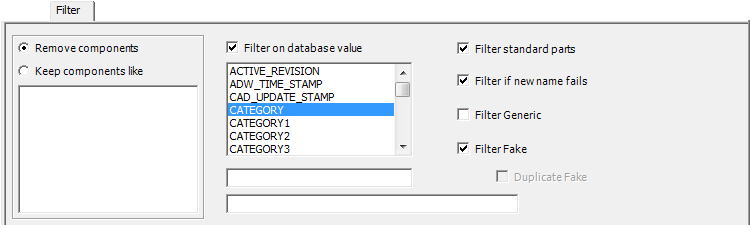
Remove components/Keep components like
It allows to select components to be filtered based on matching pattern.
You may switch between remove or keep depending on which is easier to define.
the simulatin process will show which components are not included in the duplication in yellow.
Example
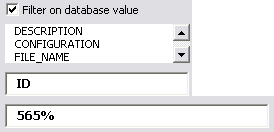
with filter set as follows\
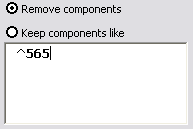
simulation will remove components that have FILE_NAME starting with 565 string
Filter on database value
with this option you can specify a filter based on a database field value or on a database query sql expression.
Filter standard parts
If you manage standard parts in MechworksPDM (see Standard Parts help topic) you can choose not to duplicate them.
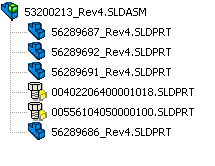
Filter if new name fails
In case a new name can not be calculated by the naming procedure, the component is filtered, so it won't be duplicated.
See Options related to Name for further details.
Filter Generic
You can exclude/include Generic files from the duplication.
Filter Fake
You can exclude/include Fake components (entries for the BOM) from the duplication. please note if you exclude fake records from the duplication, it's assumed you won't include BOM information too (like fake quantities).
Example
Suppose you want to duplicate the following assembly structure: 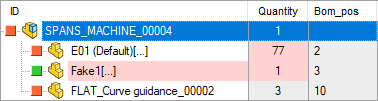 in which there's:
•a fake quantity for a real model (77, highlighted in pink)
•a fake record (all the row is pink)
•a modified BOM position number (10, set through the EditBOM functionality)
so if you avoid fake records duplication, you will have such kind of structure: 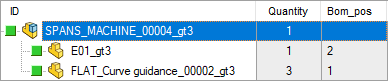 where fake quantity and modified BOM position number has been not duplicated.
Duplicate Fake
If not filtered, you can choose to duplicate or not the fake components
Starting from R26 the ADW filter is more robust and effective: all components that match the filter are selected, even if they are children of an assembly that does not match the filter; however, the latter is highlighted in the tree with a red color to allow the user to make the appropriate decisions: 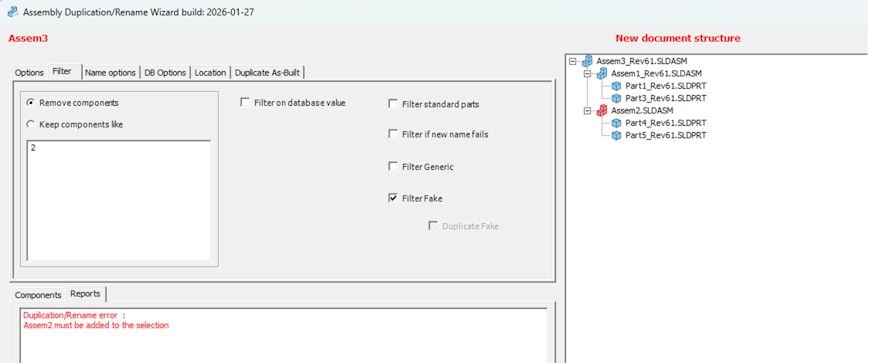
Name Options
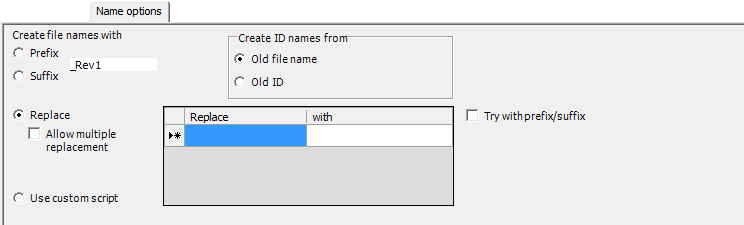
Create file names with prefix/suffix
the new name is calculated by adding a prefix or a suffix to the original file name.
Replace
In case the replacing method fails to generate a new name (because the substring you want to replace doesn't exist in the original file name), it will use the prefix/sufix method for these specific components only.
In this case you can eventually rename it later.
Allow multiple replacement
This option allows to replace every possible string matching the criteria; the replacing process doesn't stop after the first occurrence of teh matching string.
Example
Suppose to have the filename AABBCC.SLDPRT and the following setting:
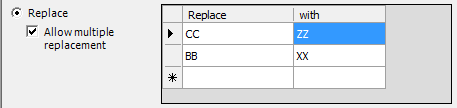
(CC replaced by ZZ and BB replaced by XX)
•result with option DISABLED is AABBZZ.SLDPRT
•result with option ENABLED is AAXXZZ.SLDPRT
Use custom script
The new name is generated by a custom script.
The script receives the original unique id, and must output back to MechworksPDM the new calculated name.
The current dataentr.lst is ADW-compatible.
When using a custom script the new name must not depend on the current database number of records, this because the same new name could be generated if more than one user duplicates at the same moment.
Categories compatibility
Suppose you have enabled the dataentr.lst default script

and you want to duplicate such structure:
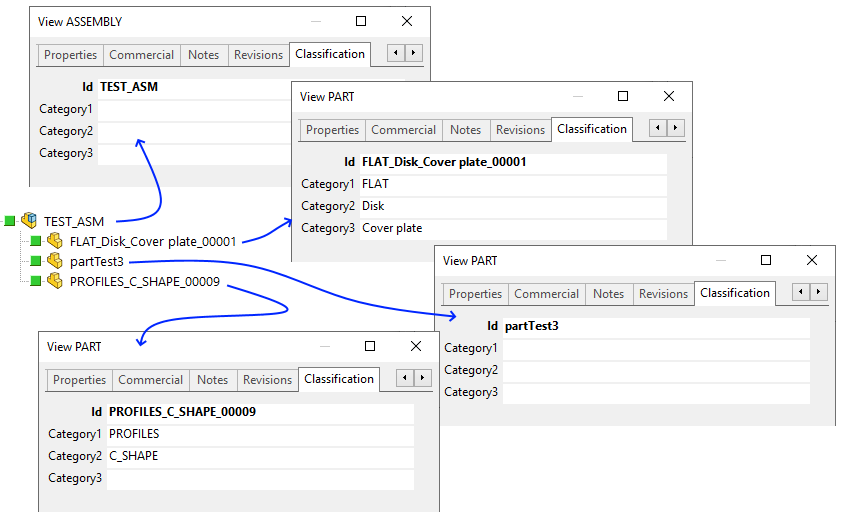
Please note you're about to duplicate an assembly with components in which categories are:
•completelely defined (FLAT_Disk_Cover plate_00001)
•partially defined (PROFILES_C_SHAPE_00009)
•missing at all (TEST_ASM and partTest3)
The ADW, when categories are found, takes care of creating the next code for the specific category (as it is in manual coding).
In case no categories are defined, the procedure will use, only for totally missing categories components, the value of the option Try with prefix/suffix if set:
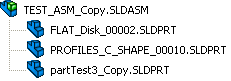
•If option is checked, ADW applies the last setting of the prefix/suffix option
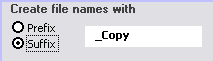
to obtain this structure:
•If option is unchecked, ADW uses a global counter:
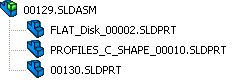
Create ID names from
It bases the new ID name generation on old ID or old FILE_NAME
In case you use configurations or ID is diffrent from FILE_NAME you must choose the Old ID method
DB Options
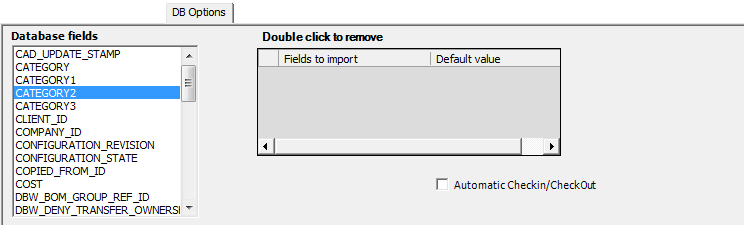
Database fields
You can choose to import original field values in the newly duplicated components.
Limit the available fields to import values from
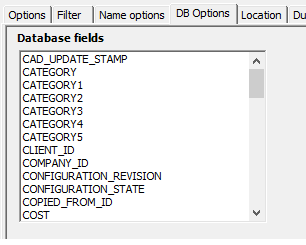
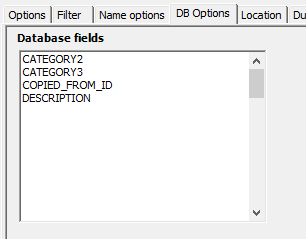
It's possible to reduce the set of fields shown in this list; you can create a file named PAR\CanCopyField.txt that contains the only fields that will be available for copying data from. Example:
this file content
CATEGORY2
CATEGORY3
COPIED_FROM_ID
DESCRIPTION
will reduce the enlisted field:
|
|
|---|---|
no file |
CanCopyField.txt |
Automatic checkin/checkout
If enabled in MechworksPDM (see options about auto-checkin) the duplicated documents will be placed in the expected state.
When both options Remote access and Remote access local mode are active the wizard will automatically activate this option
Location Options
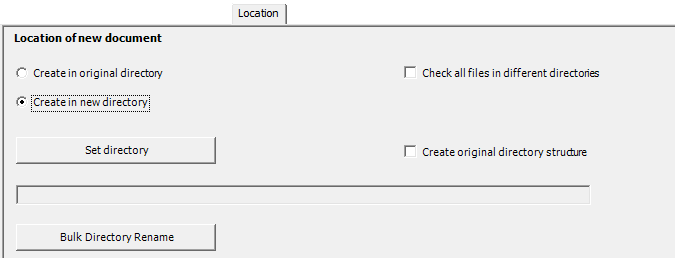
Create in original directory / Create in new directory
It creates duplicated components in specified directory.
Create original directory structure
It reproduces the original directory strutcure under the selected new directory.
Example
Note differences among different settings. Duplicated components will be created:
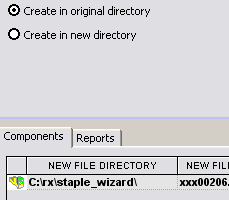
in the same folder of original components
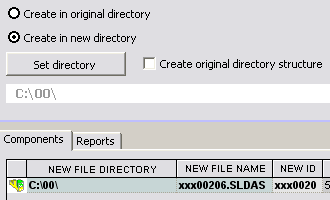
all created in the specified path (possible components nested structure will be flattened)
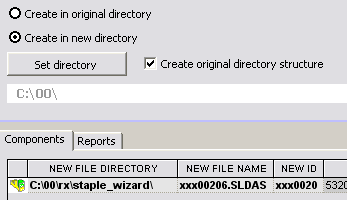
mantaining original nested structure but starting from the specified folder.
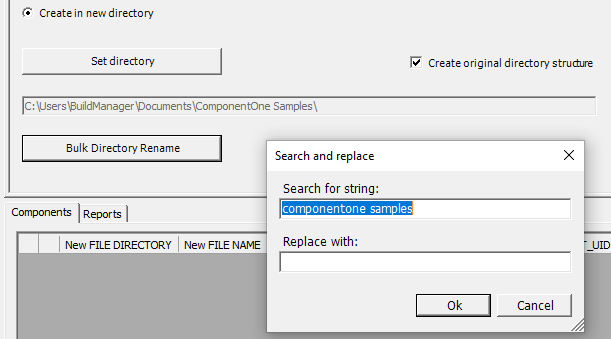
Bulk directory Rename
It allows to change multiple destination directory names at a time when creating new documents in new directories:
As Built Options
It's a support for duplicating a snapshot of the current status of an assembly.
The assembly file names are generated with a time stamp and current revision info.
The produced snapshot structure remains in a NEW state and the DBoption → Automatic checkin/checkout option has no effect on it
This guarantees that the snapshot is the exact image of the assembly in the moment it has been shot (no modification has affected the structure/state)
The assembly snapshot can be registered in the database or attached to the original document with the table DBW_ATTACHMENTS managed by MechworksPDM.
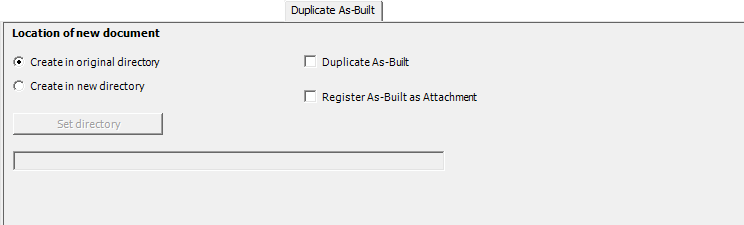
Duplicate As-Built
It enables the duplication As-Built mode.
When enabled the As-Built duplication, the colour of the window borders changes to orange. More, the Name options section is disabled since the name of the duplicated asm will be given in a fixed way (no custom).
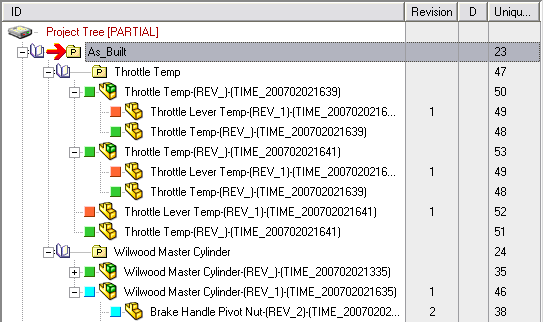
When registering As-Built assemblys they will be located in the As_Built project (auto-created) under a sub-project named as the sub-assembly.
Register As-Built as Attachment
When registering As-Built assemblys as attachments they will be located in Attachments tab:

Create in original directory / Create in new directory
It creates duplicated components in specified directory.
(see the above topic Location Options topic for further details)
Buttons
It allows to modify the record selection without losing already select documents.
Example
In order to duplicate an Assembly we select the main assembly and a few items in the projects tree and click the Assembly duplication wizard (ADW) button in the shortcutbar:
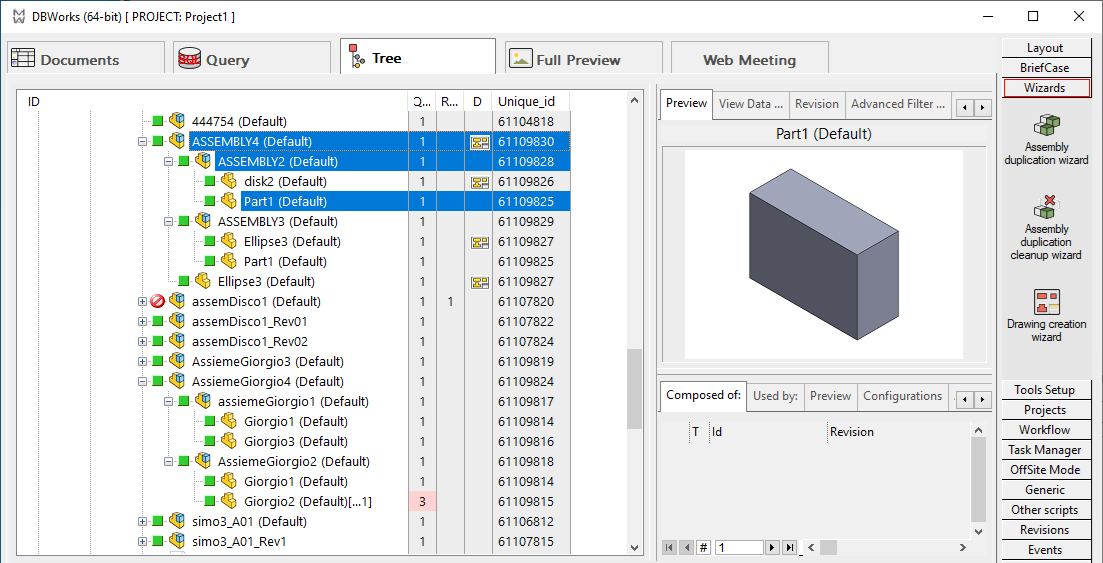
Please note that with the selection in the picture, R20 would have raised an exception, because Part1 is both under a selected assembly (ASSEMBLY2) and an unselected one (ASSEMBLY3), so the duplication wouldn't be possible.
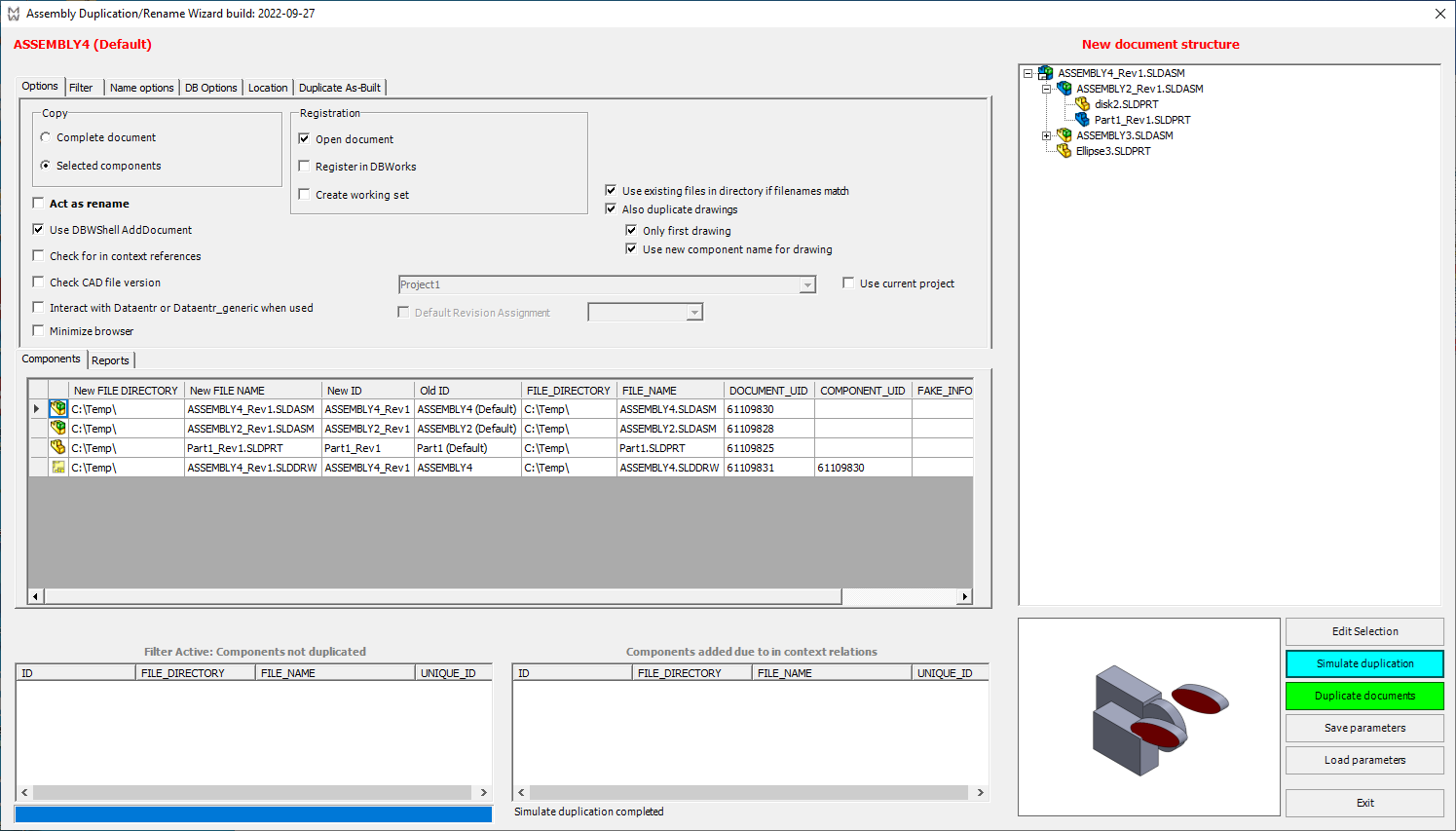
We open ADW, run the simulation (which, by the way, in R23 much faster) and notice that we forgot to add Ellipse3 to the selection. In R20 we should have closed ADW and add to the selection in the projects tree, in R23 we can click the button 'Edit Selection' and continue without losing the work done on the options and other settings.
The dialog appears instantly also for very large assembly structures, no more waiting time.
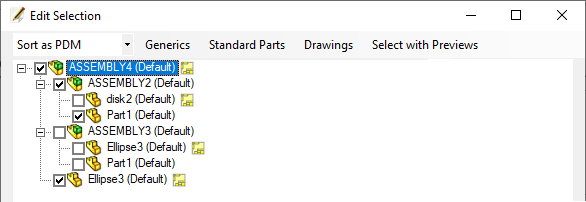
The new dialog allows me to add Ellipse3, the last one) to the selection, click OK to save the selection and run automatically the simulation again.
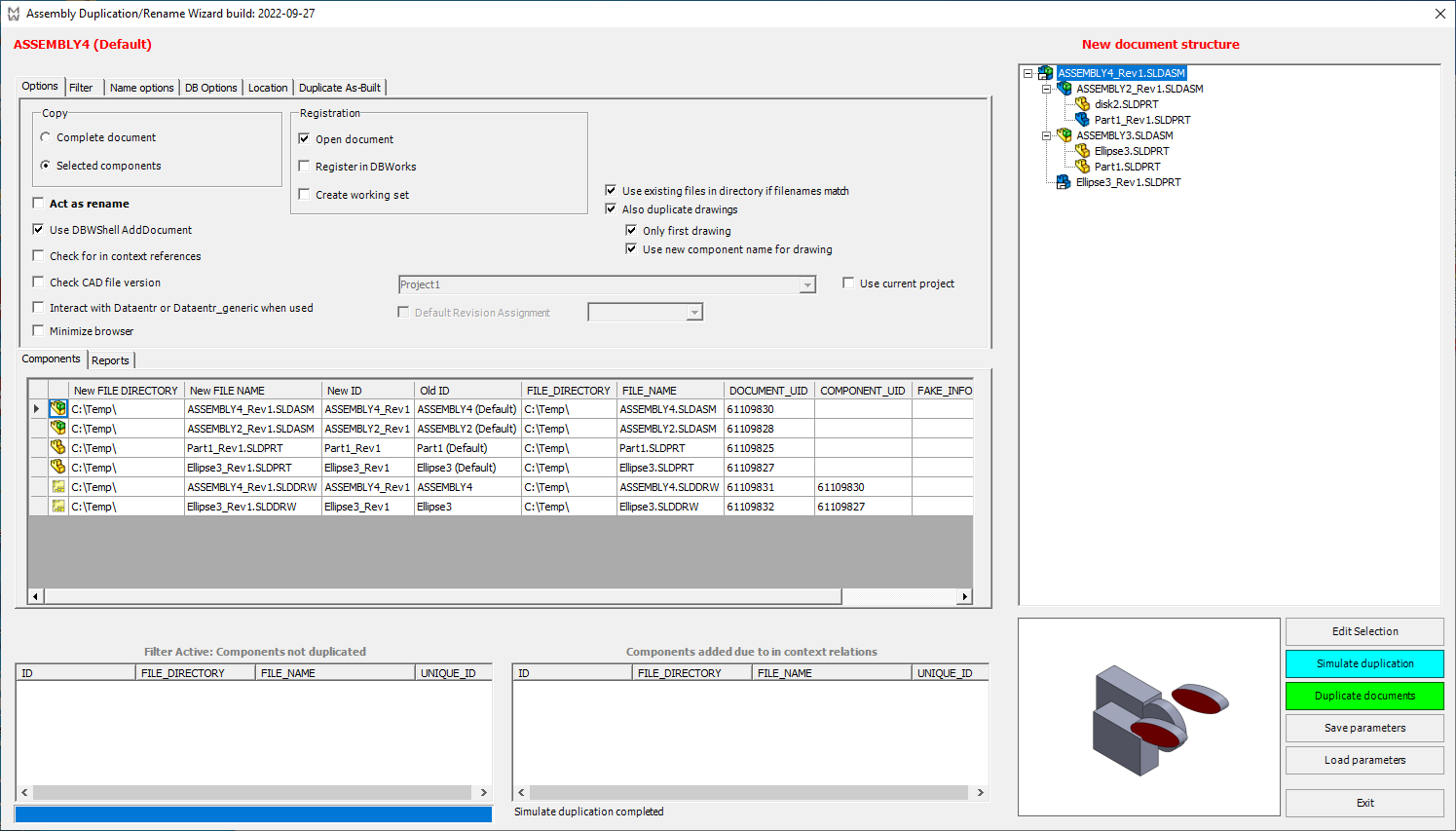
ADW does show the new selection and although Ellipse3 appears under 2 branches in the tree, it selects only the right one. We can now proceed with the duplication...
Let's have a closer look at the new selection interface:
• Drawings are visible
Not only can you see which models have a drawing, you can now apply selections including (or excluding) items based on the fact that they are Standard Parts, that they have drawings or that tey have generic documents. This can be very handy for large assembly structures
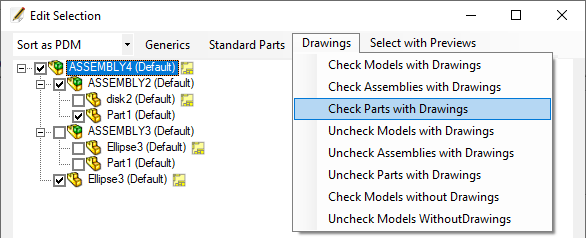
Also for large tree structures, automatic selections are done instantly.
Suppose that in your company Ids are not very friendly and you don't remember with certainty what a given ID really stands for. No problem, you push the button 'Select with Previews' and a new in front dialog appears beside the tree.

Now you can see the assembly and its first level children, and you can check the items right there, seeing what the Ids stand for.
A few interesting features of this new interface:
•As you move the mouse above the items, the description appears right under the mouse to help you with your decision
•You can check/uncheck the items in the tree or in the previews dialog and the other interface gets updated instantly, so you can work at the same time in both dialogs without any conflict
•If you check a child, its parent gets also checked automatically, because if you duplicate a part, the parent assembly also needs to be duplicated
•If you uncheck a parent, all its children are also unchecked automatically and instantly
•If you want to proceed with the graphic selection for other subassemblies in your tree, you don't need to close and reopen the previews dialog: just select a new item in the tree and the interface on the right will be updated instantly showing the main assembly on top and its first level children below
•You can close the previews select dialog any time and reopen it as needed
•When you end your selection and click OK in the tree dialog, the second dialog closes automatically and a new simulation is executed to show the effects of your choices.
Sorting
Please note the Edit Selection dialog supports 2 different ways of sorting: PDM tree sorting or BOM sorting (based on PARENT_CHILD_BOM_POS field value):

Select all elements of a subtree
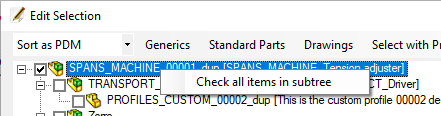
Please note the Edit Selection dialog supports a RMB functionality to select all the subtree components:
It simulates the duplication process and it saves the current settings in the parameter file.
It perform the duplication of the documents; before duplicating it's mandatory a simulation of the process; after the simulation the button background is turned to green and the duplication can take place.
If clicked, it asks where to save the parameter file containing the current settings.
It opens a load dialog to choose the parameter file to be load.
Quits the duplication wizard.
Tree interface
Here below are explained different icons you can see during the simulation process of the Duplication wizard.
Solidworks |
Inventor |
SolidEdge |
meaning |
|---|---|---|---|
|
|
|
components that won't be duplicated |
|
|
|
components that will be duplicated |
|
|
|
an error has occurred and the components must be added to the selection |
|
|
|
components where replace failed and prefix/suffix applied instead |


Starting from R26 release, the icons of the tree control are CAD-independent: 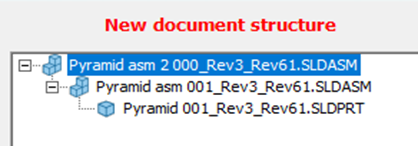
RMB on tree nodes
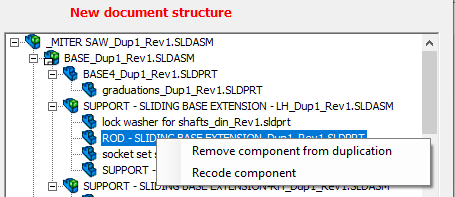
After the simulation has been completed, on the tree you can click with LMB to select a node (only one node can be selected a time);
then with RMB you can choose between 2 possible actions:
•Remove component from duplication: the component is set back to the original color and it won't be duplicated when the duplication
•Recode component: the component will be renamed throught the custom script (if enabled and defined) or through the current Dataentr.LST