Configurations and support for revisions of configured documents
It is possible to create revisions of documents with configurations written as distinct records.
The basics
The revision's support applies to the file where the document is stored and therefore all the records pointing to the same file share the same revision state and revision number. This implies that when a document is checked-out, all the other records pointing to other configurations of the same document are checked-out just as well. The same happens with every other operation related to revisions. The Default configuration value is added to the ID of the part/assembly when created for the first time.
Automatic behaviors
Adding a new configuration shows an alert box asking if you want DBWorks to update the database and add the record corresponding to the configuration being added.
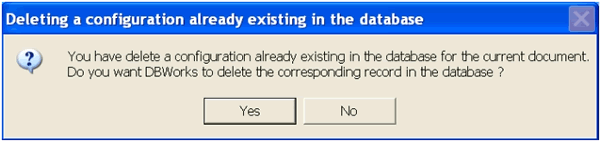
Deleting a configuration shows an alert box asking if you want DBWorks to update the database and remove the record corresponding to the configuration being deleted.
Renaming a configuration shows an alert box asking if you want DBWorks to update the database, both the CONFIGURATION field value and the ID field value, recalcalculated in accordance with the new configuration name; this last operation is performed ONLY if the current ID value is exactly as DBWorks automatically created the first time the record was inserted in the database; if it has been manually edited, no changes will be applied.
How to enable this support
You must enable the following DBWorks options:
Environment→Configurations→ Save configurations as distinct records
Enabling distinct previews
If you want to have also distinct previews of the configurations, you must also check the new option:
Open/Save→Save→ Save preview images as files
and possibly you must assign a shared directory where all the .TIFF files created will be put into. This can be done setting the parameter:
Open/Save→Save→Preview files output directory
Inserting an EMPTY string, forces DBWorks to put the .TIFF files in the same directory of the documents themselves.
DBSolidEdge users please read
How to add a new configuration to a released document
To add a new configuration to a released document with many configurations, you need to checkout the document ( this means that all the configured records will be checked-out ), then, while the document is open, add the new configuration in the SW configurations tab, make it the current configuration double-clicking on it, do any feature modification required and finally CHECK-IN the new configuration; a new record is created for the new configuration with the same revision number as the other ones. When you check in again, the entire record set related to the configurations of the same file will be checked-in.
Load into the database a batch of configurations as distinct records, also to released documents
Shift + button refresh has a special value when DBWorks handles configurations and saves them all automatically: it allows to add to the database as records a batch of configurations that were not taken into account until then.
DBWorks inserts new (green) records for new configurations; an increment revision state and then a checkout must be executed on the green records to align their state to that of the existing checked out configured records from which they have been derived.
Should I save distinct configurations as distinct records?
If you don't need to apply the revision process to several configurations of a given document, you may choose to keep the Save configurations as distinct records option unchecked.
Once you have chosen one way or the other and you used DBWorks for a certain amount of time you will not be able to revert your choice for the saved documents unless you delete them and redo the saving job and data input from scratch.
It is possible to enable configurations for certain files only, depending on the filename or the configuration name. These option have been introduced to allow a separate management of files belonging to part libraries and top allow for mixed (yet still clearly defined) operational approaches.
For such documents the correct handling of configurations as distinct record is necessary, but you're not likely to have a part from a library undergo a revision process as every such part is certainly final.
Filenames can be indicated using all common MSDos wildcard characters. More information can be found in the topic Configuration options.
The choice is made in the menu DBWorks, Options clicking tab Configurations.
Let's consider more in detail how this choice affects the way you work:
Don't save configurations as distinct records
If you have many different configurations for a given part the active configuration will be the one taken into consideration by DBWorks; all the other configurations will be ignored.
Remarks
It is important for you to understand that you have only one record for every document inside the database. If you calculate the mass properties for a given part in a certain configuration and afterwards you change the active configuration the database will not update the mass properties unless you force the action manually. What you risk is having data not aligned with the current attributes of the part. This may apply to creating SolidWorks BOMs inside a drawing with wrong specifications.
Suggestions
If you choose this approach you can emulate configurations by saving different parts as different documents: the Save/Open wizard, if activated, will help you to identify through a system of categories all documents that share similarities. Moreover, the advantage of using the Wizard instead of configurations is that you can declare all the similarities and hence enable classification based upon use or geometry or cost or any other categorization that makes sense to you...
This approach avoids all ambiguities inherent in the use of configurations. For further information on porting a preexistent configuration-based system to a wizard-based DBWorks system, please contact your reseller giving a description of how you used to organize your work before trying DBWorks.
Save configurations as distinct records
If you choose to save configurations as distinct records you will work using configurations.
Remarks
The database will keep distinct records for each configuration and will be able to recognize, say, in a BOM, which configuration you are referring to when you retrieve the data for an included component. In any case you will be able to discard some configurations by file name or configuration name.
Suggestions
This approach may be preferred if you are used to rely on configuration heavily and wish not to change the way you organize yourself, DBWorks manages revision of configurations correctly and there's no reason why you shouldn't select this operational mode if you intend to keep track of different configurations.
To save revisions files on separate drives, set the related option in Options, Revisions.
For more detailed information on revisions, read the related topic.
Branch configuration: separate revision history for a specific configuration
The command Branch configuration allows a separate revision history for a specific configuration of a part/assembly.
The document must be of type part or assembly and must be in a state of RELEASE.
The command copies the files with a new name, appending an extension @BRANCH[uid](counter) to the file name, where uid is the unique id of the record, and counter is an index from 001 to 999. The field FILE_NAME of the record is then updated with the new file name, and so it can start a separate branch of the revision history, without any interference with the other configured records of the same file. The operation is not undoable.
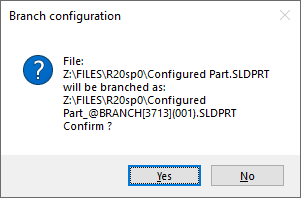
Note: no references are replaced by this function; the old released files are left exactly as they were before the execution of the function. To embed any changes in old assemblies, you need to manually checking them out, and replacing the old components with the new ones with a new revision.
Manage revisions of configurations
Available from Environment→Configurations→Manage Revisions of Configurations
DBWorks supports the management of revisions of configurations at record level.Note that the files are still atomic and unbreakable units, so the configurations in one file will continue to share the same state and it will not be possible to activate a previous REVISION for one configuration only. Also, the field REVISION remains consistent across the configurations and when this option is checked the field CONFIGURATION_REVISION is the one that indicates the revision level of a given configuration.
If you adopt this system, you have two fields that are related to keeping track of the history: REVISION and CONFIGURATION_REVISION. While the former is necessarily increased at each approval, the latter is meant to be increased only in case of actual changes in a given configuration since last approval. Mind that each configuration lives a logical revisions lifecycle of its own and it is left to you to indicate at each approval which configurations have been modified since last approval. So, if since last approval you haven't modified, directly or indirectly a given configuration, at the approval of the new released version you don't need to increment the value of the field CONFIGURATION_REVISION for that configuration.
With the CONFIGURATION_REVISION support enabled, the CONFIGURATION_REVISION value is always copied in the REVISIONS table CONFIGURATION_REVISION copy, no matter if the CONFIGURATION_REVISION field was not declared in the Revisions→Approval→Document fields to be copied list.
Here's where you indicate the configurations that have changed in the revision approval process:
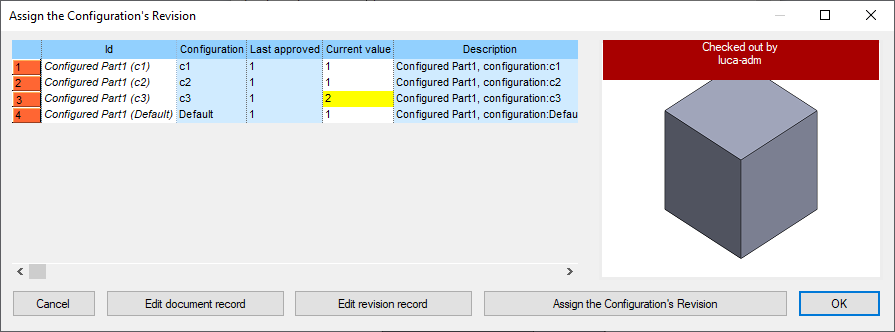
By selecting the record row and by clicking the button, a value in the Current Value column will be suggested (calculated on previous last approved value).
Of course you can change such value by clicking the field (note the yellow background that allows editing).
In the most general case, not strictly related with the images, you may have a situation where configuration A has changed (and the value of its field CONFIGURATION_REVISION has been increased) in file revisions (→ field REVISION)1,3 and 5, while configuration B has been modified only in file revisions (→ field REVISION) 2, 3 and 4. This way, you may have CONFIGURATION_REVISION 3 for configuration A and CONFIGURATION_REVISION 2 for revision B. More, the file that contains CONFIGURATION_REVISION 2 of configuration A is probably not in the same file revision index as the one that contains CONFIGURATION_REVISION 2 of configuration B, since each configuration has a CONFIGURATION_REVISION logical lifecycle of its own.
Note also that the management of revisions does not require anymore the drawing part link mode as a prerequisite.
Ideally, the user must help himself/herself with the preview window on the right to understand which configurations have been affected by the changes and increase their configuration revision number.
A lifecycle in the revision process managing configuration revisions separately
To bring an example of lifecycle, we create a part named Configured Part with four different configurations: default, c1, c2 and c3 and start the lifecycle from scratch.
After the first save they are in the database in a NEW state:
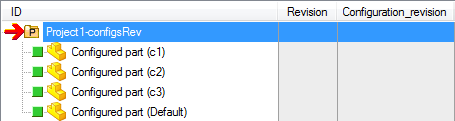
Note that in order to be able to work effectively the field configuration_revision should be visible in the grid and in the data form as in the image above.
Now the configuration_revision field as well as the revision field are still null (empty).
As a first step we right-click any of them and from the popup menu select checkin/checkout, Increment Revision State.
The part and all the configurations are now in checkin state:
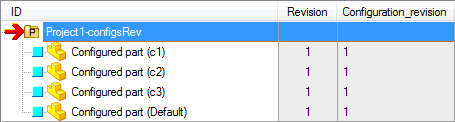
At this point we could already set the configuration_revision separately for each configuration, but prefer to approve first at least revision one, so we approve the part and the state becomes released:
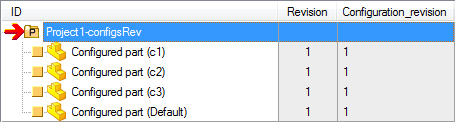
Now all the configuration_revision values are aligned to 1 and so is the revision. From now on we'll bring about changes that may involve only a subset of configurations each.
We start working at a new revision, so we increment the revision state and put implicitly the part in checkin state:
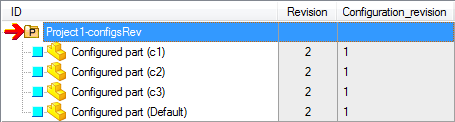
then check out the part:
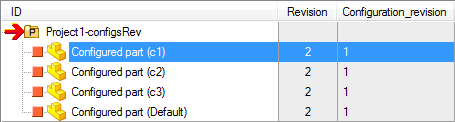
Here we do some modifications that are meant to touch only the first two configurations and leave the other two untouched.
We check the part back in and being satisfied with our work, we want to increase the field configuration_revision value only for configurations c1 and c2.
We edit the record of one of the two configurations that have been changed and click the button near the field configuration_revision to increment the values only for the first two configurations:
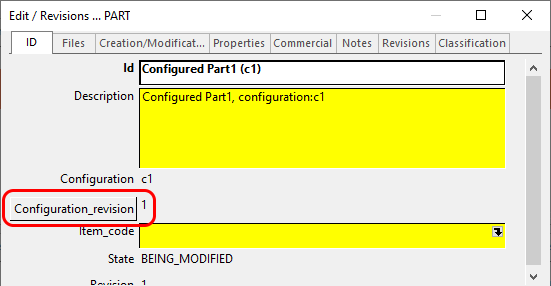
Since the record we were editing was the one for configuration c1, c1 is in bold font, which is a reminder of the record currently being edited under this dialog:
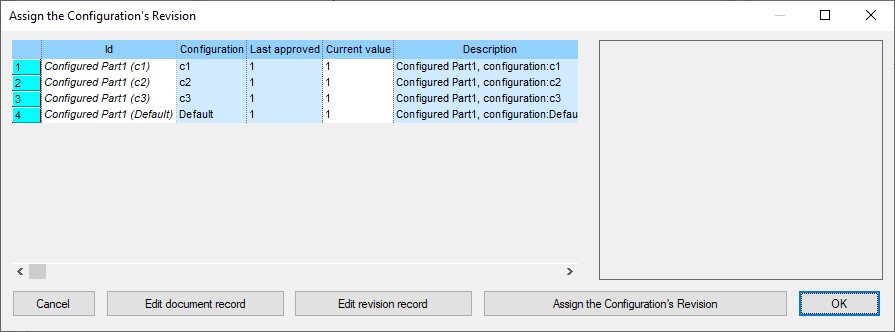
Notice the buttons in the dialog: beside the obvious and buttons, you have buttons to and , for instance to set descriptions that differ for separate configurations.
Last, the button that's strictly related with the lifecycle of configurations.
With such button you can increase the value of the revision for the configurations currently checked. In this case the last configuration approved was 1, so the new suggested value is 2, but in general any pattern of subsequent values may be applied as per general revisions (see onNewRev.LST topic for further details).
Otherwise you can set a specific value manually, which can be handy if you find out that you skipped revision 9 by mistake and want to pass to revision 10 breaking the pattern for once. This is not a practice we recommend, but you can do it if you consider it necessary. To edit a value manually, you have to select the whole row, then click the current value field:
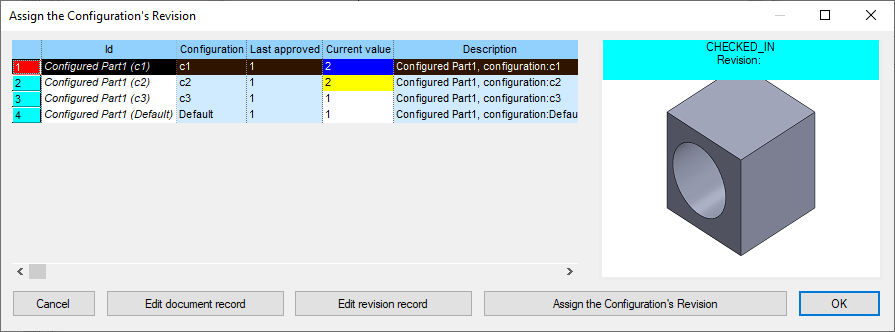
After clicking the values for the field configuration_revision of the modified configurations are transferred to both the table of DOCUMENTS and of REVISIONS, so we're ready to approve.
Let's stop for a moment and consider the topic 'when should I set the values?'
In a workflow installation it is quite clear that these values (as well as a proper description for all the configurations that have been modified) should be entered by the designer before submitting the part for approval, so the last check in is certainly a good time to set the values. The same rule apply also if the workflow of the company is not managed by DBWorks: if the person who approves is not the designer the latter should set all the record values before requesting the approval.
In many companies the approver does not check the 3D model and prefers to approve a printed drawing; if the designer has set all the field values, the drawing printed and submitted for approval certainly has variant notes that are up to date with the revision being approved: the drawing checked by the approver is an exact image of the drawing that will be saved for future reference as a file.
The approver will be able to overrule the designer opinion and consider that the configurations that have been modified are three and not two or add a further note to the description that has been entered by the designer. Mind that if the approver sets field values at the act of approval, DBWorks updates the drawing subsequently to ensure that the information in the released version of the drawings is aligned with the database values, so in this case the printed drawing submitted for approval may contain variant notes that are recalculated and that may differ from the printed copy on the desk of the approver.
To sum up: the final checkin is a good time to decide what has been modified and assign field values, but anytime could do, provided the record is not locked (as it should be for released documents).
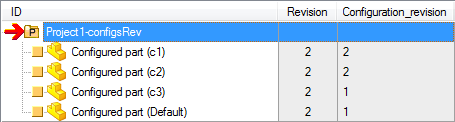
Going back to the lifecycle, after the approval we have this situation where configuration revisions are not aligned anymore, as expected:
Now we increment the revision state once more and check out the part. We change configuration Default and would like to approve a new revision. Analyzing the configurations, we find out that in the previous revision also configuration c3 and Default had been changed, but we don't want to overwrite the previous revision for whatever reason, for instance because a number of pieces have already been produced and we don't want to overwrite it.
So, at the final checkin we have to increase the configuration revision for c3 and Default. We want to increase the value of Default of two units because of the changes in the previous revision and the ones just made and increase the value of c3 of one unit for the changes made in the previous revision.
We edit the record of configuration Default, then click the current value field to manually modify the value to 3:
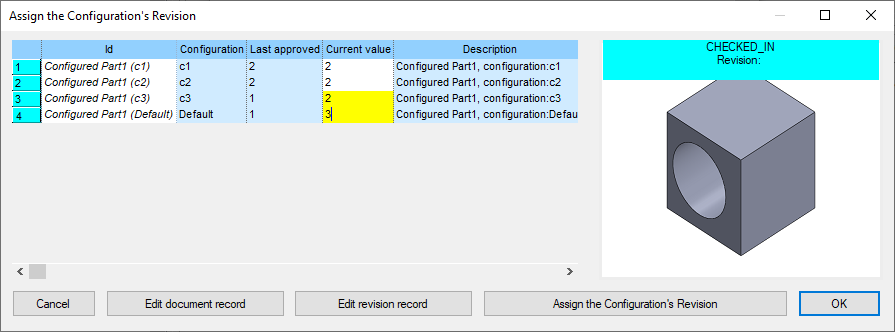
once done, confirm with in both configuration_revision form and Input data form:
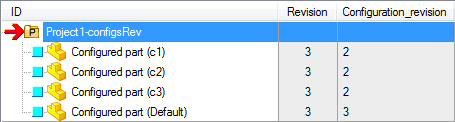
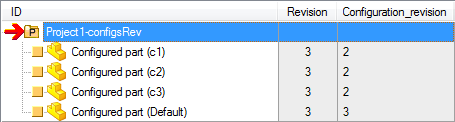
After the approval, this is the final situation:
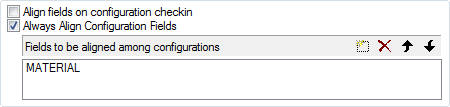
Fields kept aligned across different configurations
DBWorks options for configurations allow you to select the fields that are kept aligned across diferent configurations.
Rename configured records
When renaming a configured document, DBWorks looks for any parent file of any configuration. After the check a Working Set is created containing the records that need to be checked out before proceeding with the Rename operation.
Running SaveWizard when renaming a configuration
It is possible to invoke the Save Wizard when renaming a configuration.
DBWorks intercepts the special configuration name "-" (a single dash character) and starts the Save Wizard for assigning the new configuration name.
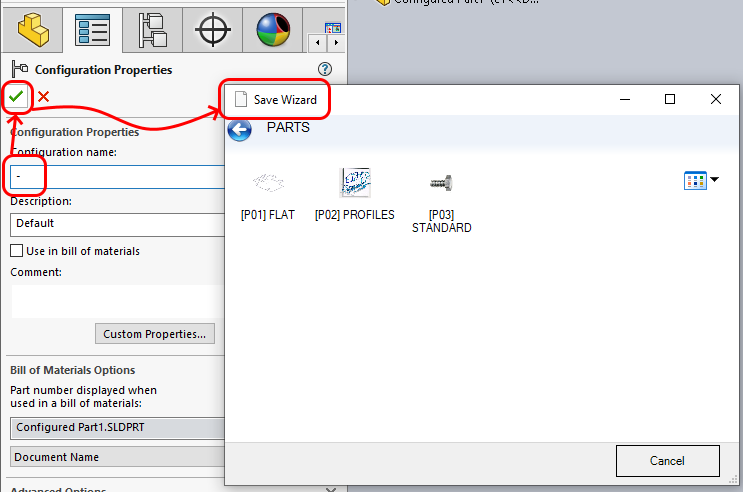
The feature is active only when the following options are active:
•Open/Save→SaveAs→Use Dataentr.LST data entry script on DBWorks 'Save as ...'
•Environment→Configurations→Manage 'Add Configuration' event
•Environment→Configurations→Use 'Dataentr.LST' on 'Add Configuration' event
Delete configured records
A confirmation dialog is displayed after answering OK to the message box:

The dialog is displayed when a configuration is deleted from within an open Solidworks document.
The dialog shows the UsedBy list of the current configured record, to let the designer decide whether to proceed with the deletion of the record:
The preview is available for every document in the UsedBy list.
Plotting of the sheet linked to the component configuration
When plotting in 'single sheet' mode (i.e. option PlotSetup→ Print multiple sheets is unchecked), the PDM looks for a possible match between the 'main' View of a Drawing Sheet and the Component's Configuration to be plotted.
Up to R12 version, the behavior was different so that when plotting with 'single sheet' mode, the first sheet was always plotted, and when working with the 'multiple sheets' mode, all the sheets were always plotted, so there was no way for getting a whole plotting of an assembly with a single click.
Preview of Configuration Specific Sheet in a multi-sheet Drawing
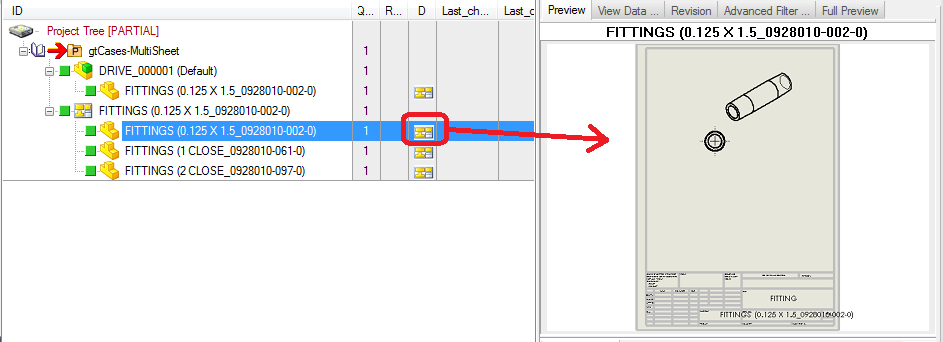
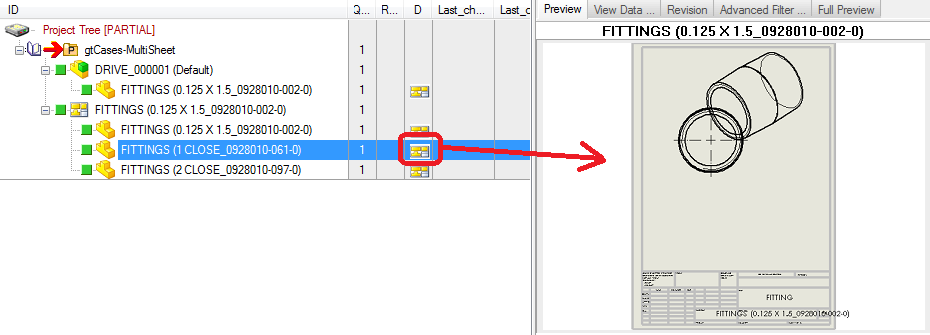
If a model includes several configurations and if it exists a specific drawing for each configuration (in a multisheet drawing), by clikcing the specific record drawing icon (in the Drawings columns of the Tree visualization) it is shown the preview of the specific configuration sheet of the drawing.
Example